This tutorial is part of the Marmalade SDK tutorials collection. To see the tutorials index click here
In our previous tutorial we created created an actor, scene and camera system to automate the handling of game objects for us as well as allow us to create different types of actors derived from a common actor base. This week we are going to take the previous IwGame code base and turn it into a proper game engine. If you just want the code to this tutorial then download it from here.
Cleaning up the Mess
If you take a look at last weeks Main.cpp, you may agree that it just looks static, messy and not very readable. This week we are going to clean up our act and turn IwGame into a real usable game engine. Lets take a quick look at our new Main.cpp to see how much tidying up has been done:
int main()
{
    // Init Game
    Game::Create();
    GAME->Init();

    // Main Game Loop
    while (!s3eDeviceCheckQuitRequest())
    {
        // Update the game
        if (!GAME->Update())
            break;

        // Check for back button quit
        if (IW_GAME_INPUT->isKeyDown(s3eKeyAbsBSK))
            return false;

        // Draw the scene
        GAME->Draw();
    }

    GAME->Release();
    Game::Destroy();

    return 0;
}
Wow, ok, where’s everything gone? our game has been whittled down to initialisation, update, draw and clean-up. Well not quite, the code has gone somewhere, some of it has been integrated into the IwGame engine whilst the game specific code has been moved into a proper game class. Remember last week, we created scenes to manage actors? Well this week we have created a CIwGame class to manage scenes.
IwGame Class for Managing our Game
if you check out the engine code you will notice some new files:
IwGame.cpp
IwGame.h
IwGameImage.cpp
IwGameImage.h
Lets take a quick look at the CIwGame class:
class CIwGame
{
public:
    // Public access for scene iteration
    typedef CIwList::iterator    _Iterator;
    _Iterator                    begin() { return Scenes.begin(); }
    _Iterator                    end()   { return Scenes.end(); }

protected:
    //// Properties
    CIwGameScene*           CurrentScene;        // Scene that has current input focus
    CIwGameScene*           NextScene;           // Scene that we wish to switch focus to
    CIwList<CIwGameScene*>  Scenes;              // A collection of game scenes

public:
    void                    addScene(CIwGameScene *scene);
    void                    removeScene(CIwGameScene* scene);
    void                    removeScene(unsigned int name_hash);
    CIwGameScene*           findScene(unsigned int name_hash);
    CIwGameScene*           findScene(const char* name);
    CIwGameScene*           getScene(int index);
    void                    clearScenes();
    void                    changeScene(CIwGameScene *new_scene);
    bool                    changeScene(unsigned int name_hash);
    //// Properties end

protected:
    uint64                  LastFrameTime;        // The time at which the last frame ended

public:
    virtual void            Init();
    virtual void            Release();
    virtual bool            Update();
    virtual void            Draw();
    virtual void            Save() {}
    virtual void            Load() {}

private:
public:
    void                    SetBackgroundColour(uint8 r, uint8 g, uint8 b, uint8 a);
};
As you can see its basically a class that allows us to add / remove and change scenes. It also provides initialisation, release, update, drawing and save / load functionality.
These methods represent the most basic functionality that I believe any game would need. If you take a look at IwGame.cpp you will notice that there is quite a lot of code in there. Lets take a quick look at what CIwGame::Init() does:
CIwGame’s Init() method carries out some basic Marmalade SDK and game specific initialisation:
void IwGame::Init()
{
    CurrentScene = NULL;
    NextScene = NULL;

    // Initialise Marmalade SDK graphics system and Iw2D module
    IwGxInit();
    Iw2DInit();

    // Initialise the input system
    CIwGameInput::Create();
    IW_GAME_INPUT->Init();

    // Init IwSound
    IwSoundInit();

    // Initialise Marmalade SDK resource manager
    IwResManagerInit();

#ifdef IW_BUILD_RESOURCES
    // Tell resource system how to convert WAV files
    IwGetResManager()->AddHandler(new CIwResHandlerWAV);
#endif

    // Set default background colour
    SetBackgroundColour(0, 0, 0, 0);

    // Get initial time stamp
    LastFrameTime = s3eTimerGetMs();
}
You will notice that much of this code was present in our previous tutorials Main.cpp initialisation code. We have moved it into our CIwGame base so that we have some basic initialisation code that allows us to get our games up and running quickly.
Similarly our CIwGame::Release() method:
void IwGame::Release()
{
    // Clean up scenes
    for (_Iterator it = Scenes.begin(); it != Scenes.end(); ++it)
        delete *it;
    Scenes.clear();

    // Shut down the input system
    IW_GAME_INPUT->Release();
    CIwGameInput::Destroy();

    // Shut down the resource manager
    IwResManagerTerminate();

    // Shutdown IwSound
    IwSoundTerminate();

    // Shut down Marmalade graphics system and the Iw2D module
    Iw2DTerminate();
    IwGxTerminate();
}
The only thing new here is the recursive release of all of the attached scenes
The last method I am going to look at is our CIwGame::Update() method
bool IwGame::Update()
{
// Calculate how long the last game frame took (capped at 60 and 10 fps) - We use this to scale all of our transient variables that rely// upon time so that everything movess at the same rate regardless of our devices frame rate
float dt = (float)(s3eTimerGetMs() - LastFrameTime) / 16.67f;
if (dt < 1.0) dt = 1.0f; if (dt > 6.0f) dt = 6.0f;
LastFrameTime = s3eTimerGetMs();
// Clear the screen
IwGxClear(IW_GX_COLOUR_BUFFER_F | IW_GX_DEPTH_BUFFER_F);
// Update pointer system
IW_GAME_INPUT->Update();
// Update Iw Sound Manager
IwGetSoundManager()->Update();
// Check for scene change
if (NextScene != CurrentScene)
{
// Notify scenes that there is a change of circumstances
if (CurrentScene != NextScene)
{
if (CurrentScene != NULL)
{
CurrentScene->NotifyLostFocus(NextScene);
if (CurrentScene->getAllowSuspend())
CurrentScene->NotifySuspending(NextScene);
}
if (NextScene != NULL)
{
NextScene->NotifyGainedFocus(CurrentScene);
if (NextScene->getAllowSuspend())
NextScene->NotifyResuming(CurrentScene);
}
CurrentScene = NextScene;
}
}
// Update all scenes that are not suspended
for (_Iterator it = Scenes.begin(); it != Scenes.end(); ++it)
{
if (CurrentScene == *it)
{
(*it)->Update(dt);
}
else
{
if (!(*it)->getAllowSuspend())
{
(*it)->Update(dt);
}
}
}
return true;
}
Update() basically does most of what we were doing in our previous tutorials main loop, except that we use the concept of a “current scene”. Because scenes can potentially be overlaid over one another and we do not want to always be processing all scenes within our game, we use the concept of a current scene which has the focus of the player.
Now that we have the ability to change scenes, we ideally need a mechanism for notifying the other scenes that they have been switched to or switched away from, allowing our scenes to carry out processing specific to handle such events.
Another important addition to our game update loop is the measurement of time. At the start of Update() we calculate how much time has passed since Update() was last called. We can use this value to scale all of our transient variables (animations, movement etc..) within our game to ensure that they move in a consistent manner regardless of variations in frame rate. The variable dt holds our scaling factor, which is how much we need scale our transient variables by to ensure that they remain in step with our frame rate. If we did not handle time within our game then animations and movement / spinning etc.. would slow down when our games frame rate drops and increase when our frame rate increases.
Building Our Own Game Class
The idea of the CIwGame class is to provide the most basic functionality required to initialise, clean-up and update / draw our game. In order to create a real game we should derive our own class from CIwGame and add our own game specific code, not forgetting to call the CIwGame base methods so we do not miss out on our already implemented functionality.
In this case we create a class called Game.cpp which is a singleton class that derives from CIwGame and implements Init(), Release(), Update() and Draw() methods. if you take a quick look at Game.cpp you will notice that the game specific code from our old Main.cpp has been moved here.
We also go a step further and remove our dependency on storing references to scenes, images and animations etc, instead opting for finding them within their respective managers as and when needed. For example:
In Game::Update() we have:
CIwGameScene* scene = findScene("GameScene");
if (scene != NULL)
{
    // Get tapped position in our virtual screen space
    CIwFVec2 pos = scene->ScreenToVirtual(IW_GAME_INPUT->getTouch(0)->x, IW_GAME_INPUT->getTouch(0)->y);
    // Find our sprite atlas
    CIwGameImage* image = scene->getImageManager()->findImage("sprites");
    // Find our manic face animation frames
    CIwGameAnimImageFrame* anim = scene->getAnimFrameManager()->getImageFrames(0);

    // Create 10 player actors
    for (int t = 0; t < 10; t++)
    {
        ActorPlayer::Create(pos.x, pos.y, scene, image, anim);
    }
}
Notice how we now search for our game scene, instead of accessing it via the local game_scene variable. We also do the same with image and anim.
This brings me to another new addition to the CIwGame engine.
CIwGameImage and CIwGameImageManager – Managing Images
After I had finished factoring out most of the code from Main.cpp I was left with what to do about the sprite atlas images that my game is going to use. I didn’t really want to be storing pointers to images all over the place that may or may not still exist, this can lead to some nasty and hard to find bugs. instead I opted to create a class that will manage all of the images that my scene allocates. This way we have them all in one central location and the manager can manage their lifetimes for us.
In addition, I thought that I would extend the CIw2DImage class a little by wrapping it up inside the CIwGameImage class, allowing us to add other cool functionality such as on-demand load and eventually streaming from an external web server (future blog will cover this).
So you will find that all instances of CIw2DImage throughout the engine have been replaced with the more manageable CIwGameImage class.
.
An important thing to note about CIwGameImage based images is that they rely on a CIwResGroup resource group, this is to allow them to be loaded on-demand.
To create and add an image to the game engine its a simple case of:
This creates our image based on its resource name and group and adds it to our scenes image manager. Note that the underlying CIw2DImage is not yet created. This gets created when you first call CIwGameImage::getImage2D() (on-demand). You can however force the loading / creation of the underlying CIw2DImage by passing true to addImage():
game_scene->getImageManager()->addImage(“sprites”, Level1Group, true); or by calling the Load() method on the CIwGameImage.
Well that brings us to the end of this tutorial, I’m very rushed this week so I will probably not get the time to create additional tutorials until next week. I did want to create an actual game this week using the engine, but I thought that with the engine tidy up is probably best to do that next week so readers don’t get lost. I may be able to fit a short blog update in early next week covering the wrapping up of Marmalades sample audio engine into IwGame.
If you want the source code that accompanies this tutorial then you can download it from here.
This tutorial is part of the Marmalade SDK tutorials collection. To see the tutorials index click here
In our previous tutorial we created an extensible animation system that allowed us to create discrete frame based image animation as well as other types of animations. This week we will continue on our quest to create an easy to use, extensible cross platform 2D game engine. In order to do this effectively we need to get organised and organised we will be. If you just want the code to this tutorial then download it from here.
Ok, so how do we organise things in a 2D engine? What sort of things do we want our 2D engine to do? Here’s a brief list:
We want sprites and animations obviously, these we already covered in previous tutorials
We want sprite creation / handling to be automated so that we do not have to worry about creating, updating and destroying sprites
We want to define specific types of game objects (players, bombs, aliens, pickups etc..) modelled on a single game object type
We want scenes that contain our game objects, managing their life times and updates
We want cameras that we can move around in our scene to view different parts of the scene.
We want our game objects to recognise when they collide with each other and react to each other
To manage all of the above we are going to create a Camera, Actor, Scene (CAS) system.
Cameras, Actors and Scenes
The camera, actor and scene system (CAS) constitutes the logical implementation of our game engine. The scene represents our finite gaming world, whilst actors represent our individual game objects that live within our gaming world. The scene manages all of our actors for us, taking care of updating them and deleting them when they are no longer needed. The camera represents a view into the gaming world that can be moved around, rotated and scaled to view different parts of the world.
CIwGameActor – Our game objects are really just actors on a stage
Ok, we will begin by taking a look at the CIwGameActor class:
class CIwGameActor
{
protected:
    // Properties
    CIwGameScene*       Scene;                   // Scene that actor lives in
    bool                Used;                    // Used is used when actors pooled to reduce memory fragmentation
    bool                Managed;                 // Marks this actor as being managed by another object so we do not delete it
    unsigned int        NameHash;                // Name of Actor (stored as an hash for speed)
    int                 Type;                    // Type of Actor (use to distinguish beteeen different actor types)
    CIwFVec2            OriginalPosition;        // Original position of actor in the scene (when actor was first spawned)
    CIwFVec2            Position;                // Current position of actor in the scene
    CIwFVec2            Velocity;                // Current velocity of actor
    CIwFVec2            VelocityDamping;         // Dampens the velocity
    float               OriginalAngle;           // Original angle in scene (when first spawned)
    float               Angle;                   // Orientation in scene (degrees)
    float               AngularVelocity;         // Angular velocity
    float               AngularVelocityDamping;  // Angular velocity damping
    float               Scale;                   // Scale
    CIwColour           Colour;                  // Colour
    bool                IsActive;                // Active state of actor
    bool                IsVisible;               // Visible state of actor
    bool                IsCollidable;            // Collidable state of actor
    CIwGameSprite*      Visual;                  // Visual element that represents the actor
    CIwGameAnimManager* VisualAnimManager;       // Visuals animation manager, used to control the actors visual componen animations
    int                 CollisionSize;           // Size of collision area
    CIwRect             CollisionRect;           // Spherical collision size
    float               PreviousAngle;           // Previous updates angle
    CIwFVec2            PreviousPosition;        // Previous updates position
public:
    void                setUsed(bool in_use)                     { Used = in_use; }
    bool                isUsed() const                           { return Used; }
    void                setManaged(bool managed)                 { Managed = managed; }
    bool                isManaged() const                        { return Managed; }
    void                setScene(CIwGameScene* scene)            { Scene = scene; }
    CIwGameScene*       getScene()                               { return Scene; }
    void                setName(const char* name)                { NameHash = IwHashString(name); }
    unsigned int        getNameHash()                            { return NameHash; }
    void                setType(int type)                        { Type = type; }
    int                 getType() const                          { return Type; }
    void                setOriginalPosition(float x, float y)    { OriginalPosition.x = x; OriginalPosition.y = y; }
    CIwFVec2            getOriginalPosition()                    { return OriginalPosition; }
    void                setPosition(float x, float y)            { Position.x = x; Position.y = y; }
    CIwFVec2            getPosition()                            { return Position; }
    void                setOriginalAngle(float angle)            { OriginalAngle = angle; }
    float               getOriginalAngle()                       { return OriginalAngle; }
    void                setAngle(float angle)                    { Angle = angle; }
    float               getAngle()                               { return Angle; }
    void                setVelocity(float x, float y)            { Velocity.x = x;  Velocity.y = y; }
    CIwFVec2            getVelocity()                            { return Velocity; }
    void                setVelocityDamping(float x, float y)     { VelocityDamping.x = x;  VelocityDamping.y = y; }
    void                setAngularVelocity(float velocity)       { AngularVelocity = velocity; }
    float               getAngularVelocity() const               { return AngularVelocity; }
    void                setAngularVelocityDamping(float damping) { AngularVelocityDamping = damping; }
    void                setScale(float scale)                    { Scale = scale; }
    float               getScale() const                         { return Scale; }
    void                setColour(CIwColour& colour)             { Colour = colour; }
    CIwColour           getColour() const                        { return Colour; }
    void                setActive(bool active)                   { IsActive = active; }
    bool                isActive() const                         { return IsActive; }
    void                setVisible(bool visible)                 { IsVisible = visible; }
    bool                isVisible() const                        { return IsVisible; }
    void                setCollidable(bool collidable)           { IsCollidable = collidable; }
    bool                isCollidable() const                     { return IsCollidable; }
    void                getVisual(CIwGameSprite* visual)         { Visual = visual; }
    CIwGameSprite*      getVisual()                              { return Visual; }
    void                setVisualAnimManager(CIwGameAnimManager* anim_manager) { VisualAnimManager = anim_manager; }
    CIwGameAnimManager* getVisualAnimManager()                   { return VisualAnimManager; }
    void                setCollisionRect(CIwRect& rect);
    CIwRect             getCollisionRect() const                 { return CollisionRect; }
    int                 getCollisionSize() const                 { return CollisionSize; }
    void                setPreviousPosition(float x, float y)    { PreviousPosition.x = x; PreviousPosition.y = y; }
    CIwFVec2            getPreviousPosition() const              { return PreviousPosition; }
    void                setPreviousAngle(float angle)            { PreviousAngle = angle; }
    float               getPreviousAngle() const                 { return PreviousAngle; }
    // Properties end

    CIwGameActor() : Used(false), Managed(false), Scene(NULL)    { Reset();  }
    virtual            ~CIwGameActor();

    // Reset the actor (used by memory pooling systems to save actor re-allocation, usually called after re-allocation to reset the object to a default state)
    virtual void    Reset();

    // Update the actor (called by the scene every frame)
    virtual bool    Update(float dt);

    // Update the visual that represents this actor on screen
    virtual bool    UpdateVisual();

    // Actors are responsible for carrying out there own collision checks. Called after all actor updates to check and resolve any collisions
    virtual void    ResolveCollisions() = 0;

    // NotifyCollision is called by another actor when it collides with this actor
    virtual void    NotifyCollision(CIwGameActor* other) = 0;

    // Call to see if this actor was tapped by the user
    virtual bool    CheckIfTapped();

    // Checks to see if another actor is colliding with this actor
    bool            CheckCollision(CIwGameActor* other);
};
Hmm, I agree, its a bit on the BIG side, but if you look carefully our CIwGameActor class provides a lot of functionality built in, which in the long run will save us lots of coding time. Again, you never create a direct instance of this class as it is abstract, you dervice your own different actor types from CIwGameActor.
We handle a lot of functionality with this base class including:
Position, orientation, scale, angular velocity, velocity damping and angular velocity damping – Physical attributes of our actor
Visibility state, active state, collide-able state – Used to hide, disable and mark as collide-able objects
Object type identifier, object name (used to search for specific types of objects or named objects). These are very useful as they allow you to create actors and forget about them, no need to store a pointer to them to reference them later, you simply ask the scene to find the object by name or type to access it again.
Visual, colour and animation manager – We will use these variables to give our object a visual representation in our world
Collision size and collision rectangle are used for collision detection
Note that eventually we will be replacing the physical components in this class with the Box2D physics engine.
I would like to point out a few important methods in this class:
Update() – When you implement your own actor types you override this method to provide the implementation of your game object specific behaviour. For example, if you create a player actor then you may check and move the player, maybe fire of different animations / sound effects. The default implementation of Update() will update the basic physics for the actor, any attached playing animations as well as add the actor to the collision check list if it is collision enabled. You should call CIwGameActor::Update() in your own Update() implementation, if you want to keep this functionality.
UpdateVisual() – You do not generally need to override and provide your own implementation of this method as this method will automatically update the actors associated visual for you.
ResolveCollisions() – When the scene has finished calling all of its actor updates it will then call ResolveCollisions() on each of the actors. You provide the implementation of this method to check for collisions with other actors. We implement collision checking this way as it allows us to optimise which collision checks to make. For example, lets say we are creating the old game Asteroids. The scene consists of 10 asteroids, 10 bullets and our ship. Our ship actor only needs to check for collisions with the asteroids and not the bullets or the ship.
NotifyCollision() – When an actor collides with another actor we need some mechanism for letting the other actor know that we have collided with them. When an actor collides with this actor it will call its NotifyCollision() method to let it know, this gives the actor a chance to respond to the collision event
CheckIfTapped() – Whilst this method is not currently implemented it will eventually allow us to check and see if the actor was tapped by the user. This is good for allowing the user to interact with our actors
CheckCollision() – Helper method for checking if two actors bounding circles overlap
One important note about Actors is there coordinate system. As far as our scene is concerned, the worlds centre is the the middle of the scene (0, 0), which corresponds to the centre of the screen for a scene that has not been moved.
CIwGameActorImage – An image based actor helper class
I suspect that many of you will want to simply get up and running quickly with your game and not have to worry about deriving your own actor class. With that in mind I created an image based actor that allows you to quickly set up a basic image based actor, complete with a sprite atlas, a base animation and a size. Lets take a quick look at the code in that class as I thin it will prove helpful when it comes to you designing your own actors:
bool CIwGameActorImage::Init(CIwGameScene* scene, CIw2DImage* image, CIwGameAnimImage* anim, int width, int height)
{
    // Reset the actor
    CIwGameActor::Reset();

    // Set the scene
    Scene = scene;

    // Create sprite
    if (image != NULL)
    {
        CIwGameBitmapSprite* sprite = new CIwGameBitmapSprite();
        if (sprite == NULL)
            return false;

        // Set sprite image
        sprite->setImage(image);
        sprite->setDestSize(width, height);

        // Set sprite as visual
        Visual = sprite;

        // Add sprite to the sprite manager so it can be managed and drawn
        Scene->getSpriteManager()->addSprite(sprite);
    }

    // Create an animation manager and add the animation to it
    if (anim != NULL)
    {
        VisualAnimManager = new CIwGameAnimManager();
        VisualAnimManager->setUpdateAll(false);
        if (VisualAnimManager == NULL)
            return false;
        VisualAnimManager->addAnimation(anim);

        // Set the first animation in the animation manager as the current animation
        VisualAnimManager->setCurrentAnimation(0);
    }

    return true;
}
Our Init() method is pretty simple, it resets the actors internal data to default, creates a bitmapped sprite visual from the image and actor size then creates an animation manager and adds our default animation to it.
bool CIwGameActorImage::UpdateVisual()
{
    if (CIwGameActor::UpdateVisual())
    {
        // Update the sprite
        if (VisualAnimManager != NULL)
        {
            // Get the animations current image frame data and copy it to the bitmapped sprite
            CIwGameAnimImage* anim = (CIwGameAnimImage*)VisualAnimManager->getAnimation(0);
            if (Visual != NULL)
                ((CIwGameBitmapSprite*)Visual)->setSrcRect(anim->getCurrentFrameData());
        }

        return true;
    }

    return false;
}
Our UpdateVisual() method simply moves the image animation frame data to our sprite to update its image.
Unfortunately you will still need to derive your own actor from CIwGameActorImage() in order to create an actor object
CIwGameScene – A place for actors to play
The scene is the place where we put actors. When you add an actor to a scene the scene will take care of calling game logic update and visual update methods and building a list of potential colliding actors, as well as cleaning up the actors when the game is finished.
The scene also takes care of updating the camera and fitting our game across different sized screens with different aspect ratios. Look as the scene as the driving force that manages much of our game processes for us, so we can get on with coding up cool actors and other game logic.Lets take a quick look at the CIwGameScene class:
class CIwGameScene
{
public:
    // Public access to actor iteration
    typedef CIwList::iterator _Iterator;
    _Iterator                begin() { return Actors.begin(); }
    _Iterator                end() { return Actors.end(); }

    // Properties
protected:
    CIwGameSpriteManager*    SpriteManager;        // Manages sprites for the whole scene
    CIwGameAnimFrameManager* AnimFrameManager;     // Manages the allocation and clean up of animation frames
    unsigned int             NameHash;             // Hashed name of this scene
    CIwVec2                  ScreenSize;           // Native screen size
    CIwVec2                  VirtualSize;          // The virtual size is not the actual size of the scene. but a static pretend size that we can use to render to without having to cater for different sized displays
    CIwMat2D                 VirtualTransform;     // Virtual transform is used to scale, translate and rotate scene to fit different display sizes and orientations
    CIwMat2D                 Transform;            // Scene transform
    CIwList                  Actors;               // Collection of scene actors
    CIwRect                  Extents;              // Extents of scenes world
    CIwGameCamera*           Camera;               // Current camera
    CIwGameActor**           Collidables;          // List of collidable objects built this frame
    int                      MaxCollidables;       // Maximum allowed collidables
    int                      NextFreeCollidable;   // Points to next free slot in sollidables list pool
public:
    CIwGameSpriteManager*    getSpriteManager()                       { return SpriteManager; }        // Manages sprites for the whole scene
    CIwGameAnimFrameManager* getAnimFrameManager()                    { return AnimFrameManager; }     // Manages the creation and clean up of animation frames
    void                     setName(const char* name)                { NameHash = IwHashString(name); }
    unsigned int             getNameHash()                            { return NameHash; }
    CIwVec2                  getScreenSize() const                    { return ScreenSize; }
    CIwVec2                  getVirtualSize() const                   { return VirtualSize; }
    void                     setVirtualTransform(int required_width, int required_height, float angle, bool fix_aspect = false, bool lock_width = false);
    CIwMat2D&                getVirtualTransform()                    { return VirtualTransform; }
    CIwMat2D&                getTransform()                           { return Transform; }
    void                     addActor(CIwGameActor *actor);
    void                     removeActor(CIwGameActor* actor);
    void                     removeActor(unsigned int name_hash);
    CIwGameActor*            findActor(unsigned int name_hash);
    CIwGameActor*            findActor(int type);
    void                     clearActors();
    void                     setExtents(int x, int y, int w, int h)   { Extents.x = x; Extents.y = y; Extents.w = w; Extents.h = h; }
    CIwRect                  getExtents() const                       { return Extents; }
    void                     setCamera(CIwGameCamera* camera)         { Camera = camera; }
    CIwGameCamera*           getCamera()                              { return Camera; }
    bool                     addCollideable(CIwGameActor* actor);
    CIwGameActor**           getCollidables()                         { return Collidables; }
    int                      getTotalCollidables() const              { return NextFreeCollidable; }
    // Properties end
private:
public:
    CIwGameScene() : Collidables(NULL), SpriteManager(NULL), AnimFrameManager(NULL), NextFreeCollidable(0), Camera(NULL), MaxCollidables(0) {}
    virtual ~CIwGameScene();

    // After creating the scene, call Init() to initialise it, passing the maximum number of actors that you expect can collide
    virtual int        Init(int max_collidables = 128);

    // Update() will update the scene and all of its contained actors
    virtual void       Update(float dt);

    // Draw() will draw all of the scenes actors
    virtual void       Draw();

    // Event handlers
};
Yep, I know, its another biggy, but again it supports lots of cool functionality such as:
Handles all of our actors
Handles our camera
Fits our game to any sized screen / any aspect ratio using a virtual size display
Tracks potential colliders
Manages sprites and animation frames
You will be happy to know that you do not need to derive you own scene from CIwGameScene() and you will generally instantiate and work with a version of this class directly. Our scene class does not however need a little setting up initially. Heres asome basic code on how to set up a scene:
I think at this point I need to explain something about the virtual screen system that I use to ease the pain of cross platform development
Using a Virtual Screen Size to Target Any Sized Screen
There are quite a few different solutions knocking around that solve the problem of targeting our game at a variety of different screen resolutions, including:
Scale to fit – This is a very simple scaling of the scene to match the display resolution. This is quick and simple but your game can appear stretched or squashed on displays that have a different aspect ratio to your game aspect ratio
Bordered – Another simple system that displays your game at its native resolution but with a border around it to fill the space that your game doesn’t cover. I don’t like this method as you are giving up too much screen real-estate
Unlimited screen size – This method is quite complex and involves rendering enough stuff on screen at a 1:1 pixel resolution to cover the entire screen. This disadvantage (and advantage, depends how much time you have on your hands) of using this method is that you would need to display a much larger area of the gaming world on a higher resolution display than on a lower resolution display.
Virtual screen – This method uses a pretend screen size that best fits many resolutions (800 x 512 / 512 x 800 is a good choice). Your game renders everything as though it is rendering to the virtual size and not the actual phones / tablets native screen size. You later scale and translate the virtual canvas to fit onto the native phones screen resolution.
We could use any of these methods in our game, but I am going to use a virtual canvas because it is the most convenient. Our CIwGameScene class has a method called setVirtualTransform() which will set this up for us, so that all of our actors will render to the virtual screen size. Heres how to use the method:
required_width, required_height – This is the width and height we would like to use for our virtual screen
fix_aspect – Tells the scene to fix the aspect ratio of the scene to match the native screen aspect ratio
lock_width – Tells the scene to fix eth aspect ratio based on the width of the display instead of the height
CIwGameCamera – Our View Into the Gaming World
Many games can get away with simply one visible screen of information (such as Asteroids, Space Invaders, Pac-man etc..), but other types of games such as platformers, sports games, strategy games etc.. require the ability to move around the gaming world in some fashion. This is usually accomplished by using a camera that can move our point of view within the world. CIwGameScene supports the attachment of a camera to allow us to move our view around a larger virtual world. Lets take a quick look at the CIwGameCamera class:
class CIwGameCamera
{
public:
// Properties
protected:
unsigned int NameHash; // Hashed name of this camera
CIwMat2D Transform; // The combined camera transform
CIwFVec2 Position; // Position of view within scene
float Scale; // Cameras scale
float Angle; // Cameras angle
bool TransformDirty; // Marks camera transform needs rebuilding
public:
void setName(const char* name) { NameHash = IwHashString(name); }
unsigned int getNameHash() { return NameHash; }
CIwMat2D& getTransform() { return Transform; }
void setPosition(float x, float y) { Position.x = x; Position.y = y; TransformDirty = true; }
CIwFVec2 getPosition() const { return Position; }
void setScale(float scale) { Scale = scale; TransformDirty = true; }
float getScale() const { return Scale; }
void setAngle(float angle) { Angle = angle; TransformDirty = true; }
float getAngle() const { return Angle; }
void forceTransformDirty() { TransformDirty = true; }
bool isTransformDirty() const { return TransformDirty; }
// Properties end
private:
public:
CIwGameCamera() : Position(0, 0), Scale(1.0f), Angle(0), TransformDirty(true) {}
virtual ~CIwGameCamera() {}
// Updates the camera
virtual void Update();
// Event handlers
};
Ah much better, nice and short. As you can see the camera class is quite simple, supporting position, rotation and scaling of the view. To use a camera we simply create one and attach it to the Scene, the scene will then follow the camera around. To see different areas of the game world we simply move the camera around and all of our actors will move along with it.
Cool, I’m now done with explaining the new classes. I’ve been battling with trying to keep this article short and to the point, but alas I don’t think its quite happening for me.
What’s changed in IwGame Code
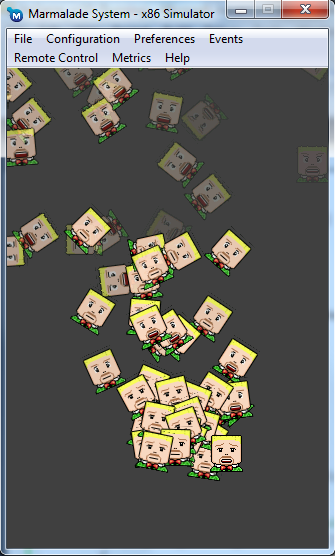
Marmalade SDK - Actor, Scene Camera Example
I will be honest, A LOT has changed since the previous article and I will try my best to walk through most of it; this is the main problem with an engine that’s in-development.
Firstly I have had to make quite a few changes to our previous classes including:
CIwGameAnim – CIwGameAnimFrameManager now handles the life time of animation frames and not the separate animation classes themselves
CIwGameAnimFrameManager – Added the ability to retrieve allocated animation frames
CIwGameAnimManager – setCurrentAnimation() never actually set the current animation (oops, fixed)
CIwGameBitmapSprite – Source rectangle can now be set from a CIwGameAnimImageFrame (helper method just saves some typing)
CInput – This class has been renamed to CIwGameInput to fit in with the frameworks naming conventions. CIwGameInput is now a singleton and not declared as a global variable (I’m not generally a fan of global variables and prefer to use singletons for systems that there will only ever be one instance of). If you do not know what a singleton is then think of it as a global instance of a class.
Now onto the changes to Main.cpp. Note that I won’t be going into minor details such as “Oh I included these header files”.
We now accesss input using a singleton, here we have to create the IwGameInput singleton and then initialise it:
// Initialise the input system
CIwGameInput::Create();
IW_GAME_INPUT->Init();
Note that IW_GAME_INPUT is just a macro that calls CIwGameInput::getInstance() (I find it more readable to use the macro)
Next, we create and initialise a scene then create a camera and attach that to the scene
// Create a scene
CIwGameScene* game_scene = new CIwGameScene();
game_scene->Init();
game_scene->setVirtualTransform(VIRTUAL_SCREEN_WIDTH, VIRTUAL_SCREEN_HEIGHT, 0, true, false);
// Create a camera and attach it to the scene
CIwGameCamera* game_camera = new CIwGameCamera();
game_scene->setCamera(game_camera);
Next, we allocate a bunch of image animation frames for our manic face animation. Take note that we now allocate them through the game scenes animation manager. This ensures that the game scene later cleans them up for us.
// Allocate animation frames for our player
CIwGameAnimImageFrame* anim_frames = game_scene->getAnimFrameManager()->allocImageFrames(8, 36, 40, 0, 0, 512, 40, 512);
Within our main loop we check for the player tapping the screen and if they do we explode 10 sprites into the scene at the tapped position:
if (IW_GAME_INPUT->getTouchCount() > 0)
{
    if (!PrevTouched)
    {
        // Get tapped position in our virtual screen space
        CIwFVec2 pos = game_scene->ScreenToVirtual(IW_GAME_INPUT->getTouch(0)->x, IW_GAME_INPUT->getTouch(0)->y);

        // Create 10 player actors
        for (int t = 0; t < 10; t++)
        {
            // Create and set up our face animation
            CIwGameAnimImage* face_anim = new CIwGameAnimImage();
            face_anim->setFrameData(anim_frames, 8);
            face_anim->setLooped(-1);
            face_anim->setPlaybackSpeed(0.2f);
            face_anim->Start();

            // Create player actor
            ActorPlayer* player = new ActorPlayer();
            player->Init(game_scene, sprites_image, face_anim, 36, 40);
            player->setName("Player");
            player->setPosition(pos.x, pos.y);

            // Add player actor to the scene
            game_scene->addActor(player);
        }
    }
    PrevTouched = true;
}
else
    PrevTouched = false;
Note that because we are now dealing with a virtual screen resolution and not the actual native screen resolution, our tap coordinates need converting to virtual screen coordinates. We achieve that using the ScreenToVirtual() method of the CIwGameScene class.
Also note that we still have to create our face_anim animation, but this time we pass it to the ActorPlayer Init() method, so that the actor / scene can take of its management.
Next we update and draw the scene:
// Update the scene
game_scene->Update(1.0f);

// Draw the scene
game_scene->Draw();
Lastly we clean-up the camera, scene and input system:
// Safely clean up the camera
if (game_camera != NULL)
    delete game_camera;

// Safely cleanup game scene
if (game_scene != NULL)
    delete game_scene;

// Shut down the input system
IW_GAME_INPUT->Release();
CIwGameInput::Destroy();
ActorPlayer our First Derived Actor
ActorPlayer is our very first user defined CIwGameActor based actor and because we derived it from CIwGameActorImage (and in turn CIwGameActor) we get all of the useful functionality defined in those classes.
The only parts of our ActorPlayer that’s worth drawing out are the Init() and Update() methods:
Our Init() method calls the base CIwGameActorImage::Init() method to initialise the base CIwGameActorImage part of the actor. We then set up a fade timer and random velocities for position and spin.
bool ActorPlayer::Update(float dt)
{
    // If fade timer has timed out then delete this actor
    if (FadeTimer.HasTimedOut())
    {
        return false;    // Returning false tells the scene that we need to be removed from the scene
    }

    // Calculate our opacity from time left on fade timer
    int opacity = FadeTimer.GetTimeLeft() / 2;
    if (opacity > 255) opacity = 255;
    Colour.a = opacity;

    return CIwGameActorImage::Update(dt);
}
Our Update() method is called every game loop by the scene system, so keep in mind that this code will be called every single game frame. Firstly we check to see if the fade timer has timed out and if it has then we return false to the the scene system (this causes the actor to be removed from the scene / game) after the scene has finished updating all actors.
We then calculate the opacity of our actor from the time left on the fade timer which causes the actor to fade out of existence.
And that’s about it for this article, hope that most of your managed to stay awake, long drawn out technical stuff can send the best of us to sleep, especially if read on a few hours sleep, which is usually the case for us programmer types. The source code that accompanies this article can be downloaded from here
I’m quite happy with this blog as it marks the start of a real usable cross platform game engine that we can now build upon. In our next tutorial we are going to cover upgrading the engine to include some very basic collision detection and response whilst building a small game using the engine to show working collision. We will also cover handling frame rate variations and putting some audio in there. Hopefully I will get the time to do that this weekend.
That’s it for now and don’t forget HTML 5 is evil! (Just kidding, I got a book on it the other day and it looks quite good, think that I may use it to spruce up my blog)
A new minor update of the Marmalade SDK has been released. Here are the changes:
IwGx: Added [GX] DisableFBOSurface icf option to allow disabling this functionality on devices which do not or poorly support FBO surfaces.
Android: Fix s3eKeyboardSetInt(S3E_KEYBOARD_GET_CHAR) having incorrect behaviour after user closes soft-keyboard with back key.
Android: Fix for s3eWebView extension crashing in certain circumstances.
Jusr a few fixes really. The most exiting thing about this release is the version number 5.1.9, that’s the version prior to the big 5.2 update that many of us Marmaladians are eagerly awaiting 🙂
This tutorial is part of the Marmalade SDK tutorials collection. To see the tutorials index click here
Had flu all week and now I’ve been afflicted with a chest infection so it’s been a pretty miserable week. At least the news of our game BattleBallz Chaos being shown at the Blackberry Devcon 2011 lifted the old spirits.
In the last tutorial we covered basic sprites and more to the point bitmapped sprites. We began to create a basic API called IwGame which will eventually serve as our game engine framework that we can all hopefully build cool games around (that is once we have weeded all of my bugs out 🙂 ). The idea this week is to get those sprites animating (aside from rotating, scaling and moving), we want the image of our sprite to change. My plan for this week was to build a very basic animation class that we could use to animate our bitmap frames. Well my intentions were good and I started out creating a basic image frame animation class but decided to scrap it and create a more extensive animation system that we can use for more than just image animations. If you just need the code then you can grab it from here, otherwise please feel free to read on.
What is an Animation System?
In the context of this article, an animation system is a bunch of classes that deal with animating specific components. These components could be anything from a simple one dimensional variable that represents speed or a two dimensional variable such as a vector that represents the players position to something a little more complex such as a rectangular area of space that represents a frame in an image animation
How could an animation system be useful to us? Well we could use it to animate the texture that appears on a sprite giving it personality (a face that smiles, cries or laughs for example), or we could animate an objects position and rotation to follow a specific path around the game world. We could even animation a list of instructions or game object states using a discrete animation to give the impression that the object is intelligent.
Here are a few terms that I use during this article:
Animation – Refers to the complete animation including all its frames, its playback rate, callbacks etc..
Frame – Refers to a single discrete component of the animation, this could be a particular image, position or velocity etc..
Frame Index – Refers to the position of a particular animation frame in an array of animation frames
An Extensible Animation System – IwGameAnim
Our new animation system IwGameAnim is built around the CIwGameAnim class. This class serves as a general purpose abstract class that we can derive custom animation types from. In this weeks code we have created 3 animation classes from CIwGameAnim:
CIwGameAnimImage – A rectangular bases image animation
CIWGameAnimFloat – A single floating point variable animation (useful for animating one dimensional components such as angle, speed and distance)
CIwGameAnimFVec2 – A 2D floating point vector variable animation (useful for animating two dimensional components such as velocity and position)
Its important to note at this point that I have not fully tested this code yet. I only spent a few hours writing it and testing it (time constraints), but be certain that as we use more of the animation system in our tutorials it will get fully tested eventually.
We are not going to carry out a lot of in-depth analysis of the code this seek as i want to move the Marmalade SDK tutorials series tutorials along faster, believe it or not creating these tutorials takes up a fair amount of time (although I do thoroughly enjoy writing them). That said lets take a quick look at the CIwGameAnim class:
class CIwGameAnim
{
    // Properties
protected:
    bool                Playing;                     // Current playing state
    float               CurrentFrame;                // Current animation frame
    float               PlaybackSpeed;               // Rate at which to playback animation
    int                 FrameCount;                  // Total number of animation frames in the animation
    bool                FrameHasChanged;             // Set to true when a frame has changed
    bool                Looping;                     // True if the animation loops
    int                 NumLoops;                    // Total number of loops played back so far
    int                 MaxLoops;                    // Maximum number of loops before animation stops (-1 to play forever)
    int                 PlayDelayMs;                 // Amount of time to wait before starting animation
    CIwGameCallback     StartedCallback;             // Callback which is called when the animation starts playing
    CIwGameCallback     StoppedCallback;             // Callback which is called when the animation stops playing
    CIwGameCallback     LoopedCallback;              // Callback which is called when the animation loops
public:
    void                setPlaybackSpeed(float speed)                { PlaybackSpeed = speed; }
    bool                hasFrameChanged() const                      { return FrameHasChanged; }
    void                setPlayDelay(int delay_ms)                   { PlayDelayMs = delay_ms; }
    void                setStartedCallback(CIwGameCallback callback) { StartedCallback = callback; }
    void                setStoppedCallback(CIwGameCallback callback) { StoppedCallback = callback; }
    void                setLoopedCallback(CIwGameCallback callback)  { LoopedCallback = callback; }
    void                setLooped(int num_loops);
    void                setCurrentFrame(float frame);
    float               getCurrentFrame() const        { return CurrentFrame; }
    void                Start()                        { Playing = true;  if (PlayDelayMs != 0) PlayDelay.setDuration(PlayDelayMs); }
    void                Stop()                         { Playing = false; }
    bool                isPlaying() const              { return Playing; }
    void                Restart();
    // Properties End
protected:
    CIwGameTimer        PlayDelay;                    // Timer used to time start of animation

public:
    CIwGameAnim() :     Playing(false), CurrentFrame(0), PlaybackSpeed(0), FrameHasChanged(true), Looping(false), NumLoops(0), MaxLoops(0), PlayDelayMs(0),
                        StartedCallback(NULL), StoppedCallback(NULL), LoopedCallback(NULL) {}
    virtual ~CIwGameAnim() {}

    virtual void        Release() = 0;
    virtual bool        Update(float dt);
};
Below is a brief description of the classes properties:
Playing – Marks the animation as playing or stopped
CurrentFrame – The current animation frame index (think of the integer part of this variable as the frame number of the animation frame we are currently seeing)
PlaybackSpeed – The rate at which to play back the animation, a value of 1.0f / davice_frame_rate would play the animation back at one animation frame per second (quite slowly in other words)
FrameCount – Total number of frames in this animation
FrameHasChanged – Marked true when the animation switches from one animation frame to the next
Looping – True if this animation loops when it reaches the end
NumLoops – The total number of times the animation has looped around
MaxLoops – The maximum number of times the animation is allowed to loop before stopping (a value of -1 means loop forever)
PlayDelayMs – This can be used to delay the animation playing at the start. This can be useful if you want to fire off a group of animations at the same time, but have them start at different times
StartedCallback – This callback (that you supply) will be called when the animation starts to play
StoppedCallback – This callback (that you supply) will be called when the animation stops playing naturally (not when Stop() is called)
LoopedCallback – This callback (that you supply) is called each time the animation reaches its end and loops to the start again
You never directly create an animation from this class, instead you can derive your own animation type from this class or use one of those already provided.
Bitmap Image Animation – IwGameAnimImage
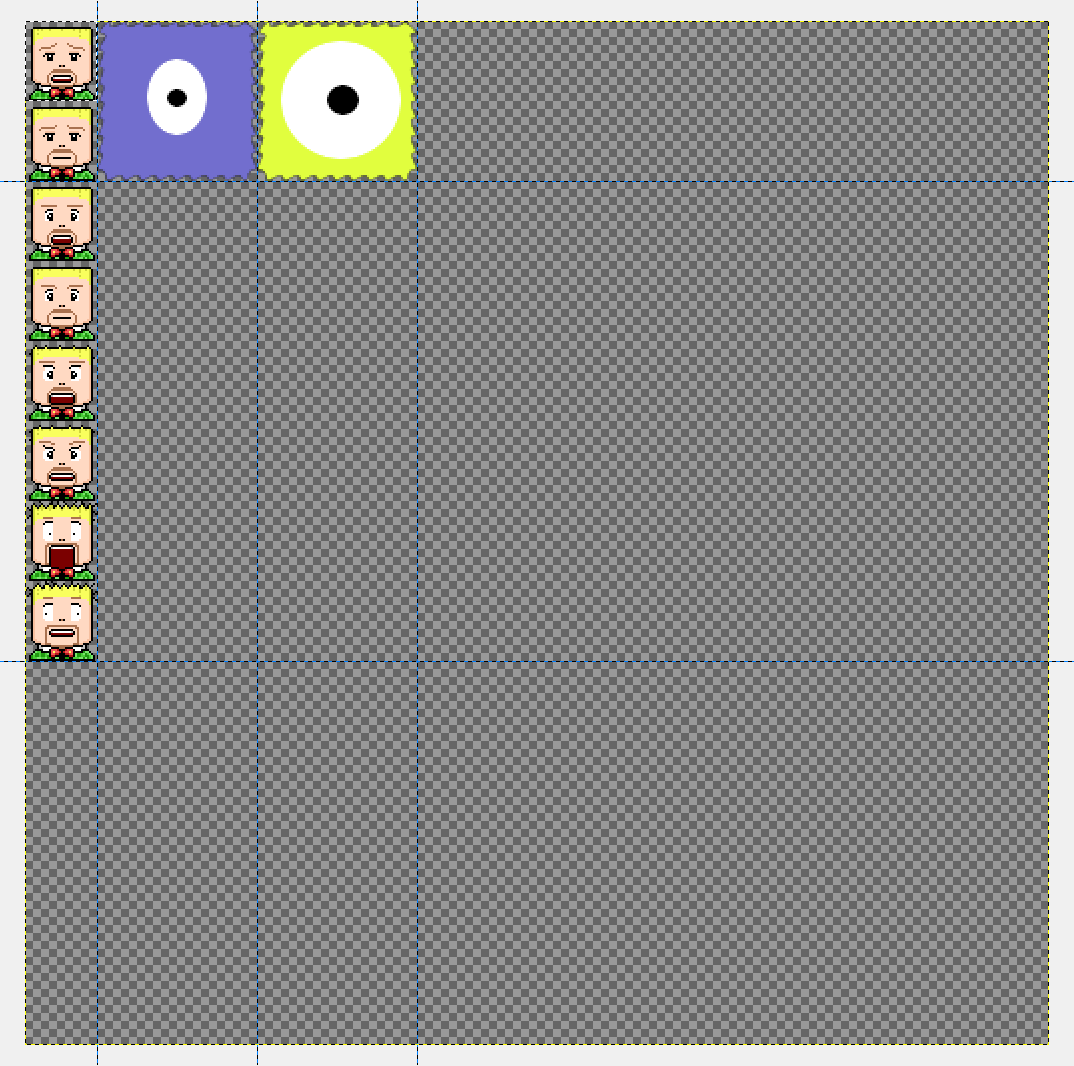
Image animation in our game engine involves displaying different image frames one after the other to give the impression of giving personality to our sprite based objects. We store all of our animations on a sprite atlas (also known as a sprite sheet), which looks something like this:
Example sprite atlas / sheet
A sprite atlas is basically a large image that contains a group of other images. To create an image animation we simply display different portions of the sprite atlas.
Bitmap animations are handled by the CIwGameAnimImage class. The CIwGameAnimImage class looks like this:
class CIwGameAnimImage : public CIwGameAnim
{
protected:
    CIwGameAnimImageFrame*  Frames;                // This class takes over management of Frames memory
public:
    CIwGameAnimImage() :    CIwGameAnim(), Frames(NULL) {}
    virtual ~CIwGameAnimImage()    { Release(); }

    void                    Release();
    CIwGameAnimImageFrame*  getCurrentImageFrame() const { if (CurrentFrame >= 0) return Frames + (int)CurrentFrame; return NULL; }
    void                    setFrameData(CIwGameAnimImageFrame* frames, int count) { Frames = frames; FrameCount = count; }
};
The class itself is very basic, it allows you to set the frame data and number of frames using setFrameData() and get the current frame using getCurrentImageFrame(). We will take a look how to use this class a little later on.
CIWGameAnimFloat and CIwGameAnimFVec2 will be discussed in more depth in a separate article that deals with animating in-game objects.
Once we begin building our game we are going to end up with many animations of a variety of types, animating images, paths for objects, spinning slick user interfaces and so on. It’s usually a good idea to have some class that can oversee the creation and tracking of this kind of information. In this case we use the CIwGameAnimFrameManager to help us create blocks of animation frames
This class provides us with the following functions for allocating blocks of frames:
float* allocFloatFrames(int count);
CIwFVec2* allocFVec2Frames(int count);
CIwGameAnimImageFrame* allocImageFrames(int count);
CIwGameAnimImageFrame* allocImageFrames(int count, int frame_w, int frame_h, int start_x, int start_y, int pitch_x, int pitch_y, int image_width);
The second version of allocImageFrames() is a helper method that will auto-generate a group of image animation frames for a sprite atlas. The parameters are:
count – Number of frames to generate
frame_w, frame_h – Width and height of each animation frame
start_x, start_y – Upper left hand corner of first animation frame
pitch_x, pitch)y – The horizontal and vertical spacing between frames
image_width – Width of the sprite atlas
Managing Animations – CIwGameAnimManager
It would be great to be able to just create a bunch of animations and have something to automatically update them all for us without having to track each one individually, this is where CIwGameAnimManager comes in. CIwGameAnimManager allows us to add a bunch of animations to it and the manager will manage the updating and cleaning up of the animations and all of their frames for us.
It would also be cool if we had an object that had a collection of different animations that it could play to depict it doing different actions, such as running, walking, sleeping, falling etc.. CIwGameAnimManager allows us to add all of these animations and then select which animation is the currently active animation. Switching animations will stop the current animation and set the next one off playing.
The default behaviour of a freshly created CIwGameAnimManager object is to update all animations within the manager and not just the currently playing animation. To switch the manager into tracking and playing only the current animation call setUpdateAll(false).
What’s changed in the example code
Note that our project is now called IwGame and future game engine examples will retain this name.
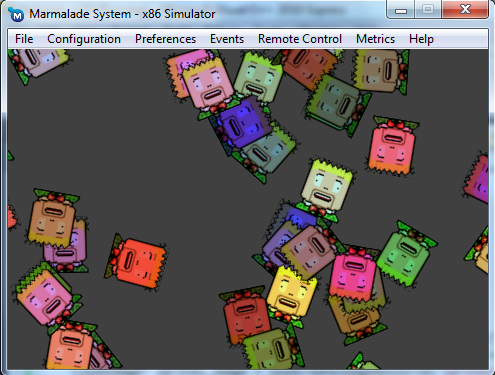
If you build and run the IwGame project you will see 100 sprites spinning around on the screen, but the difference will be that the sprite is of a face animating manically,.
IwGame Marmalade SDK Tutorial Example
In terms of assets, we now have a single sprite atlas containing all of our sprites called sprites.png located in the data folder. We have also updated our Leve1l.group group file to include just the sprites.png file into our deployment archive.
We have added four new files to our MKB file:
IwGameAnim.cpp
IwGameAnim.h
IwGameUtil.cpp
IwGameUtil.h
IwGameAnim contains our new animation classes, whilst IwGameUtil contains a collection of utility classes, types and constants. The only class we really use from IwGameUtil is the CIwGameTimer, which is a software based polled timer that allows us to time events. We use this to delay the start of animations in the animation system. We also use the CIwGameCallback to define a callback function, although we are not using callbacks in this example, we will use them in the future to activate events such as sound playback
And without further ado, lets take a quick look at Main.cpp to see whats changed:
The first thing is the inclusion of the IwGameAnim.h header file
The next thing is the removal of loading test1 and test2 resources and the addition of loading our sprite atlas sprites.png instead:
The next change is the creation of our animation frames and the animation itself:
// Create an image frame manager (manages allocation of our animation frames)
CIwGameAnimFrameManager* anim_frame_manager = new CIwGameAnimFrameManager();
// Auto create a 8 frames of animation 36x40 pixels in size
CIwGameAnimImageFrame* anim_frames = anim_frame_manager->allocImageFrames(8, 36, 40, 0, 0, 512, 40, 512);
// Create and set up our face animation
CIwGameAnimImage* face_anim = new CIwGameAnimImage();
face_anim->setFrameData(anim_frames, 8);
face_anim->setLooped(-1);
face_anim->setPlaybackSpeed(-0.1f);
face_anim->Start();
Its not a complex piece of code, just a bit wordy. Firstly we create an animation frame manager which in turn lets us create actual animation frames. In this case we use the helper method allocImageFrames() to generate the 8 frames manic head animation from our sprite atlas.
Next we create the actual image animation, set its animation frames, tell it to loop forever and then finally set it off playing.
The next change is a bit sneaky, I had to make a few upgrades to the IwGameSprite class to allow it to render portions of a larger image, more on that in a sec. In our loop where we create 100 sprites we now set the destination size (on screen size with no scaling) explicitly:
We also only have to assign one texture to every sprite (this will speed up rendering as texture swapping no longer occurs when drawing two sprites with different textures)
If we now move to the main loop and take a look at our sprite update code:
for (CIwGameSpriteManager::Iterator it = sprite_manager->begin(); it != sprite_manager->end(); ++it, speed++)
{
    // Set sprites rotation
    (*it)->setAngle((*it)->getAngle() + speed);

    // Set sprites source rectangle from its current animation frame
    CIwGameBitmapSprite* sprite = (CIwGameBitmapSprite*)*it;
    sprite->setSrcRect(anim_frame->x, anim_frame->y, anim_frame->w, anim_frame->h);
}
You will notice that we now set the sprites image source rectangle (this is the rectangular area of the source image that will be displayed on the sprite), this data is pulled directly from the animation system for the animations current frame.
We then update our animation:
// Update animation
face_anim->Update(1.0f);
Note that we didn’t actually place our animation inside a CIwGameAnimManager, so we call the animations Update() method manually.
And finally outside our main loop we clean up our animation data using:
// Cleanup animations
if (face_anim != NULL)
    delete face_anim;
if (anim_frame_manager != NULL)
    delete anim_frame_manager;
The animation system is a chunky bit of code that may take a while to absorb for some of you at the moment, but it will become apparent over the coming weeks just how to utilise it as we plan on using it quite a lot.
Changes to IwGameSprite
I found whilst adding the animation system into the latest example code that our robust sprite class needed to be a little more robust. CIwGameBitmapSprite needed support for drawing areas of of images rather than the whole image. We replaced the previous rendering code with:
	int x = -(Width / 2);
	int y = -(Height / 2);
	Iw2DDrawImageRegion(Image, CIwSVec2(x, y), CIwSVec2(Width, Height), CIwSVec2(SrcX, SrcY), CIwSVec2(SrcWidth, SrcHeight));
This code calls the Marmalade SDK Iw2D function Iw2DDrawImageRegion() which allows us to draw a rectangular portion of a source image instead of the whole thing.
Note that we use absolutely no object pooling in any of these classes, but we will be adding it in the near future. I left it for now because the code is already quite complex in its current state.
Well that’s it for this tutorial. Our next tutorial will introduce Scenes and Actors where we get to tie our animation and sprites systems together into a core game engine that we can make some cool games with.
You can download the code that accompanies this article from here.
Hope you all find this blog useful and until next time, don’t forget that…., hmmm I forgot!
Welcome to another bite size Marmalade SDK tutorial. I’ve seen this question pop up a few times in the Marmalade SDk forums so I thought that I would cover it here as a bite size tutorial.
You are using the Iw2D module to render handle 2D images, but you need to force the images to be uploaded to texture RAM before the game begins. You took a quick look at CIw2DImage to discover that it is in fact an abstract class with not a lot of info in there, except a few pure virtual methods for retrieving width, height and the material associated with the CIw2DImage.
You can call GetMaterial() to return the material that makes up your CIw2DImage() and then in turn, call GetTexture() on the returned material to locate its texture. Finally you can call Upload() on the texture to tell Marmalade to upload it. Here’s a quick example code to show what I mean:
CIwMaterial* mat = your_iw2d_image->GetMaterial();
CIwTexture* texture = mat->GetTexture();
texture->Upload();
Don’t forget that unless you mark the texture as modifiable using texture->SetModifiable(true), the system will delete your pixel / palette data to free up memory.
Welcome to another bite size Marmalade SDK tutorial. This tutorial covers a cross platform way of opening up web links and other types of external file using the Marmalade SDK.
The Marmalade SDK contains a cool function called s3eOSExecExecute() which will launch the file / URL that you provide as a parameter using the underlying OS’s method of handling various file types.
In our example, we want to open up a web page URL. This type of system is great for deep linking your app or game to full and paid versions of free / lite apps or even providing a simple link to your other products or web sites.
Down with the dreaded flu right now so just a few quick blogs for now.
I find it amazing and cool just at how often Marmalade update their SDK. I’m also ultra excited about the impending 5.2 release, lots of cool new stuff due including native UI. I’m hoping to see a flood of Android, iPhone, Bada and even Playbook and iPad application developers when 5.2 hits.
Ok, Marmalade SDK 5.1.8 changes include:
Blackberry PlayBook: Fix for touch events in area of video playback.
Blackberry PlayBook: Fix for s3eOSReadString.
Blackberry PlayBook: Add new icf setting SysSuspendDuringVideo which can be used to pause the application during video playback. Using this setting it is possible to avoid the screen corruption that can occur on PlayBook after video playback.
Blackberry PlayBook: Fix several issues relating to fixed and dynamic screen rotation.
Multiple platforms: Added s3eWebViewClearCache function to the s3eWebView extension.
Blackberry PlayBook: s3eAccelerometer axis are now correct according to the device orientation.
Android: Fix for ZeroConf search only returning first service discovered.
Android: Fix to allow adding third party .so libraries to Android packages.
Mainly fixes, but a few additions. I am particularly pleased with the Blackberry Playbook fixes
This tutorial is part of the Marmalade SDK tutorials collection. To see the tutorials index click here
Well, another busy day and as usual I have too much to do and there are only 24 hours in a day (I could do with coding and blogging on a ship travelling faster then the speed of light, so I can finish before I even started!). As usual if you just want the code then grab it from here. if you want the details then please read on
I’m getting quite excited about the tutorial series as we are finally building up to something much more useful than a simple bunch of loosely connected tutorials. That something is a “2D game engine” that will allow you to create cool fast games using the Marmalade SDK that you can deploy to a bucket load of platforms simultaneously and hopefully earn an even bigger bucket load of cash from!
Today we are going to begin our game engine by implementing one of the most basic components of a 2D game engine, The Sprite.
The Sprite
From our game engines point of view, we are going to define a sprite as a visual component that can move and animate on the users screen. I wont go as far as defining a sprite as a bitmap image because our sprites are special, they can be anything we define them to be. They can be anything from a simple point, line or bitmap to something as extravagant as a vector based image. We basically want to leave our options open and offer as much extensibility to our game engine as possible.
One very important point to make at this point. A sprite is only a visual component and should not be made to deal with game logic, collision detection, playing audio etc. It should only be concerned with drawing itself. Some people like this separation of concerns style programming but others (like me), whilst others do not.
Ok, so what do we want our basic sprite to do? Lets make a list:
Managed by some controller class (so we don’t have to deal with allocation / deletion)
Ability to be pooled to reduce memory fragmentation
In rides CIwGameSprite our new sprite class
CIwGameSprite – The mother of all sprite classes
Erm, put down that Marmalade SDK documentation, don’t let the name fool you, you wont find this class in there. I have named the class as such so that it feels more like its part of the Marmalade SDK.
CIwGameSprite is the name of our basic sprite class that we are going to base our 2D game engine around. CIwGameSprite is not actually a usable class in the sense that you can create one and do something with it. CIwGameSprite acts as a base class for other types of sprite classes and defines some basic sprite information that is going to be common to all types of sprites. Lets take a quick look at CIwGameSprite (defined in the IwGameSprite.h header file) to see what it does.
class CIwGameSprite
{
/// Properties
protected:
CIwGameSpriteManager* Parent; // Parent sprite manager
CIwSVec2 Position; // Position of the sprite
iwangle Angle; // Rotation of sprite (IW_ANGLE_2PI = 360 degrees)
iwfixed Scale; // Scale of sprite (IW_GEOM_ONE = 1.0)
CIwColour Colour; // Colour of sprite
bool Visible; // Sprites visible state
bool Pooled; // Tells system if we belong to a sprite pool or not
bool InUse; // Used in a memory pooling system to mark this sprite as in use
public:
void setParent(CIwGameSpriteManager* parent) { Parent = parent; }
void setPosAngScale(int x, int y, iwangle angle, iwfixed scale)
{
Position.x = x;
Position.y = y;
Angle = angle;
Scale = scale;
TransformDirty = true;
}
void setPosition(int x, int y)
{
Position.x = x;
Position.y = y;
TransformDirty = true;
}
CIwSVec2 getPosition() const { return Position; }
void setAngle(iwangle angle)
{
Angle = angle;
TransformDirty = true;
}
iwangle getAngle() const { return Angle; }
void setScale(iwfixed scale)
{
Scale = scale;
TransformDirty = true;
}
iwfixed getScale() const { return Scale; }
void setColour(CIwColour colour) { Colour = colour; }
CIwColour getColour() const { return Colour; }
void setVisible(bool show) { Visible = show; }
bool isVisible() const { return Visible; }
void forceTransformDirty() { TransformDirty = true; }
void setPooled(bool pooled) { Pooled = pooled; }
bool isPooled() const { return Pooled; }
void setInUse(bool in_use) { InUse = in_use; }
bool isUsed() const { return InUse; }
/// Properties End
protected:
CIwMat2D Transform; // Transform
bool TransformDirty; // Dirty when transform change
void RebuildTransform(); // Rebuilds the display transform
public:
CIwGameSprite() : Pooled(false) { Init(); }
virtual ~CIwGameSprite() {}
virtual void Init(); // Called to initialise the sprite, used after construction or to reset the sprite in a pooled sprite systemvirtual void Draw() = 0; // Pure virtual, need to implement in derived classes
};
Ok, we see that we have a bunch of properties for our sprite:
Parent – Our sprites are managed by a sprite manager, the parent of our sprites will be the sprite manager that is looking after them (more on the sprite manager later)
Position – The 2D position of our sprite in 2D space
Angle – The orientation of our sprite in 2D space (Marmalade SDK angles range from 0 to IW_ANGLE_2PI)
Scale – The scale of our sprite in 2D space (Marmalade SDK used IW_GEOM_ONE as the value of 1.0f)
Colour – The colour and transparency of our sprite
Visible – The visible state of our sprite (can the user see it?)
Pooled – Should our sprites data be deleted when it is removed from the sprite manager (more on sprite pooling later)
InUse – Used to mark a sprite as being used in a pooled sprite system
We also have a few private member variables in there that deal with the transform for our sprite. We covered the Iw2D transform in our Iw2D sprite example code in a previous tutorial. Note that building transforms can be expensive in terms of time when we are rebuilding lots of them every frame, so in our sprite class we only going to rebuild the sprites transform when the sprites position, scale or angle changes (no sense doing all that work if nothings changed).
Note that our Draw() method is a pure virtual method which makes the class abstract. This means that you cannot and are not supposed to create instances of this class. Instead it serves as an interface to defining classed based upon that class. Now thats said lets take a look at a class that we have derived from CIwGameSprite called CIwGameBitmapSprite.
CIwGameBitmapSprite – In Comes the Meat
Here is the class definition for CIwGameBitmapSprite:
class CIwGameBitmapSprite : public CIwGameSprite
{
    // Properties
protected:
    CIw2DImage*    Image;                    // Bitmapped image that represents this sprite
    int            Width, Height;            // Destination width and height
    int            SrcX, SrcY;               // Top left position in source texture
    int            SrcWidth, SrcHeight;      // Width and height of sprite in source texture
public:
    void        setImage(CIw2DImage* image)
    {
        Image = image;
    }
    void        setDestSize(int width, int height)
    {
        Width = width;
        Height = height;
    }
    void        setSrcRect(int x, int y, int width, int height)
    {
        SrcX = x;
        SrcY = y;
        SrcWidth = width;
        SrcHeight = height;
    }
    // Properties End
public:

    CIwGameBitmapSprite() : CIwGameSprite(), Image(NULL)    {}
    virtual ~CIwGameBitmapSprite() {}

    void    Draw();
};
As you can see we have derived CIwGameBitmapSprite from CIwGameSprite, basically borrowing all of its functionality and then adding on some more. This class now represents a visual component that is represented by a bitmap, or in this case a CIw2DImage.
You can see that we have added a few additional properties:
Image – Our Iw2D bitmap image that we have previously loaded somewhere
Width – The width that the sprite will appear on screen at a scale of 1.0
Height – The height that the sprite will appear on screen at a scale of 1.0
SrcX, SrcY, SrcWidth and SrcHeight – These 4 variables are all inter-related. They mark a rectangular area within our source Iw2D image, which allows us to render just a portion of a large image instead of the whole thing, allowing us to use sprite sheets. If you haven’t heard of sprite sheets (or sprite atlases) then you can think of them as a collection of images arranged onto one large image. For example, you may have arranged a whole bunch of animation frames of one of your characters onto one large bitmap. This system will allow us to pick out the smaller images and render them without worrying about the rest.
Ok, we now have a fully functional bitmapped sprite class that will allow us to draw bitmapped sprites to the screen. We can also spin, scale, move, hide and even change the colour or transparency of these sprites
CIwGameSpriteManager – Managing our Little Sprite Children
I like to compare instantiated classes to children. if you allow them, they will misbehave and be difficult to manage. To help prevent your unruly sprites from misbehaving and crashing your awesome game, you need something to manage them, a common place to examine them, draw them and delete them when no longer needed (ok the comparison with children stops at that one!)
So to manage our sprites we create a sprite manager (CIwGameSpriteManager). Lets take a quick look at the CIwGameSpriteManager class:
class CIwGameSpriteManager
{
public:
// Provide public access to iteration of the sprite list typedef CIwList::iterator Iterator;
Iterator begin() { return Sprites.begin(); }
Iterator end() { return Sprites.end(); }// Properties
protected:
CIwMat2D Transform; // Transform
CIwList Sprites; // Our list of sprites
public:
void addSprite(CIwGameSprite* sprite);
void removeSprite(CIwGameSprite* sprite, bool delete_sprites = true);
void setTransform(const CIwMat2D& transform) { Transform = transform; DirtyChildTransforms(); }
const CIwMat2D& getTransform() const { return Transform; }
// Properties End
protected:
void DirtyChildTransforms();
public:
CIwGameSpriteManager()
{
// Set up default rotation, scaling and translation
Transform.SetIdentity();
Transform.m[0][0] = IW_GEOM_ONE;
Transform.m[1][1] = IW_GEOM_ONE;
}
~CIwGameSpriteManager() { Release(); }
void Draw();
void Release(bool delete_sprites = true);
};
Ok, if you aren’t fond on collections / iterators and the likes then you probably won’t like this class very much. I will admit, i am quite obsessed with them. I find them “too” useful.
I chose to use Marmalades CIwList class, which is basically a templated linked list class that lets you define a list of objects / data that is somehow related. In our case we have a list of sprites (A linked list is basically a list of objects where each object points to another and then that object points to another and so on).
Ok, so this class provides some basic functionality:
We can add sprites to our manager using addSprite() and not worry about having to delete them when we are done with them. Simply deleting the sprite manager will delete all of the sprites for us
We can remove individual sprites from our manager using removeSprite()
We can draw all of our sprites in one go
We can set a base transform that all of our sprites that are managed by this sprite manager are transformed by. This allows us to rotate, move and scale all of the sprites in one go by the same amount. This can be great for applying effects to all of your sprites and / or simply ensuring that all sprites are scaled and translated to fit on any sized screen.
What’s changed in the example code
If you build and run the Sprite project you will see 100 sprites spinning around their centres with the whole scene of sprites spinning and scaling around the centre of the screen:
Sprite Marmalade SDK Example Screenshot
We have re-used the code from our previous Audio tutorial but ripped a few bits out of the main loop to clarify what’s going on.
Our first change involves creating a sprite manager and then adding some sprites:
// Create a sprite manager and a bunch of sprites
CIwGameSpriteManager* sprite_manager = new CIwGameSpriteManager();
for (int t = 0; t < 100; t++)
{
    // Create sprite
    CIwGameBitmapSprite* sprite = new CIwGameBitmapSprite();
    // Set sprite position, angle and scale
    sprite->setPosAngScale(IwRandMinMax(-max_size, max_size), IwRandMinMax(-max_size, max_size), 0, IW_GEOM_ONE);
    // Give sprite a random colour
    CIwColour colour;
    colour.r = 55 + IwRandMinMax(0, 200);
    colour.g = 55 + IwRandMinMax(0, 200);
    colour.b = 55 + IwRandMinMax(0, 200);
    colour.a = 255;
    sprite->setColour(colour);
    // Set sprite image
    if ((t & 1) == 0)
        sprite->setImage(image1);
    else
        sprite->setImage(image2);
    // Add sprite to sprite manager
    sprite_manager->addSprite(sprite);
}
Note that the code is a lot simpler than it looks. We are basically create 100 sprites giving each one a random position, random colour and alternative between two different bitmaps.
I want to point out here that using two separate images is bad practice as the underlying Iw2D render will need to switch states continually to switch between both images. To improve performance we would combine both images into a sprite sheet and then change the rectangular area within the image for each sprite.
Next we define a world transform matrix and world angle that we can modify on a per frame basis:
Next we spin our sprites by walking the sprites list adjusting the angle of each sprite at a different rate (it would be boring if all of our sprites rotated at the same rate)
// Update all sprite rotations
int speed = 0;
for (CIwGameSpriteManager::Iterator it = sprite_manager->begin(); it != sprite_manager->end(); ++it, speed++)
{
    (*it)->setAngle((*it)->getAngle() + speed);
}
Now we do a bit of matrix math jiggery pokery to spin and scale our sprite manager:
We firstly reset our world transform using SetIdentity(), think of this as setting a variable to its default value. We then set the rotation, scale and translation that all sprites within the sprite manager will transform by. Note that we set the translation position to the middle of the screen because when we created our sprites earlier we defined their positions based around the origin being at 0,0 (top-left hand corner of screen). The world translation will move them back to the middle of the screen.
We now send the world transform to the sprite manager and adjust our world angle, so everything spins.
lastly, we tell our sprite manager to go away and draw its child sprites:
And finally before we exit the game, we delete the sprite manager which in turn deletes all of our sprites.
// Clean up sprite manager
delete sprite_manager;
I Love Concatenating Matrix Transforms
If you are wondering how we manage to spin a sprite individually as well as transform it by the worlds scale and rotation then open up IwGameSprite.cpp and take a look at CIwGameSprite::RebuildTransform()
void CIwGameSprite::RebuildTransform()
{
// Build the transform// Set the rotation transform
Transform.SetRot(Angle);
// Scale the transform
Transform.ScaleRot(Scale);
// Translate the transform
Transform.SetTrans(Position);
Transform.PostMult(Parent->getTransform());
TransformDirty = false;
}
We use a matrix math track called matrix concatenation to multiple two matrices together, effectively combing both transforms into the one single transform. This following line multiplies out two matrices together:
Transform.PostMult(Parent->getTransform());
Object Pooling and Sprites
As your projects get larger and more complex you will find that you are constantly creating and deleting many objects. The constant process of allocating and deleting objects can take its toll on the memory management system, which causes something called fragmentation. Fragmentation is when your available memory pool consists of many small chunks instead of a few large chunks. Depending on the memory management system in use, this can increase the overhead of allocating future objects and risk the chance of running out of memory even though the system is reporting plenty of free memory (this happens because there isn’t a large enough chunk of contiguous memory available to allocate).
To help alleviate this problem we can pre-allocate a large number of objects in one go instead of lots of little ones at random times during the game. This is usually called an object pool.
The problem with C++ is that it doesn’t work very well with object pools because:
The objects in the pool usually all need to be of the same type
Constructors are usually called to construct and set up your object
Destructor’s are usually called to destroy and clean-up your object
We can get around the last two problems quite easily by emptying out our constructors and destructors and putting the code into Init() and Release() methods instead. This will allow us to setup and tear down objects without every having to recreate or delete them. Also, for certain types of objects (those that need to be reset to a default state) I like to add a Reset() method which allows me to set the object back to its original state.
The first problem is a lot more difficult to deal with, but the easiest solution is to simply create object pools for each type of object that you want to pool.
Pooling objects is as easy as allocating a bunch of them during game boot and then using some kind of marking system to mark them as in use or not in use. Instead of creating a new object you would simply search the object pool for a object that is not in use then reset it and use it. The only thing to do is to delete the object pool before you exit your game.
Well that’s it for this tutorial. Our next tutorial will handle adding frame based animations to our bitmapped sprite system which will allow us to truly walk the path of making a cool game.
You can download the code that accompanies this article from here.
Hope you all find this blog useful and until next time, don’t forget, dont read my blog at the wheel!
Welcome to my first blog on general programming techniques and object oriented software design patterns, part of my general programming series . I’m sharing these programming techniques and software design patterns with you in the hopes that it will enable you to write more readable, functional, re-usable and extensible code, saving you both time and money in software development.
This blog article is going to cover some standard basic class layout techniques that I use to keep classes neat and readable. Please note that class layout and design is a very subjective subject, so this may not be the most efficient or perfect way of laying out classes but I find that it works great for my needs.
All code outlined within my articles will be mainly based around the C++ language. I may include other languages now and again.
Beautiful Classes
When I design classes I tend to think about aesthetics as well as functionality. I like my class to basically look good and appear very readable
Here is the basic layout that I use for most of my classes:
class MyClass
{
// Section 1 - Public enums, typedefs and static data.//// Public Types
public:
typedef unsigned int u_int;
//// Public Types End// Section 2 – Properties (Provides public access to class properties via getters and setters)//// Properties
private:
int ClassData1;
bool ClassData2;
public:
void setClassData1(int data) { ClassData1 = data; }
int getClassData1() const { return ClassData1; }
void setClassData2(bool data) { ClassData1 = data; }
int getClassData2() const { return ClassData1; }
//// Properties End// Section 3 - Private / protected types, class data and methods (used by the class internally only)//// Class Internals
private:
bool PrivateClassData;
//// Class Internals End// Section 4 - Construction / destruction and initialisation//// Initialisation
public:
MyClass() : ClassData1(0), ClassData2(false), private_class_data(false) {}
~MyClass() {}
bool Init();
void Release();
//// Initialisation End// Section 5 - Public access class functionality//// Public Access
public:
void DoSomething1();
void DoSomething2();
//// Public Access End
};
I usually split my classes into 5 sections:
Section 1 – Public enums, typedefs and static data
Section 2 – Properties provide public access to class private data via getters and setters. A property can be thought of as a private class variable that you want to allow the outside world to change but in a safe manner.
Section 3 – Private / protected types, class data and methods (used by the class internally only)
Section 4 – Construction / destruction and initialisation. Note that I usually like to move all class initialisation code out of the constructor and place it into my class Init() method, same goes for the destructor and the Release() method. This allows me to re-initialise and tear down a class without having to actually new or delete it. This can prove very useful in many situations such as object pooling to reduce memory fragmentation, where the idea is to preserve the class and re-use it.
Section 5 – Public access class functionality
I find that this kind of system helps me to determine where to quickly look inside my classes to find what I need.