Well, I’m pleased as punch today, our game and in association with the Marmalade SDK, BattleBallz Chaos got featured on stage (on the big screen – man I seriously want one of those big babies!) by the posh smart men in suits 🙂 Here’s the proof:
Oh yeah that’s right, come on, give me an “Oh yeah baby!”. BattleBallz Chaos for is available for Blackberry Playbook from Blackberry App World
Big thanks to Alex Caccia and the rest of the Marmalade team and Blackberry
Welcome to another bite size Marmalade SDK tutorial. I’ve seen this question pop up a few times in the Marmalade SDk forums so I thought that I would cover it here as a bite size tutorial.
You are using the Iw2D module to render handle 2D images, but you need to force the images to be uploaded to texture RAM before the game begins. You took a quick look at CIw2DImage to discover that it is in fact an abstract class with not a lot of info in there, except a few pure virtual methods for retrieving width, height and the material associated with the CIw2DImage.
You can call GetMaterial() to return the material that makes up your CIw2DImage() and then in turn, call GetTexture() on the returned material to locate its texture. Finally you can call Upload() on the texture to tell Marmalade to upload it. Here’s a quick example code to show what I mean:
CIwMaterial* mat = your_iw2d_image->GetMaterial();
CIwTexture* texture = mat->GetTexture();
texture->Upload();
Don’t forget that unless you mark the texture as modifiable using texture->SetModifiable(true), the system will delete your pixel / palette data to free up memory.
Welcome to another bite size Marmalade SDK tutorial. This tutorial covers a cross platform way of opening up web links and other types of external file using the Marmalade SDK.
The Marmalade SDK contains a cool function called s3eOSExecExecute() which will launch the file / URL that you provide as a parameter using the underlying OS’s method of handling various file types.
In our example, we want to open up a web page URL. This type of system is great for deep linking your app or game to full and paid versions of free / lite apps or even providing a simple link to your other products or web sites.
We finally scrounged a little free time to update our company web site with some of our latest developments over at http://www.pocketeers.co.uk
Pocketgamer.biz featured some of my mental ramblings with regards to the Marmalade SDK over on their site today, so I’m pleased as punch.
I also found myself watching some of RIM’s Devcon 2011 (live web cast), which was very interesting. During the advert break I noticed an ad for the Blackberry Playbook showing a user playing a variety of games on it and low and behold our BattleBallz Chaos was on there! 🙂
Down with the dreaded flu right now so just a few quick blogs for now.
I find it amazing and cool just at how often Marmalade update their SDK. I’m also ultra excited about the impending 5.2 release, lots of cool new stuff due including native UI. I’m hoping to see a flood of Android, iPhone, Bada and even Playbook and iPad application developers when 5.2 hits.
Ok, Marmalade SDK 5.1.8 changes include:
Blackberry PlayBook: Fix for touch events in area of video playback.
Blackberry PlayBook: Fix for s3eOSReadString.
Blackberry PlayBook: Add new icf setting SysSuspendDuringVideo which can be used to pause the application during video playback. Using this setting it is possible to avoid the screen corruption that can occur on PlayBook after video playback.
Blackberry PlayBook: Fix several issues relating to fixed and dynamic screen rotation.
Multiple platforms: Added s3eWebViewClearCache function to the s3eWebView extension.
Blackberry PlayBook: s3eAccelerometer axis are now correct according to the device orientation.
Android: Fix for ZeroConf search only returning first service discovered.
Android: Fix to allow adding third party .so libraries to Android packages.
Mainly fixes, but a few additions. I am particularly pleased with the Blackberry Playbook fixes
This tutorial is part of the Marmalade SDK tutorials collection. To see the tutorials index click here
Well, another busy day and as usual I have too much to do and there are only 24 hours in a day (I could do with coding and blogging on a ship travelling faster then the speed of light, so I can finish before I even started!). As usual if you just want the code then grab it from here. if you want the details then please read on
I’m getting quite excited about the tutorial series as we are finally building up to something much more useful than a simple bunch of loosely connected tutorials. That something is a “2D game engine” that will allow you to create cool fast games using the Marmalade SDK that you can deploy to a bucket load of platforms simultaneously and hopefully earn an even bigger bucket load of cash from!
Today we are going to begin our game engine by implementing one of the most basic components of a 2D game engine, The Sprite.
The Sprite
From our game engines point of view, we are going to define a sprite as a visual component that can move and animate on the users screen. I wont go as far as defining a sprite as a bitmap image because our sprites are special, they can be anything we define them to be. They can be anything from a simple point, line or bitmap to something as extravagant as a vector based image. We basically want to leave our options open and offer as much extensibility to our game engine as possible.
One very important point to make at this point. A sprite is only a visual component and should not be made to deal with game logic, collision detection, playing audio etc. It should only be concerned with drawing itself. Some people like this separation of concerns style programming but others (like me), whilst others do not.
Ok, so what do we want our basic sprite to do? Lets make a list:
Managed by some controller class (so we don’t have to deal with allocation / deletion)
Ability to be pooled to reduce memory fragmentation
In rides CIwGameSprite our new sprite class
CIwGameSprite – The mother of all sprite classes
Erm, put down that Marmalade SDK documentation, don’t let the name fool you, you wont find this class in there. I have named the class as such so that it feels more like its part of the Marmalade SDK.
CIwGameSprite is the name of our basic sprite class that we are going to base our 2D game engine around. CIwGameSprite is not actually a usable class in the sense that you can create one and do something with it. CIwGameSprite acts as a base class for other types of sprite classes and defines some basic sprite information that is going to be common to all types of sprites. Lets take a quick look at CIwGameSprite (defined in the IwGameSprite.h header file) to see what it does.
class CIwGameSprite
{
/// Properties
protected:
CIwGameSpriteManager* Parent; // Parent sprite manager
CIwSVec2 Position; // Position of the sprite
iwangle Angle; // Rotation of sprite (IW_ANGLE_2PI = 360 degrees)
iwfixed Scale; // Scale of sprite (IW_GEOM_ONE = 1.0)
CIwColour Colour; // Colour of sprite
bool Visible; // Sprites visible state
bool Pooled; // Tells system if we belong to a sprite pool or not
bool InUse; // Used in a memory pooling system to mark this sprite as in use
public:
void setParent(CIwGameSpriteManager* parent) { Parent = parent; }
void setPosAngScale(int x, int y, iwangle angle, iwfixed scale)
{
Position.x = x;
Position.y = y;
Angle = angle;
Scale = scale;
TransformDirty = true;
}
void setPosition(int x, int y)
{
Position.x = x;
Position.y = y;
TransformDirty = true;
}
CIwSVec2 getPosition() const { return Position; }
void setAngle(iwangle angle)
{
Angle = angle;
TransformDirty = true;
}
iwangle getAngle() const { return Angle; }
void setScale(iwfixed scale)
{
Scale = scale;
TransformDirty = true;
}
iwfixed getScale() const { return Scale; }
void setColour(CIwColour colour) { Colour = colour; }
CIwColour getColour() const { return Colour; }
void setVisible(bool show) { Visible = show; }
bool isVisible() const { return Visible; }
void forceTransformDirty() { TransformDirty = true; }
void setPooled(bool pooled) { Pooled = pooled; }
bool isPooled() const { return Pooled; }
void setInUse(bool in_use) { InUse = in_use; }
bool isUsed() const { return InUse; }
/// Properties End
protected:
CIwMat2D Transform; // Transform
bool TransformDirty; // Dirty when transform change
void RebuildTransform(); // Rebuilds the display transform
public:
CIwGameSprite() : Pooled(false) { Init(); }
virtual ~CIwGameSprite() {}
virtual void Init(); // Called to initialise the sprite, used after construction or to reset the sprite in a pooled sprite systemvirtual void Draw() = 0; // Pure virtual, need to implement in derived classes
};
Ok, we see that we have a bunch of properties for our sprite:
Parent – Our sprites are managed by a sprite manager, the parent of our sprites will be the sprite manager that is looking after them (more on the sprite manager later)
Position – The 2D position of our sprite in 2D space
Angle – The orientation of our sprite in 2D space (Marmalade SDK angles range from 0 to IW_ANGLE_2PI)
Scale – The scale of our sprite in 2D space (Marmalade SDK used IW_GEOM_ONE as the value of 1.0f)
Colour – The colour and transparency of our sprite
Visible – The visible state of our sprite (can the user see it?)
Pooled – Should our sprites data be deleted when it is removed from the sprite manager (more on sprite pooling later)
InUse – Used to mark a sprite as being used in a pooled sprite system
We also have a few private member variables in there that deal with the transform for our sprite. We covered the Iw2D transform in our Iw2D sprite example code in a previous tutorial. Note that building transforms can be expensive in terms of time when we are rebuilding lots of them every frame, so in our sprite class we only going to rebuild the sprites transform when the sprites position, scale or angle changes (no sense doing all that work if nothings changed).
Note that our Draw() method is a pure virtual method which makes the class abstract. This means that you cannot and are not supposed to create instances of this class. Instead it serves as an interface to defining classed based upon that class. Now thats said lets take a look at a class that we have derived from CIwGameSprite called CIwGameBitmapSprite.
CIwGameBitmapSprite – In Comes the Meat
Here is the class definition for CIwGameBitmapSprite:
class CIwGameBitmapSprite : public CIwGameSprite
{
    // Properties
protected:
    CIw2DImage*    Image;                    // Bitmapped image that represents this sprite
    int            Width, Height;            // Destination width and height
    int            SrcX, SrcY;               // Top left position in source texture
    int            SrcWidth, SrcHeight;      // Width and height of sprite in source texture
public:
    void        setImage(CIw2DImage* image)
    {
        Image = image;
    }
    void        setDestSize(int width, int height)
    {
        Width = width;
        Height = height;
    }
    void        setSrcRect(int x, int y, int width, int height)
    {
        SrcX = x;
        SrcY = y;
        SrcWidth = width;
        SrcHeight = height;
    }
    // Properties End
public:

    CIwGameBitmapSprite() : CIwGameSprite(), Image(NULL)    {}
    virtual ~CIwGameBitmapSprite() {}

    void    Draw();
};
As you can see we have derived CIwGameBitmapSprite from CIwGameSprite, basically borrowing all of its functionality and then adding on some more. This class now represents a visual component that is represented by a bitmap, or in this case a CIw2DImage.
You can see that we have added a few additional properties:
Image – Our Iw2D bitmap image that we have previously loaded somewhere
Width – The width that the sprite will appear on screen at a scale of 1.0
Height – The height that the sprite will appear on screen at a scale of 1.0
SrcX, SrcY, SrcWidth and SrcHeight – These 4 variables are all inter-related. They mark a rectangular area within our source Iw2D image, which allows us to render just a portion of a large image instead of the whole thing, allowing us to use sprite sheets. If you haven’t heard of sprite sheets (or sprite atlases) then you can think of them as a collection of images arranged onto one large image. For example, you may have arranged a whole bunch of animation frames of one of your characters onto one large bitmap. This system will allow us to pick out the smaller images and render them without worrying about the rest.
Ok, we now have a fully functional bitmapped sprite class that will allow us to draw bitmapped sprites to the screen. We can also spin, scale, move, hide and even change the colour or transparency of these sprites
CIwGameSpriteManager – Managing our Little Sprite Children
I like to compare instantiated classes to children. if you allow them, they will misbehave and be difficult to manage. To help prevent your unruly sprites from misbehaving and crashing your awesome game, you need something to manage them, a common place to examine them, draw them and delete them when no longer needed (ok the comparison with children stops at that one!)
So to manage our sprites we create a sprite manager (CIwGameSpriteManager). Lets take a quick look at the CIwGameSpriteManager class:
class CIwGameSpriteManager
{
public:
// Provide public access to iteration of the sprite list typedef CIwList::iterator Iterator;
Iterator begin() { return Sprites.begin(); }
Iterator end() { return Sprites.end(); }// Properties
protected:
CIwMat2D Transform; // Transform
CIwList Sprites; // Our list of sprites
public:
void addSprite(CIwGameSprite* sprite);
void removeSprite(CIwGameSprite* sprite, bool delete_sprites = true);
void setTransform(const CIwMat2D& transform) { Transform = transform; DirtyChildTransforms(); }
const CIwMat2D& getTransform() const { return Transform; }
// Properties End
protected:
void DirtyChildTransforms();
public:
CIwGameSpriteManager()
{
// Set up default rotation, scaling and translation
Transform.SetIdentity();
Transform.m[0][0] = IW_GEOM_ONE;
Transform.m[1][1] = IW_GEOM_ONE;
}
~CIwGameSpriteManager() { Release(); }
void Draw();
void Release(bool delete_sprites = true);
};
Ok, if you aren’t fond on collections / iterators and the likes then you probably won’t like this class very much. I will admit, i am quite obsessed with them. I find them “too” useful.
I chose to use Marmalades CIwList class, which is basically a templated linked list class that lets you define a list of objects / data that is somehow related. In our case we have a list of sprites (A linked list is basically a list of objects where each object points to another and then that object points to another and so on).
Ok, so this class provides some basic functionality:
We can add sprites to our manager using addSprite() and not worry about having to delete them when we are done with them. Simply deleting the sprite manager will delete all of the sprites for us
We can remove individual sprites from our manager using removeSprite()
We can draw all of our sprites in one go
We can set a base transform that all of our sprites that are managed by this sprite manager are transformed by. This allows us to rotate, move and scale all of the sprites in one go by the same amount. This can be great for applying effects to all of your sprites and / or simply ensuring that all sprites are scaled and translated to fit on any sized screen.
What’s changed in the example code
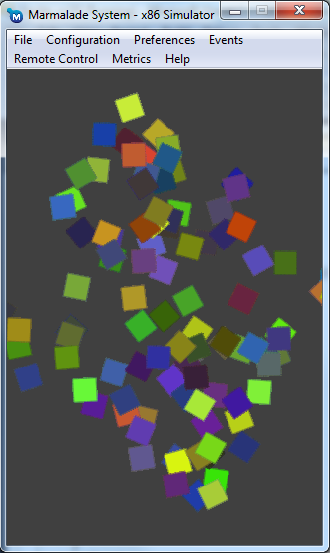
If you build and run the Sprite project you will see 100 sprites spinning around their centres with the whole scene of sprites spinning and scaling around the centre of the screen:
Sprite Marmalade SDK Example Screenshot
We have re-used the code from our previous Audio tutorial but ripped a few bits out of the main loop to clarify what’s going on.
Our first change involves creating a sprite manager and then adding some sprites:
// Create a sprite manager and a bunch of sprites
CIwGameSpriteManager* sprite_manager = new CIwGameSpriteManager();
for (int t = 0; t < 100; t++)
{
    // Create sprite
    CIwGameBitmapSprite* sprite = new CIwGameBitmapSprite();
    // Set sprite position, angle and scale
    sprite->setPosAngScale(IwRandMinMax(-max_size, max_size), IwRandMinMax(-max_size, max_size), 0, IW_GEOM_ONE);
    // Give sprite a random colour
    CIwColour colour;
    colour.r = 55 + IwRandMinMax(0, 200);
    colour.g = 55 + IwRandMinMax(0, 200);
    colour.b = 55 + IwRandMinMax(0, 200);
    colour.a = 255;
    sprite->setColour(colour);
    // Set sprite image
    if ((t & 1) == 0)
        sprite->setImage(image1);
    else
        sprite->setImage(image2);
    // Add sprite to sprite manager
    sprite_manager->addSprite(sprite);
}
Note that the code is a lot simpler than it looks. We are basically create 100 sprites giving each one a random position, random colour and alternative between two different bitmaps.
I want to point out here that using two separate images is bad practice as the underlying Iw2D render will need to switch states continually to switch between both images. To improve performance we would combine both images into a sprite sheet and then change the rectangular area within the image for each sprite.
Next we define a world transform matrix and world angle that we can modify on a per frame basis:
Next we spin our sprites by walking the sprites list adjusting the angle of each sprite at a different rate (it would be boring if all of our sprites rotated at the same rate)
// Update all sprite rotations
int speed = 0;
for (CIwGameSpriteManager::Iterator it = sprite_manager->begin(); it != sprite_manager->end(); ++it, speed++)
{
    (*it)->setAngle((*it)->getAngle() + speed);
}
Now we do a bit of matrix math jiggery pokery to spin and scale our sprite manager:
We firstly reset our world transform using SetIdentity(), think of this as setting a variable to its default value. We then set the rotation, scale and translation that all sprites within the sprite manager will transform by. Note that we set the translation position to the middle of the screen because when we created our sprites earlier we defined their positions based around the origin being at 0,0 (top-left hand corner of screen). The world translation will move them back to the middle of the screen.
We now send the world transform to the sprite manager and adjust our world angle, so everything spins.
lastly, we tell our sprite manager to go away and draw its child sprites:
And finally before we exit the game, we delete the sprite manager which in turn deletes all of our sprites.
// Clean up sprite manager
delete sprite_manager;
I Love Concatenating Matrix Transforms
If you are wondering how we manage to spin a sprite individually as well as transform it by the worlds scale and rotation then open up IwGameSprite.cpp and take a look at CIwGameSprite::RebuildTransform()
void CIwGameSprite::RebuildTransform()
{
// Build the transform// Set the rotation transform
Transform.SetRot(Angle);
// Scale the transform
Transform.ScaleRot(Scale);
// Translate the transform
Transform.SetTrans(Position);
Transform.PostMult(Parent->getTransform());
TransformDirty = false;
}
We use a matrix math track called matrix concatenation to multiple two matrices together, effectively combing both transforms into the one single transform. This following line multiplies out two matrices together:
Transform.PostMult(Parent->getTransform());
Object Pooling and Sprites
As your projects get larger and more complex you will find that you are constantly creating and deleting many objects. The constant process of allocating and deleting objects can take its toll on the memory management system, which causes something called fragmentation. Fragmentation is when your available memory pool consists of many small chunks instead of a few large chunks. Depending on the memory management system in use, this can increase the overhead of allocating future objects and risk the chance of running out of memory even though the system is reporting plenty of free memory (this happens because there isn’t a large enough chunk of contiguous memory available to allocate).
To help alleviate this problem we can pre-allocate a large number of objects in one go instead of lots of little ones at random times during the game. This is usually called an object pool.
The problem with C++ is that it doesn’t work very well with object pools because:
The objects in the pool usually all need to be of the same type
Constructors are usually called to construct and set up your object
Destructor’s are usually called to destroy and clean-up your object
We can get around the last two problems quite easily by emptying out our constructors and destructors and putting the code into Init() and Release() methods instead. This will allow us to setup and tear down objects without every having to recreate or delete them. Also, for certain types of objects (those that need to be reset to a default state) I like to add a Reset() method which allows me to set the object back to its original state.
The first problem is a lot more difficult to deal with, but the easiest solution is to simply create object pools for each type of object that you want to pool.
Pooling objects is as easy as allocating a bunch of them during game boot and then using some kind of marking system to mark them as in use or not in use. Instead of creating a new object you would simply search the object pool for a object that is not in use then reset it and use it. The only thing to do is to delete the object pool before you exit your game.
Well that’s it for this tutorial. Our next tutorial will handle adding frame based animations to our bitmapped sprite system which will allow us to truly walk the path of making a cool game.
You can download the code that accompanies this article from here.
Hope you all find this blog useful and until next time, don’t forget, dont read my blog at the wheel!
This tutorial is part of the Marmalade SDK tutorials collection. To see the tutorials index click here
This evening we are going to cover dealing with files and the file system in a cross platform manner using the Marmalade SDK. Note that there is no associated code with this tutorial as it is not required.
To begin with, you will notice that Marmalade’s file functions look and behave very much like those in the standard C library, for example:
Paths with the Marmalade SDK follow the same approach as many other file systems in that they follow the drive, directories and filename pattern (drive:/folder1/folder2/file.extension).
The Marmalade SDK currently supports the following drive names:
‘rom’ for the read-only portion of your apps data area and is read only.
‘ram’ for the writable portion of your apps data area. This drive is the only drive that is guaranteed to exist across platforms
‘rst’ for a removable memory card on the phone or tablet
‘raw’ for paths that will be passed directly to the underlying operating system without modification. (not supported on all platforms)
‘tmp’ for a system temp folder, outside of the s3e data area. (system temporary folder and currently only available on iOS)
Path length is limited to S3E_FILE_MAX_PATH characters (that value is currently 128 bytes, including the NULL string terminator)
Paths can be relative or absolute
Note that when reading a file where no drive has been specified the file system will attempt to find the file on the ram drive. if the file was not found then the system will look to the rom drive.
Marmalade SDK s3e file functions separated into categories
I have separated Marmalade’s s3e file functions into categories to make them easier to find. If you would like to see more details on each of these functions then take a look at the Marmalade SDK s3E file reference online help doc
As you can see the file system is pretty simple to use and doesn’t particularly warrant an example demo to accompany it, so I haven’t written one.
It is worth noting that the file system also supports a call back system that allows you to implement your own file system. I will cover this in a more advanced tutorial.
Reading files within a compressed derbh file
It is possible to attach compressed derbh files to the file system and re-direct all file access to the archive, accessing these archives just like a regular file. To do this you call dzArchiveAttach(“my_archive.dz”);. Note that you can attach multiple archives
To detach the archives afterwards you would call dzArchiveDetachNamed(“my_archive.dz”); or dzArchiveDetach() to detach the last attached archive.
It’s also possible to attach and detach memory based archives using dzArchiveAttachFromMem(void* pMem, uint32 size); and dzArchiveDetachFromMem(void* pMem);
Using this system makes accessing data within compressed archives a doddle.
To use derbh functionality within your app or game you need to include add the ‘derbh’ sub project to the list of subprojects section of your project MKB file.
Creating Derbh (.DZ) Files Manually
Ok, so now you know how to access Marmalade compressed archive, but how do you actually create one? In the folder \Marmalade\5.1\tools\dzip you will find a tool called dzip.exe. You can use this tool to create a derbh compressed archive by supplying it with a .DCL configuration file. This file basically contains a small amount of header information along with the files that you would like to be included into the archive. Here is an example .DCL file:
basedir – The base director of the source input files
It is possible to specify which compressor to use on a per file based. In this case we use zlib compression, other values include lzma, dz, zero and copy.
Well that’s it from me and that’s it from him for today.
Happy coding and please don’t ever become a door to door sales PERSON! Seriously, those guys / gals do not know the meaning of the word “NO”!
This tutorial is part of the Marmalade SDK tutorials collection. To see the tutorials index click here
Today we are going to cover playing sound and music the very quick and very easy way using the Marmalade SDK. As usual if you just want the associated article source code then you can Download it from here. If you want the details on sound and audio with Marmalade then please read on.
I like to separate audio playback into two distinct categories, which are music and sound (or sound effects). The Marmalade SDK has two systems for playing audio:
S3E Audio – The S3E audio system uses the devices built-in codec’s to play back compressed audio files such as MP3. QCP and AAC (good for playing background music)
S3E Sound – The S3E sound system uses software mixing to play multiple uncompressed sounds simultaneously (good for playing back sound effects, such as button clicks or in-game sound effects)
Now a little more detail
S3E Audio
S3E audio uses the devices built in audio codec’s to play back compressed audio files such as MP3. QCP and AAC, although you do need to query the system to find out if the audio format is supported using s3eBool s3eAudioIsCodecSupported ( s3eAudioCodec codec )
Valid codecs include:
S3E_AUDIO_CODEC_MIDI – MIDI files.
S3E_AUDIO_CODEC_MP3 – MP3 files.
S3E_AUDIO_CODEC_AAC – Raw AAC files.
S3E_AUDIO_CODEC_AACPLUS – AAC plus files.
S3E_AUDIO_CODEC_QCP – QCP files.
S3E_AUDIO_CODEC_PCM – PCM files.
S3E_AUDIO_CODEC_SPF – SPF files.
S3E_AUDIO_CODEC_AMR – AMR files.
S3E_AUDIO_CODEC_MP4 – MP4 or M4A files with AAC audio.
This s3e audio system can play back audio from either a file or a memory buffer. Note when you play back a file you cannot play a file that is within a compressed derbh file as the device does not know about Marmalades derbh format. If you are using auto derbh to auto compress all of your data on deployment then you should include the audio file as an asset in your MKB’s asset section and not inside a resource group.
Here is a summary of a number of important s3e audio functions:
Its pretty obvious what these functions are doing so I wont go into any details other than to mention that passing a value of 0 to repeatCount causes the music to repeat playback forever.
S3E Sound
I’m not actually going to cover S3E in much depth as I did promise quick and easy sound, instead I will use the example sound engine that ships with Marmalade (located in $MARMALADE_ROOT/examples/SoundEngine). SoundEngine sits on top of S3E Sound, so if you want to see the internals of the code it’s right there for you to study. If you want to implement your very own audio engine then I suggest you start by checking out Marmalade’s s3e sound docs here
Marmalade’s Sound Engine (IwSound)
Marmalade’s IwSound example sound engine lets you easily organise sounds into resource groups and then playback and control these sound effects very easily in-game. Even though IwSound is an example sound engine it is very capable and covers much of which most developers need. In my opinion it should be included as a standard Marmalade SDK module.
Before we begin looking at the code we will take a quick look at some of the important classes that make up IwSound.
CIwSoundData – This class represents the actual data of your sounds (you do not need to deal with this class directly)
CIwSoundSpec – This class describes a sound, think of it as a sound material that specifies details about your sound data and how you want it played. You create instances of sounds from their sound specs.
CIwSoundInst – This class represents a playing instance of a sound spec, a new CIwSoundInst is returned each time you play a sound from a sound spec (internally these are pooled to reduce memory fragmentation). Its worth noting here that you can only play a finite number of sound effects simultaneously.
CIwSoundManager – The sound manager, used to update the sound engine and gives access to such things as master volume, pan and pitch etc.. The sound manager also uses the following app.icf setting to allow you to set the maximum number of simultaneous sound effects that can be played:
[SOUND]
MaxChannels=16
Ok, now we have a basic understanding of the classes we are going to use, lets take a look at how to play something.
// Get a pointer to the sound group
CIwResGroup* sound_group = IwGetResManager()->GetCurrentGroup();
// Get the sound spec for our silly_sound sound effect
CIwSoundSpec* SoundSpec = (CIwSoundSpec*)sound_group->GetResNamed("silly_sound", IW_SOUND_RESTYPE_SPEC);
// Play the sound effect
CIwSoundInst* SoundInstance = SoundSpec->Play();
And that’s all you need to load and play sounds from a group
If you would like to change attributes of the played back sound effect, such as its volume, frequency etc.. then you can call the following functions on the sound instance:
void SetVol(iwsfixed vol);
void SetPan(iwsfixed pan);
void SetPitch(iwsfixed pitch);
void Stop();
void Pause();
void Resume();
Note the vol, pan and pitch are fixed point parameters (IW_GEOM_ONE representing the value of 1.0f)
Also note that you should never delete sound instances as they are managed by the IwSoundManager. Sound specs are managed by the resource system so do not delete those either.
Lastly, the IwSound engine manager Update method needs to be called every frame:
IwGetSoundManager()->Update();
Creating and organising sound effects with IwSound
Ok, we have looked at the basics of playing sound using IwSound, now we will look at how to organise our sounds into groups to allow the resource manager to manage them for us. If you do not know what the resource manager is then take a look at one of my previous blogs on the subject here
Firstly we need to add the WAV files that represent our individual sound files to the group like this:
Next we create a CIwSoundSpec for each sound effect that we want to play:
// Create sound specs (can be thought of as sound materials)
CIwSoundSpec
{
    name        "explosion"        # The name we want to use to refer to this sound effect in our code
    data        "explosion"        # The wav file name (without .wav)
    vol         0.7                # Default volume to be played at
    loop        false              # Do we want this sound effect to play forever?
}
CIwSoundSpec
{
    name        "silly_sound"        # The name we want to use to refer to this sound effect in our code
    data        "silly_sound"        # The wav file name (without .wav)
    vol         0.7                  # Default volume to be played at
    loop        false                # Do we want this sound effect to play forever?
}
Finally, we create a sound group to contain all of our sound specs:
// Create a sound group to contain all of our sound specs
CIwSoundGroup
{
    name        "sound_effects"    # Name of our sound group
    addSpec     "silly_sound"      # Add the silly_sound sound spec to our sound group
    addSpec     "explosion"        # Add the explosion sound spec to our sound group
}
To save you hours of pulling your hair out and trying out different WAV formats, it’s worth noting that IwSound supports mono PCM (8 and 16 bit) and mono ADPCM (IMA but not Microsoft’s) WAV formats.
And finally finally, you need to add this code somewhere at the start of your main() function so that the resource manager can convert your WAV files into a usable format when you run the resource build mode (Win32 debug build will build resources used by the resource manager)
This line basically adds a WAV resource handler to the resource management system so that when it loads your .WAV files during resource build mode it knows how to convert them.
What’s changed in our example code
We are basing our new Audio example project on the previous Resources example code. Firstly we will deal with what’s changed in our project MKB file, then we will deal with changes to Main.cpp source code and Level1.group resource group file.
If you view the Audio.mkb project file you will notice that we have added a module_path to the options section of our MKB:
This tells Marmalade where to look for modules. In our case we are directing Marmalade to look in the examples folder within the SDK as this is where the IwSound engine is located
Next we have added the SoundEngine module to our sub projects section to enable us to use the IwSound code:
subprojects
{
    iw2d
    iwresmanager
    SoundEngine
}
And lastly we add our music.mp3 test music file to the assets section of our MKB to make it available when deploying to devices:
Now lets turn to Main.cpp to see what has changed. Firstly we included the header file for IwSound:
#include "IwSound.h"
Then we initialise the IwSound module using:
// Init IwSound
IwSoundInit();
We also added some code to ensure that our WAV resources get built during a resource build Win32 debug build run:
#ifdef IW_BUILD_RESOURCES
    // Tell resource system how to convert WAV files
    IwGetResManager()->AddHandler(new CIwResHandlerWAV);
#endif
In addition, we added code to play our test music.mp3 file (Remember, s3e Audio uses the devices audio player so we firstly have to check that the device supports the MP3 codec):
// Play some MP3 music using s3e Audio (if the codec is supported)
if (s3eAudioIsCodecSupported(S3E_AUDIO_CODEC_MP3))
    s3eAudioPlay("music.mp3", 1);
Next we tell IwSound to update every frame by placing a call to IwGetSoundManager in our main loop:
This ensures that the sound system and sound instances etc.. get updated regularly. Note that if you find that you play a few sound effects and then no more will play then you have missed out this line!
And now the juicy bit, here we find our explosion sound effect within the Level1 group and play it:
And finally before we exit the demo we shut down IwSound using:
// Shutdown IwSound
IwSoundTerminate();
Ok, so now we’ve been through the changes to Main.cpp lets take a look at the changes to our resource group file Level1.group.
The first thing you will notice is that it contains a lot more stuff, that is mainly down to the fact that we need to define CIwSoundSpec for our sound effect as well as a CIwSoundGroup to include our sound specs in.
You will notice that the first addition is our sound effect wav file:
// Sound sample WAV files
"./explosion.wav"
Next we create a sound spec (material) for our sound effect so that it can be played in-game:
// Create sound specs (can be thought of as sound materials)
CIwSoundSpec
{
    name        "explosion"        # The name we want to use to refer to this sound effect in our code
    data        "explosion"        # The WAv file name (without .wav)
    vol         0.7                # Default volume to be played at
    loop        false              # Do we want this sound effect to play forever?
}
Lastly, we create a group to contain our sound spec:
// Create a sound group to contain all of our sound specs
CIwSoundGroup
{
    name         "sound_effects"    # Name of our sound group
    maxPolyphony 8                  # Maximum sounds that can be played simultaneously
    killOldest   false              # Tell system not to stop the oldest sound effects from playing if we run out of channels
    addSpec      "explosion"        # Add the explosion sound spec to our sound group
}
Ok. that’s it from me for now on audio, hopefully you find enough info in this article and source to be able to add sound and music to your games and apps. You can download the associated Audio project source code from here
I will update this blog article in the near future to act as a full reference for IwSound
Happy coding and don’t play with a grenade that has no pin!
I spent a few days browsing the web from the point of view of a potential developer looking for a cross platform development software developer kit (SDK) and I was very surprised and woefully disappointed to find that very few developers are actually aware of the existence of the Marmalade SDK. This tallies with the many developers that I have spoken to over the last year or so and introduced to the Marmalade SDK, who had no idea that it existed.
I searched social media, Google, Bing and other search engines as well as a number of well known developer forums for terms such as “cross platform development”, “cross platform sdk”, “cross platform phone sdk”, “cross platform mobile development” and many others. I came across many top 5, top 10 cross platform SDK’s etc.. but the Marmalade SDK was not listed on any of them. I did leave behind a few posts mentioning the Marmalade SDK to the original posters, so hopefully they will pick up on it and mention it.
We have been using the SDK for over a year now, launching a game across 5 platforms and an augmented reality app across 4 platforms with great ease and very little effort. We also have three additional games in development using the Marmalade SDK, so we have a fair amount of experience with the SDK.
The thing is, the Marmalade SDK is a remarkable piece of software engineering that appears to be largely going unnoticed by the wider developer community. I mean you can deploy the same native code and in some cases the same art and audio assets to 10 platforms including emerging platforms such as LG TV. I have looked at many of the cross platform SDK’s and cannot find anything that can directly compete. Some of the HTML / Javascript SDK’s offer wide platform support which is cool but don’t really offer the raw native speed that the Marmalade SDK does.
Here are a few cool things to know about the Marmalade SDK:
Marmalade supports 10 platforms to date, including iPhone, iPod Touch, iPad, Android phone and tablets, Samsung Bada, Blackberry Playbook, Symbian, webOS, Windows, OSX, Mobile Linux and LG TV
Producing 2D & 3D games with Marmalade is very simple as all of the components are already written for you using the 3D Studio Max / Maya / Collada exporters and graphics, math and audio modules
Marmalade has good UI and font support as well as native access to UI coming October 2011. Coupled with existing Marmalade modules such as http access, video, web view and others, Marmalade allows the user to create apps as good as in in many cases better than using native platform SDK’s
Marmalade EDK allows developers to use native platform specific plugins
Code developed using the Marmalade SDK is compiled as tight as is possible using modern ARM & MIPS compilers
Marmalade SDK deployed apps do not need to carry around bloated VM’s or other unnecessary baggage, ensuring that deployed app sizes are minimal
Marmalade SDK allows high and low hardware access
Marmalade SDK has some great out of the box modules that support the likes of iOS iAds, game centre, in–app purchasing, market billing and web views.
With Marmalade you simply build and deploy your game directly to the phone or tablet on a PC or a Mac, no other hardware required
Amazing support, including the apps program and device loan program to aid testing
A simulator that lets you test across an unlimited set of screen resolutions and simulated access to Accelerometer, GPS, Camera, Audio, Multi-touch screen, SMS, Compass and more
Test actual ARM code without even deploying to an ARM based device
Access to a large collection of open API’s such as Box2D, AdMob, Flurry, Chipmunk,SVG, Python, LUA and tonnes of other cool stuff (Full list available at http://github.com/marmalade)
If you are a happy Marmalade developer then help bring the Marmalade SDK to the wider developer community. Mention it in your blogs, tweets, Facebook posts, conversations with clients, fellow developers, PR , so on and so forth.
I have added a new page to my blog that will outline exactly what the Marmalade SDK is and cover all of the cool stuff it supports here
Also, at the end of my Marmalade SDK tutorial blog series the community should have a good basic game engine that new users can use as a base for their own games, with new advanced features added week on week.
This tutorial is part of the Marmalade SDK tutorials collection. To see the tutorials index click here
Well, its Saturday evening and instead of being slumped up against a bar talking nonsense and singing songs of old bloody coding battles with my fellow drunks, I’m sat here writing Tutorials to educate the masses on how cool and easy the Marmalade SDK is to use 🙂
In today’s (this evenings?) tutorial we are going to cover the Marmalade SDK’s resource management system. As usual if you just want the associated article source code then you can Download it from here. If you want the details on the resource management system then please do read on.
Marmalade’s resource managements system is a big subject, but I am going to attempt to summarise and pick out the most important bits to help get you up and running with it quickly
Most if not all games and apps should use some kind of resource system to handle the large amount of graphical, audio and other resources that constitute the game or app. Marmalade provides a text based resource group file system that allows you to specify groups of resources that you would like to include in your app.
IwResManager – The Marmalade SDK resource manager
IwResManager is the name given to the Marmalades utility resource management system. To include the module into your build, you will need to edit your project MKB file and add the iwresmanager module to your sub projects:
subprojects
{
    iwresmanager
}
You will also need to include the IwResManager.h header file
The resource manager has three functions:
Loading of resources file from their original source files. For example inefficient BMP’s , huge model text descriptor files etc..
Serialisation of resources to and from their compact binary format. As an example, the serialisation module would save the raw BMP’s, model text descriptors etc.. in a more compact format file called group_name.group.bin
Organising resources into groups using group text files. For example, you may want to organise all of the bitmaps for each level into a separate group then load the whole group per level
So as you can see IwResManager has quite a few uses, but its most important use is allowing you to specify your assets in a bulky format and have the resource manager compact them down into a more efficient format for deployment.
Oh, IwResManager will only rebuild the compact binary files from the original sources if you run the x86 Debug build. So if you wondering why your resource group bin files never change, you now know why.
To initialise the resource manager in code you need to call IwResManagerInit() at boot and then IwResManagerTerminate() to close it down at the end of your app.
Resource Manager Groups
All resources exist inside the resource manager in groups. You create groups using a simple text file format (Level1.group for example) that looks something like this:
This group is named Level1 and contains 3 images, 5 sound effects and two other group. Note that the groups included here are known as a child groups. These groups are independent group files, just like this one but containing resources specific to buddy_bod and evil_twiggy.
Resources in the child groups will not be included in the parent resource binary file when serialised as they are groups in their own right, instead a link between them and the parent Level 1 group will be kept so that when you load the parent group, the child groups will also be loaded.
Loading Groups
Firstly, in order for Marmalade to see your group file on the target phone, tablet etc.. the corresponding group_name.group.bin file needs to be added to assets section like this:
But where does this “Level1.group.bin” file come from? Remember I mentioned earlier that a debug build will build the compact binary versions of your resources, well this file is the compact binary version of your Level1 resources group file, which contains your BMP’s and WAV’s.
Next, to load the group in code you would call:
IwGetResManager()->LoadGroup(“Level1.group”);
Note that each time you call LoadGroup() each new group will be added to the resource manager.
Searching Groups
To find a particular named group in the resource manager you would call something like:
Searching for a resource within a group will by default also search all child groups for the resource
You do not need to supply the type of resource such as “CIwTexture”, but it is recommended for speeding up searches
You can add a flag (3rd parameter) to GetResName() to modify the search. For example, if you want to ignore child group resources whilst searching then pass IW_RES_IGNORE_CHILDREN_F. See IwGxResManagerFlags definition for a complete list of flags
Destroying Groups
To destroy a resource group and all its associated resources you would use:
The Marmalade SDK provides a mechanism by which you can compress your data to DZ / dzip files prior to or during deployment and then access the files within the compressed archive within your app or game with very little hassle. The module used for compression / decompression is called Derbh and to use it you need to add the derhb module to your list of sub projects in your project MKB file, like so:
subprojects
{
    derbh
}
You can completely automate the process of compressing all of your assets during deployment by adding the following line to the deployments section of your project MKB file:
deployments
{
    auto-derbh
}
You do not have to do anything different in your code to access your compressed assets as the decompression is transparent.
Note that you can take finer control over compression and decompression in your app as Marmalade provides derbh access via low and high level API’s that enable you to load archives on demand as well as read individual files.
And that’s about as far as I’m going to go with the resource manager for the moment. If you would like to learn more in-depth details, especially regarding the resource asset conversion process then you should check out the Marmalade SDK docs at here
What’s changed in our example
Ok, now we get to the accompanying example program. Lets take a look to see what has changed (this example is based upon the Keys example from one of our previous tutorials)
Firstly we will take a look at our Resources.mkb project file. You will have noticed that our test1.png and test2.png files are no longer listed as assets. Instead our group binary file is listed as:
(data-ram/data-gles1, data)
Level1.group.bin
Level1.group.bin now contains our PNG files
Also iwresmanager has been added to our list of subprojects
We have also added a new file to the project called Level1.group, which looks like this:
CIwResGroup
{
    name "Level1"

    // Graphics
    "./test1.png"
    "./test2.png"
}
This is our resource group definition file, which the Marmalade resource manager will use to build our Level1.group.bin file (when we run the debug version of the app).
Next we will take a look at what’s changed in Main.cpp. Firstly we have included the resource managers header file IwResManager.h. We have also added code to initialise the resource management system and load our Level1 group file:
// Initialise the rsource manager
IwResManagerInit();

// Load our Level1 resource group into the resource manager
IwGetResManager()->LoadGroup("Level1.group");
Ok, this next code change may seem a bit odd:
// Create two images from PNG resource files
IwGetResManager()->SetCurrentGroup(IwGetResManager()->GetGroupNamed("Level1"));        // Ensure that Level1 is the current resource group
CIw2DImage* image1 = Iw2DCreateImageResource("test1");
CIw2DImage* image2 = Iw2DCreateImageResource("test2");
In the Keys code example, we created CIw2DImage’s from our test PNG files. As our PNG’s now live inside our Level1 group file instead, we need to firstly set the Level1 group as our current group and then create images from the test1 and test2 resources located inside that group.
Lastly, we shut down the resource manager
// Shut down the resource manager
IwResManagerTerminate();
Ok, that’s it. You should now have enough info to start using Marmalade’s resource manager and resource groups in your own code, You can download the associated Resource project source code from here