Marmalade SDK Tutorial – Creating an Extensible Animation System

This tutorial is part of the Marmalade SDK tutorials collection. To see the tutorials index click here

Had flu all week and now I’ve been afflicted with a chest infection so it’s been a pretty miserable week. At least the news of our game BattleBallz Chaos being shown at the Blackberry Devcon 2011 lifted the old spirits.

In the last tutorial we covered basic sprites and more to the point bitmapped sprites. We began to create a basic API called IwGame which will eventually serve as our game engine framework that we can all hopefully build cool games around (that is once we have weeded all of my bugs out 🙂 ). The idea this week is to get those sprites animating (aside from rotating, scaling and moving), we want the image of our sprite to change. My plan for this week was to build a very basic animation class that we could use to animate our bitmap frames. Well my intentions were good and I started out creating a basic image frame animation class but decided to scrap it and create a more extensive animation system that we can use for more than just image animations. If you just need the code then you can grab it from here, otherwise please feel free to read on.

What is an Animation System?

In the context of this article, an animation system is a bunch of classes that deal with animating specific components. These components could be anything from a simple one dimensional variable that represents speed or a two dimensional variable such as a vector that represents the players position to something a little more complex such as a rectangular area of space that represents a frame in an image animation

How could an animation system be useful to us? Well we could use it to animate the texture that appears on a sprite giving it personality (a face that smiles, cries or laughs for example), or we could animate an objects position and rotation to follow a specific path around the game world. We could even animation a list of instructions or game object states using a discrete animation to give the impression that the object is intelligent.

Here are a few terms that I use during this article:

  • Animation – Refers to the complete animation including all its frames, its playback rate, callbacks etc..
  • Frame – Refers to a single discrete component of the animation, this could be a particular image, position or velocity etc..
  • Frame Index – Refers to the position of a particular animation frame in an array of animation frames

An Extensible Animation System – IwGameAnim

Our new animation system IwGameAnim is built around the CIwGameAnim class. This class serves as a general purpose abstract class that we can derive custom animation types from. In this weeks code we have created 3 animation classes from CIwGameAnim:

  • CIwGameAnimImage – A rectangular bases image animation
  • CIWGameAnimFloat – A single floating point variable animation (useful for animating one dimensional components such as angle, speed and distance)
  • CIwGameAnimFVec2 – A 2D floating point vector variable animation (useful for animating two dimensional components such as velocity and position)

Its important to note at this point that I have not fully tested this code yet. I only spent a few hours writing it and testing it (time constraints), but be certain that as we use more of the animation system in our tutorials it will get fully tested eventually.

We are not going to carry out a lot of in-depth analysis of the code this seek as i want to move the Marmalade SDK tutorials series tutorials along faster, believe it or not creating these tutorials takes up a fair amount of time (although I do thoroughly enjoy writing them). That said lets take a quick look at the CIwGameAnim class:

class CIwGameAnim { // Properties protected: bool Playing; // Current playing state float CurrentFrame; // Current animation frame float PlaybackSpeed; // Rate at which to playback animation int FrameCount; // Total number of animation frames in the animation bool FrameHasChanged; // Set to true when a frame has changed bool Looping; // True if the animation loops int NumLoops; // Total number of loops played back so far int MaxLoops; // Maximum number of loops before animation stops (-1 to play forever) int PlayDelayMs; // Amount of time to wait before starting animation CIwGameCallback StartedCallback; // Callback which is called when the animation starts playing CIwGameCallback StoppedCallback; // Callback which is called when the animation stops playing CIwGameCallback LoopedCallback; // Callback which is called when the animation loops public: void setPlaybackSpeed(float speed) { PlaybackSpeed = speed; } bool hasFrameChanged() const { return FrameHasChanged; } void setPlayDelay(int delay_ms) { PlayDelayMs = delay_ms; } void setStartedCallback(CIwGameCallback callback) { StartedCallback = callback; } void setStoppedCallback(CIwGameCallback callback) { StoppedCallback = callback; } void setLoopedCallback(CIwGameCallback callback) { LoopedCallback = callback; } void setLooped(int num_loops); void setCurrentFrame(float frame); float getCurrentFrame() const { return CurrentFrame; } void Start() { Playing = true; if (PlayDelayMs != 0) PlayDelay.setDuration(PlayDelayMs); } void Stop() { Playing = false; } bool isPlaying() const { return Playing; } void Restart(); // Properties End protected: CIwGameTimer PlayDelay; // Timer used to time start of animation public: CIwGameAnim() : Playing(false), CurrentFrame(0), PlaybackSpeed(0), FrameHasChanged(true), Looping(false), NumLoops(0), MaxLoops(0), PlayDelayMs(0), StartedCallback(NULL), StoppedCallback(NULL), LoopedCallback(NULL) {} virtual ~CIwGameAnim() {} virtual void Release() = 0; virtual bool Update(float dt); };

Below is a brief description of the classes properties:

  • Playing – Marks the animation as playing or stopped
  • CurrentFrame – The current animation frame index (think of the integer part of this variable as the frame number of the animation frame we are currently seeing)
  • PlaybackSpeed – The rate at which to play back the animation, a value of  1.0f / davice_frame_rate would play the animation back at one animation frame per second (quite slowly in other words)
  • FrameCount – Total number of frames in this animation
  • FrameHasChanged – Marked true when the animation switches from one animation frame to the next
  • Looping – True if this animation loops when it reaches the end
  • NumLoops – The total number of times the animation has looped around
  • MaxLoops – The maximum number of times the animation is allowed to loop before stopping (a value of -1 means loop forever)
  • PlayDelayMs – This can be used to delay the animation playing at the start. This can be useful if you want to fire off a group of animations at the same time, but have them start at different times
  • StartedCallback – This callback (that you supply) will be called when the animation starts to play
  • StoppedCallback – This callback (that you supply) will be called when the animation stops playing naturally (not when Stop() is called)
  • LoopedCallback – This callback (that you supply) is called each time the animation reaches its end and loops to the start again

You never directly create an animation from this class, instead you can derive your own animation type from this class or use one of those already provided.

Bitmap Image Animation – IwGameAnimImage

Image animation in our game engine involves displaying different image frames one after the other to give the impression of giving personality to our sprite based objects. We store all of our animations on a sprite atlas (also known as a sprite sheet), which looks something like this:
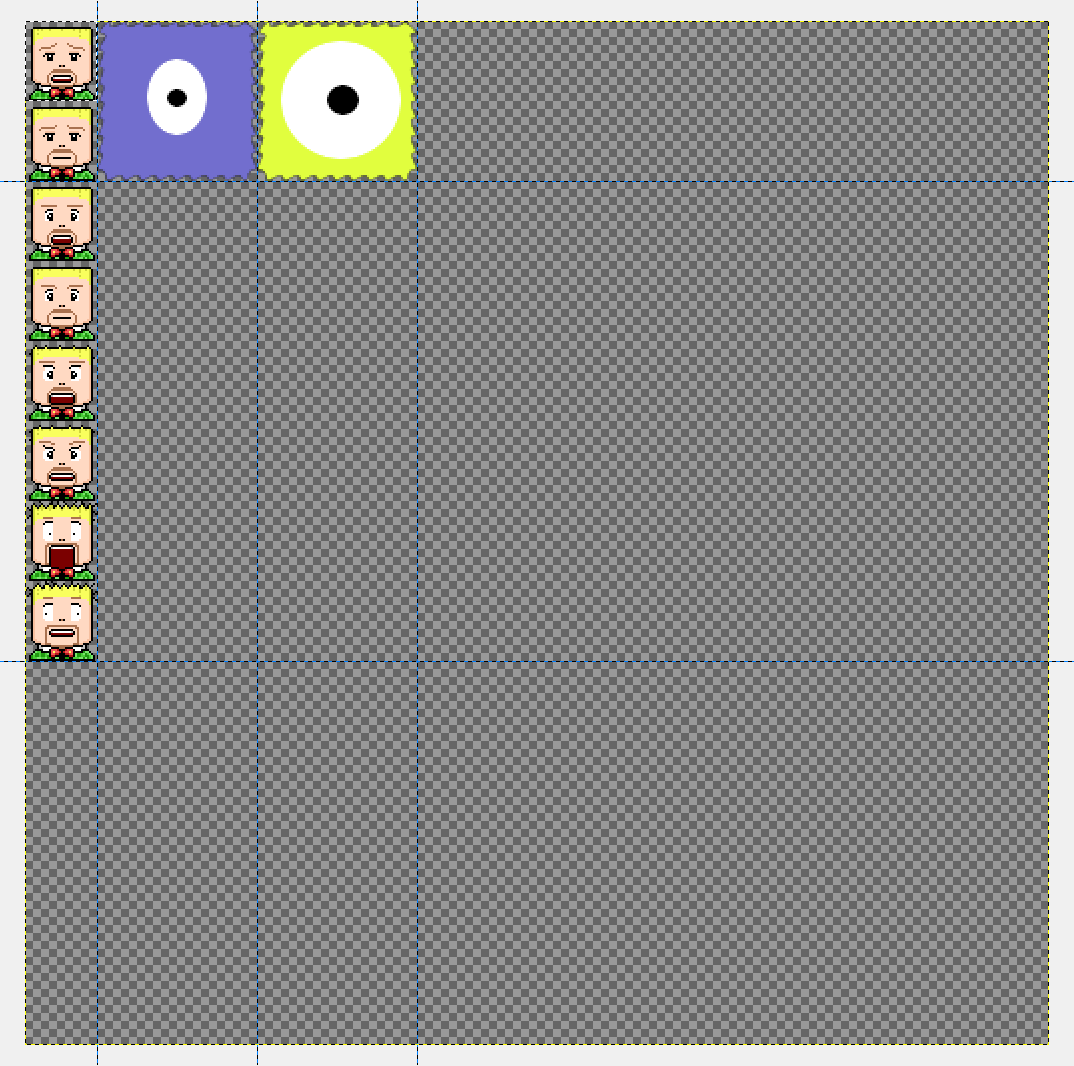
Example sprite atlas / sheet


A sprite atlas is basically a large image that contains a group of other images. To create an image animation we simply display different portions of the sprite atlas.

Bitmap animations are handled by the CIwGameAnimImage class. The CIwGameAnimImage class looks like this:

class CIwGameAnimImage : public CIwGameAnim { protected: CIwGameAnimImageFrame* Frames; // This class takes over management of Frames memory public: CIwGameAnimImage() : CIwGameAnim(), Frames(NULL) {} virtual ~CIwGameAnimImage() { Release(); } void Release(); CIwGameAnimImageFrame* getCurrentImageFrame() const { if (CurrentFrame >= 0) return Frames + (int)CurrentFrame; return NULL; } void setFrameData(CIwGameAnimImageFrame* frames, int count) { Frames = frames; FrameCount = count; } };

The class itself is very basic, it allows you to set the frame data and number of frames using setFrameData() and get the current frame using getCurrentImageFrame(). We will take a look how to use this class a little later on.

CIWGameAnimFloat and CIwGameAnimFVec2 will be discussed in more depth in a separate article that deals with animating in-game objects.

Managing Animation Frames – CIwGameAnimFrameManager

Once we begin building our game we are going to end up with many animations of a variety of types, animating images, paths for objects, spinning slick user interfaces and so on. It’s usually a good idea to have some class that can oversee the creation and tracking of this kind of information. In this case we use the CIwGameAnimFrameManager to help us create blocks of animation frames

This class provides us with the following functions for allocating blocks of frames:

float* allocFloatFrames(int count);
CIwFVec2* allocFVec2Frames(int count);
CIwGameAnimImageFrame* allocImageFrames(int count);
CIwGameAnimImageFrame* allocImageFrames(int count, int frame_w, int frame_h, int start_x, int start_y, int pitch_x, int pitch_y, int image_width);

The second version of allocImageFrames() is a helper method that will auto-generate a group of image animation frames for a sprite atlas. The parameters are:

  • count – Number of frames to generate
  • frame_w, frame_h – Width and height of each animation frame
  • start_x, start_y – Upper left hand corner of first animation frame
  • pitch_x, pitch)y – The horizontal and vertical spacing between frames
  • image_width – Width of the sprite atlas

Managing Animations – CIwGameAnimManager

It would be great to be able to just create a bunch of animations and have something to automatically update them all for us without having to track each one individually, this is where CIwGameAnimManager comes in. CIwGameAnimManager allows us to add a bunch of animations to it and the manager will manage the updating and cleaning up of the animations and all of their frames for us.

It would also be cool if we had an object that had a collection of different animations that it could play to depict it doing different actions, such as running, walking, sleeping, falling etc.. CIwGameAnimManager allows us to add all of these animations and then select which animation is the currently active animation. Switching animations will stop the current animation and set the next one off playing.

The default behaviour of a freshly created CIwGameAnimManager object is to update all animations within the manager and not just the currently playing animation. To switch the manager into tracking and playing only the current animation call setUpdateAll(false).

What’s changed in the example code

Note that our project is now called IwGame and future game engine examples will retain this name.

If you build and run the IwGame project you will see 100 sprites spinning around on the screen, but the difference will be that the sprite is of a face animating manically,.
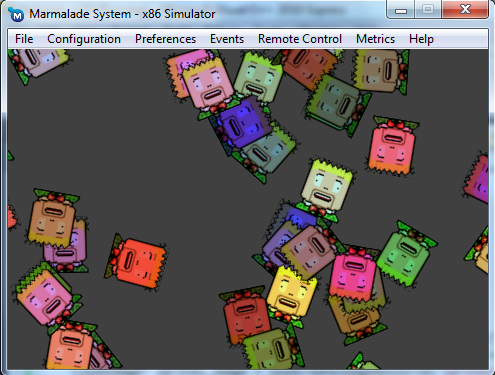
IwGame Marmalade SDK Tutorial Example


In terms of assets, we now have a single sprite atlas containing all of our sprites called sprites.png located in the data folder. We have also updated our Leve1l.group group file to include just the sprites.png file into our deployment archive.

We have added four new files to our MKB file:

  • IwGameAnim.cpp
  • IwGameAnim.h
  • IwGameUtil.cpp
  • IwGameUtil.h

IwGameAnim contains our new animation classes, whilst IwGameUtil contains a collection of utility classes, types and constants. The only class we really use from IwGameUtil is the CIwGameTimer, which is a software based polled timer that allows us to time events. We use this to delay the start of animations in the animation system. We also use the CIwGameCallback to define a callback function, although we are not using callbacks in this example, we will use them in the future to activate events such as sound playback

And without further ado, lets take a quick look at Main.cpp to see whats changed:

The first thing is the inclusion of the IwGameAnim.h header file

The next thing is the removal of loading test1 and test2 resources and the addition of loading our sprite atlas sprites.png instead:

CIw2DImage* sprites_image = Iw2DCreateImageResource("sprites");

The next change is the creation of our animation frames and the animation itself:

// Create an image frame manager (manages allocation of our animation frames) CIwGameAnimFrameManager* anim_frame_manager = new CIwGameAnimFrameManager(); // Auto create a 8 frames of animation 36x40 pixels in size CIwGameAnimImageFrame* anim_frames = anim_frame_manager->allocImageFrames(8, 36, 40, 0, 0, 512, 40, 512); // Create and set up our face animation CIwGameAnimImage* face_anim = new CIwGameAnimImage(); face_anim->setFrameData(anim_frames, 8); face_anim->setLooped(-1); face_anim->setPlaybackSpeed(-0.1f); face_anim->Start();

Its not a complex piece of code, just a bit wordy. Firstly we create an animation frame manager which in turn lets us create actual animation frames. In this case we use the helper method allocImageFrames() to generate the 8 frames manic head animation from our sprite atlas.

Next we create the actual image animation, set its animation frames, tell it to loop forever and then finally set it off playing.

The next change is a bit sneaky, I had to make a few upgrades to the IwGameSprite class to allow it to render portions of a larger image, more on that in a sec. In our loop where we create 100 sprites we now set the destination size (on screen size with no scaling) explicitly:

sprite->setImage(sprites_image); sprite->setDestSize(36, 40);

We also only have to assign one texture to every sprite (this will speed up rendering as texture swapping no longer occurs when drawing two sprites with different textures)

If we now move to the main loop and take a look at our sprite update code:

for (CIwGameSpriteManager::Iterator it = sprite_manager->begin(); it != sprite_manager->end(); ++it, speed++) { // Set sprites rotation (*it)->setAngle((*it)->getAngle() + speed); // Set sprites source rectangle from its current animation frame CIwGameBitmapSprite* sprite = (CIwGameBitmapSprite*)*it; sprite->setSrcRect(anim_frame->x, anim_frame->y, anim_frame->w, anim_frame->h); }

You will notice that we now set the sprites image source rectangle (this is the rectangular area of the source image that will be displayed on the sprite), this data is pulled directly from the animation system for the animations current frame.

We then update our animation:

// Update animation face_anim->Update(1.0f);

Note that we didn’t actually place our animation inside a CIwGameAnimManager, so we call the animations Update() method manually.

And finally outside our main loop we clean up our animation data using:

// Cleanup animations if (face_anim != NULL) delete face_anim; if (anim_frame_manager != NULL) delete anim_frame_manager;

The animation system is a chunky bit of code that may take a while to absorb for some of you at the moment, but it will become apparent over the coming weeks just how to utilise it as we plan on using it quite a lot.

Changes to IwGameSprite

I found whilst adding the animation system into the latest example code that our robust sprite class needed to be a little more robust. CIwGameBitmapSprite needed support for drawing areas of of images rather than the whole image. We replaced the previous rendering code with:

int x = -(Width / 2); int y = -(Height / 2); Iw2DDrawImageRegion(Image, CIwSVec2(x, y), CIwSVec2(Width, Height), CIwSVec2(SrcX, SrcY), CIwSVec2(SrcWidth, SrcHeight));

This code calls the Marmalade SDK Iw2D function Iw2DDrawImageRegion() which allows us to draw a rectangular portion of a source image instead of the whole thing.

Note that we use absolutely no object pooling in any of these classes, but we will be adding it in the near future. I left it for now because the code is already quite complex in its current state.

Well that’s it for this tutorial. Our next tutorial will introduce Scenes and Actors where we get to tie our animation and sprites systems together into a core game engine that we can make some cool games with.

You can download the code that accompanies this article from here.

Hope you all find this blog useful and until next time, don’t forget that…., hmmm I forgot!

Marmalade SDK News – Tim Closs on why the Marmalade SDK is so good

Interview with Tim Closs the CTO of the cross platform smart phone and tablet SDK, Marmalade SDK at Blackberry Devcon 2011 conference. Tim mentions how the Marmalade SDK is a good choice for bringing premium content to a variety of platforms (iOS, Android, Bada, Playbook, Symbian, LG TV and more) using the same code base and programming language. Many well known developers are already on board including big game publishers such as Electronic Arts, Popcap, Konami, Activision as well as many indie developers such as ourselves.

Tim then goes on to explain how cross platform development is possible using the Marmalade SDK as well as how super easy it is to re-target a full range of different mobile and emerging technology platforms with very few changes (This we have proved from our own experience with the Marmalade SDK). He also explains how code compiled for the Marmalade SDK is “native”, which means full throttle gaming with no VM’s getting in the way.

Tim then mentions how we took our game BattleBallz Chaos from our existing platforms (iPhone, iPad, Android, Bada) straight to Blackberry Playbook within 24 hours of getting our hands on a Blackberry Playbook. (4 hours tweaking and signing, the rest of the time was spent waiting for approval from RIM).

Tim finally gives some brief information on how Marmalade SDK licensing works.

Nice work Tim and thank you for the mention!

BattleBallz Chaos by Pocketeers Limited Shown on Blackberry Playbook Gaming Ad

One of our games “BattleBallz Chaos” for Blackberry Playbook has been shown on Blackberry’s Playbook gaming ad!

Well, not bad to say it only took us four hours (yes, you did read that right), 4 hours to convert the game using the amazing Marmalade SDK. We we’re also the first native Marmalade SDK app to hit the Blackberry Playbook platform, getting approval within 24 hours.

BattleBallz Chaos can be downloaded for Blackberry Playbook at Blackberry App World

Pocketeers Limited’s BattleBallz Chaos featured on stage at Blackberry Devcon 2011

Well, I’m pleased as punch today, our game and in association with the Marmalade SDK, BattleBallz Chaos got featured on stage (on the big screen – man I seriously want one of those big babies!) by the posh smart men in suits 🙂 Here’s the proof:

Pocketeers Limited's BattleBallz Chaos featured on stage at Blackberry Devcon 2011

Oh yeah that’s right, come on, give me an “Oh yeah baby!”. BattleBallz Chaos for is available for Blackberry Playbook from Blackberry App World

Big thanks to Alex Caccia and the rest of the Marmalade team and Blackberry

Marmalade SDK Bitesize Tutorial – How to force a CIw2DImage texture to upload

Welcome to another bite size Marmalade SDK tutorial. I’ve seen this question pop up a few times in the Marmalade SDk forums so I thought that I would cover it here as a bite size tutorial.

You are using the Iw2D module to render handle 2D images, but you need to force the images to be uploaded to texture RAM before the game begins. You took a quick look at CIw2DImage to discover that it is in fact an abstract class with not a lot of info in there, except a few pure virtual methods  for retrieving width, height and the material associated with the CIw2DImage.

You can call GetMaterial() to return the material that makes up your CIw2DImage() and then in turn, call GetTexture() on the returned material to locate its texture. Finally you can call Upload() on the texture to tell Marmalade to upload it. Here’s a quick example code to show what I mean:

CIwMaterial* mat = your_iw2d_image->GetMaterial();
CIwTexture* texture = mat->GetTexture();
texture->Upload();

Don’t forget that unless you mark the texture as modifiable using texture->SetModifiable(true), the system will delete your pixel / palette data to free up memory.

Marmalade SDK Bitesize Tutorial – How to Launch an External File or Web Link

Welcome to another bite size Marmalade SDK tutorial.  This tutorial covers a cross platform way of opening up web links and other types of external file using the Marmalade SDK.

The Marmalade SDK contains a cool function called s3eOSExecExecute() which will launch the file / URL that you provide as a parameter using the underlying OS’s method of handling various file types.

In our example, we want to open up a web page URL. This type of system is great for deep linking your app or game to full and paid versions of free / lite apps or even providing a simple link to your other products or web sites.

The format of s3eOSExecExecute is as follows:

s3eResult s3eOSExecExecute(const char *url, s3eBool exit)

url – The URL you wish to open
exit – Should the app exit when launching the URL

Before you call this function you should however check to make sure that it is supported on the device using:

s3eBool s3eOSExecAvailable()

News from Pocketeers

We finally scrounged a little free time to update our company web site with some of our latest developments over at http://www.pocketeers.co.uk

Pocketgamer.biz featured some of my mental ramblings with regards to the Marmalade SDK over on their site today, so I’m pleased as punch.

I also found myself watching some of RIM’s Devcon 2011 (live web cast), which was very interesting. During the advert break I noticed an ad for the Blackberry Playbook showing a user playing a variety of games on it and low and behold our BattleBallz Chaos was on there! 🙂

Marmalade SDK news – Marmalade 5.1.8 now available for download

Down with the dreaded flu right now so just a few quick blogs for now.

I find it amazing and cool just at how often Marmalade update their SDK. I’m also ultra excited about the impending 5.2 release, lots of cool new stuff due including native UI. I’m hoping to see a flood of Android, iPhone, Bada and even Playbook and iPad application developers when 5.2 hits.

Ok, Marmalade SDK 5.1.8 changes include:

  • Blackberry PlayBook: Fix for touch events in area of video playback.
  • Blackberry PlayBook: Fix for s3eOSReadString.
  • Blackberry PlayBook: Add new icf setting SysSuspendDuringVideo which can be used to pause the application during video playback. Using this setting it is possible to avoid the screen corruption that can occur on PlayBook after video playback.
  • Blackberry PlayBook: Fix several issues relating to fixed and dynamic screen rotation.
  • Multiple platforms: Added s3eWebViewClearCache function to the s3eWebView extension.
  • Blackberry PlayBook: s3eAccelerometer axis are now correct according to the device orientation.
  • Android: Fix for ZeroConf search only returning first service discovered.
  • Android: Fix to allow adding third party .so libraries to Android packages.

Mainly fixes, but a few additions. I am particularly pleased with the Blackberry Playbook fixes

You can grab Marmalade SDK 5.1.8 from Marmalades download section.

Marmalade SDK Tutorial – CIwGameSprite – Creating a Robust Sprite Class

This tutorial is part of the Marmalade SDK tutorials collection. To see the tutorials index click here

Well, another busy day and as usual I have too much to do and there are only 24 hours in a day (I could do with coding and blogging on a ship travelling faster then the speed of light, so I can finish before I even started!). As usual if you just want the code then grab it from here. if you want the details then please read on

I’m getting quite excited about the tutorial series as we are finally building up to something much more useful than a simple bunch of loosely connected tutorials. That something is a “2D game engine” that will allow you to create cool fast games using the Marmalade SDK that you can deploy to a bucket load of platforms simultaneously and hopefully earn an even bigger bucket load of cash from!

Today we are going to begin our game engine by implementing one of the most basic components of a 2D game engine, The Sprite.

The Sprite

From our game engines point of view, we are going to define a sprite as a visual component that can move and animate on the users screen. I wont go as far as defining a sprite as a bitmap image because our sprites are special, they can be anything we define them to be. They can be anything from a simple point, line or bitmap to something as extravagant as a vector based image. We basically want to leave our options open and offer as much extensibility to our game engine as possible.

One very important point to make at this point. A sprite is only a visual component and should not be made to deal with game logic, collision detection, playing audio etc. It should only be concerned with drawing itself. Some people like this separation of concerns style programming but others (like me), whilst others do not.

Ok, so what do we want our basic sprite to do? Lets make a list:

  • Move around the screen
  • Scale
  • Rotate
  • Change colour / transparency (allows flashing, fades etc..)
  • Draw itself
  • Managed by some controller class (so we don’t have to deal with allocation / deletion)
  • Ability to be pooled to reduce memory fragmentation

In rides CIwGameSprite our new sprite class

CIwGameSprite – The mother of all sprite classes

Erm, put down that Marmalade SDK documentation, don’t let the name fool you, you wont find this class in there. I have named the class as such so that it feels more like its part of the Marmalade SDK.

CIwGameSprite is the name of our basic sprite class that we are going to base our 2D game engine around. CIwGameSprite is not actually a usable class in the sense that you can create one and do something with it. CIwGameSprite acts as a base class for other types of sprite classes and defines some basic sprite information that is going to be common to all types of sprites. Lets take a quick look at CIwGameSprite (defined in the IwGameSprite.h header file) to see what it does.

class CIwGameSprite { /// Properties protected: CIwGameSpriteManager* Parent; // Parent sprite manager CIwSVec2 Position; // Position of the sprite iwangle Angle; // Rotation of sprite (IW_ANGLE_2PI = 360 degrees) iwfixed Scale; // Scale of sprite (IW_GEOM_ONE = 1.0) CIwColour Colour; // Colour of sprite bool Visible; // Sprites visible state bool Pooled; // Tells system if we belong to a sprite pool or not bool InUse; // Used in a memory pooling system to mark this sprite as in use public: void setParent(CIwGameSpriteManager* parent) { Parent = parent; } void setPosAngScale(int x, int y, iwangle angle, iwfixed scale) { Position.x = x; Position.y = y; Angle = angle; Scale = scale; TransformDirty = true; } void setPosition(int x, int y) { Position.x = x; Position.y = y; TransformDirty = true; } CIwSVec2 getPosition() const { return Position; } void setAngle(iwangle angle) { Angle = angle; TransformDirty = true; } iwangle getAngle() const { return Angle; } void setScale(iwfixed scale) { Scale = scale; TransformDirty = true; } iwfixed getScale() const { return Scale; } void setColour(CIwColour colour) { Colour = colour; } CIwColour getColour() const { return Colour; } void setVisible(bool show) { Visible = show; } bool isVisible() const { return Visible; } void forceTransformDirty() { TransformDirty = true; } void setPooled(bool pooled) { Pooled = pooled; } bool isPooled() const { return Pooled; } void setInUse(bool in_use) { InUse = in_use; } bool isUsed() const { return InUse; } /// Properties End protected: CIwMat2D Transform; // Transform bool TransformDirty; // Dirty when transform change void RebuildTransform(); // Rebuilds the display transform public: CIwGameSprite() : Pooled(false) { Init(); } virtual ~CIwGameSprite() {} virtual void Init(); // Called to initialise the sprite, used after construction or to reset the sprite in a pooled sprite system virtual void Draw() = 0; // Pure virtual, need to implement in derived classes };

Ok, we see that we have a bunch of properties for our sprite:

  • Parent – Our sprites are managed by a sprite manager, the parent of our sprites will be the sprite manager that is looking after them (more on the sprite manager later)
  • Position – The 2D position of our sprite in 2D space
  • Angle – The orientation of our sprite in 2D space (Marmalade SDK angles range from 0 to IW_ANGLE_2PI)
  • Scale – The scale of our sprite in 2D space (Marmalade SDK used IW_GEOM_ONE as the value of 1.0f)
  • Colour – The colour and transparency of our sprite
  • Visible – The visible state of our sprite (can the user see it?)
  • Pooled – Should our sprites data be deleted when it is removed from the sprite manager (more on sprite pooling later)
  • InUse – Used to mark a sprite as being used in a pooled sprite system

We also have a few private member variables in there that deal with the transform for our sprite. We covered the Iw2D transform in our Iw2D sprite example code in a previous tutorial. Note that building transforms can be expensive in terms of time when we are rebuilding lots of them every frame, so in our sprite class we only going to rebuild the sprites transform when the sprites position, scale or angle changes (no sense doing all that work if nothings changed).

Note that our Draw() method is a pure virtual method which makes the class abstract. This means that you cannot and are not supposed to create instances of this class. Instead it serves as an interface to defining classed based upon that class. Now thats said lets take a look at a class that we have derived from CIwGameSprite called CIwGameBitmapSprite.

CIwGameBitmapSprite – In Comes the Meat

Here is the class definition for CIwGameBitmapSprite:

class CIwGameBitmapSprite : public CIwGameSprite { // Properties protected: CIw2DImage* Image; // Bitmapped image that represents this sprite int Width, Height; // Destination width and height int SrcX, SrcY; // Top left position in source texture int SrcWidth, SrcHeight; // Width and height of sprite in source texture public: void setImage(CIw2DImage* image) { Image = image; } void setDestSize(int width, int height) { Width = width; Height = height; } void setSrcRect(int x, int y, int width, int height) { SrcX = x; SrcY = y; SrcWidth = width; SrcHeight = height; } // Properties End public: CIwGameBitmapSprite() : CIwGameSprite(), Image(NULL) {} virtual ~CIwGameBitmapSprite() {} void Draw(); };

As you can see we have derived CIwGameBitmapSprite from CIwGameSprite, basically borrowing all of its functionality and then adding on some more. This class now represents a visual component that is represented by a bitmap, or in this case a CIw2DImage.

You can see that we have added a few additional properties:

  • Image – Our Iw2D bitmap image that we have previously loaded somewhere
  • Width – The width that the sprite will appear on screen at a scale of 1.0
  • Height – The height that the sprite will appear on screen at a scale of 1.0
  • SrcX, SrcY, SrcWidth and SrcHeight – These 4 variables are all inter-related. They mark a rectangular area within our source Iw2D image, which allows us to render just a portion of a large image instead of the whole thing, allowing us to use sprite sheets. If you haven’t heard of sprite sheets (or sprite atlases) then you can think of them as a collection of images arranged onto one large image. For example, you may have arranged a whole bunch of animation frames of one of your characters onto one large bitmap. This system will allow us to pick out the smaller images and render them without worrying about the rest.

Ok, we now have a fully functional bitmapped sprite class that will allow us to draw bitmapped sprites to the screen. We can also spin, scale, move, hide and even change the colour or transparency of these sprites

CIwGameSpriteManager – Managing our Little Sprite Children

I like to compare instantiated classes to children. if you allow them, they will misbehave and be difficult to manage. To help prevent your unruly sprites from misbehaving and crashing your awesome game, you need something to manage them, a common place to examine them, draw them and delete them when no longer needed (ok the comparison with children stops at that one!)

So to manage our sprites we create a sprite manager (CIwGameSpriteManager). Lets take a quick look at the CIwGameSpriteManager class:

class CIwGameSpriteManager { public: // Provide public access to iteration of the sprite list typedef CIwList::iterator Iterator; Iterator begin() { return Sprites.begin(); } Iterator end() { return Sprites.end(); } // Properties protected: CIwMat2D Transform; // Transform CIwList Sprites; // Our list of sprites public: void addSprite(CIwGameSprite* sprite); void removeSprite(CIwGameSprite* sprite, bool delete_sprites = true); void setTransform(const CIwMat2D& transform) { Transform = transform; DirtyChildTransforms(); } const CIwMat2D& getTransform() const { return Transform; } // Properties End protected: void DirtyChildTransforms(); public: CIwGameSpriteManager() { // Set up default rotation, scaling and translation Transform.SetIdentity(); Transform.m[0][0] = IW_GEOM_ONE; Transform.m[1][1] = IW_GEOM_ONE; } ~CIwGameSpriteManager() { Release(); } void Draw(); void Release(bool delete_sprites = true); };

Ok, if you aren’t fond on collections / iterators and the likes then you probably won’t like this class very much. I will admit, i am quite obsessed with them. I find them “too” useful.

I chose to use Marmalades CIwList class, which is basically a templated linked list class that lets you define a list of objects / data that is somehow related. In our case we have a list of sprites (A linked list is basically a list of objects where each object points to another and then that object points to another and so on).

Ok, so this class provides some basic functionality:

  • We can add sprites to our manager using addSprite() and not worry about having to delete them when we are done with them. Simply deleting the sprite manager will delete all of the sprites for us
  • We can remove individual sprites from our manager using removeSprite()
  • We can draw all of our sprites in one go
  • We can set a base transform that all of our sprites that are managed by this sprite manager are transformed by. This allows us to rotate, move and scale all of the sprites in one go by the same amount. This can be great for applying effects to all of your sprites and / or simply ensuring that all sprites are scaled and translated to fit on any sized screen.

What’s changed in the example code

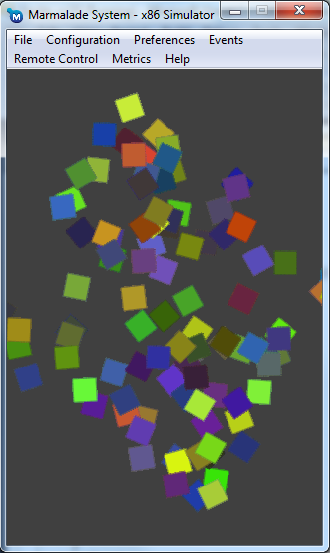
If you build and run the Sprite project you will see 100 sprites spinning around their centres with the whole scene of sprites spinning and scaling around the centre of the screen:

Sprite Marmalade SDK Example Screenshot

We have re-used the code from our previous Audio tutorial but ripped a few bits out of the main loop to clarify what’s going on.

Our first change involves creating a sprite manager and then adding some sprites:

// Create a sprite manager and a bunch of sprites CIwGameSpriteManager* sprite_manager = new CIwGameSpriteManager(); for (int t = 0; t < 100; t++) { // Create sprite CIwGameBitmapSprite* sprite = new CIwGameBitmapSprite(); // Set sprite position, angle and scale sprite->setPosAngScale(IwRandMinMax(-max_size, max_size), IwRandMinMax(-max_size, max_size), 0, IW_GEOM_ONE); // Give sprite a random colour CIwColour colour; colour.r = 55 + IwRandMinMax(0, 200); colour.g = 55 + IwRandMinMax(0, 200); colour.b = 55 + IwRandMinMax(0, 200); colour.a = 255; sprite->setColour(colour); // Set sprite image if ((t & 1) == 0) sprite->setImage(image1); else sprite->setImage(image2); // Add sprite to sprite manager sprite_manager->addSprite(sprite); }

Note that the code is a lot simpler than it looks. We are basically create 100 sprites giving each one a random position, random colour and alternative between two different bitmaps.

I want to point out here that using two separate images is bad practice as the underlying Iw2D render will need to switch states continually to switch between both images. To improve performance we would combine both images into a sprite sheet and then change the rectangular area within the image for each sprite.

Next we define a world transform matrix and world angle that we can modify on a per frame basis:

// Dynamic variables CIwMat2D WorldTransform; iwangle WorldAngle = 0;

Next we spin our sprites by walking the sprites list adjusting the angle of each sprite at a different rate (it would be boring if all of our sprites rotated at the same rate)

// Update all sprite rotations int speed = 0; for (CIwGameSpriteManager::Iterator it = sprite_manager->begin(); it != sprite_manager->end(); ++it, speed++) { (*it)->setAngle((*it)->getAngle() + speed); }

Now we do a bit of matrix math jiggery pokery to spin and scale our sprite manager:

// Spin and scale the sprite manager WorldTransform.SetIdentity(); WorldTransform.SetRot(WorldAngle); WorldTransform.ScaleRot((IW_GEOM_ONE / 2) + (IW_GEOM_COS(WorldAngle) / 3)); WorldTransform.SetTrans(CIwSVec2(surface_width / 2, surface_height / 2)); sprite_manager->setTransform(WorldTransform); WorldAngle += 20;

We firstly reset our world transform using SetIdentity(), think of this as setting a variable to its default value. We then set the rotation, scale and translation that all sprites within the sprite manager will transform by. Note that we set the translation position to the middle of the screen because when we created our sprites earlier we defined their positions based around the origin being at 0,0 (top-left hand corner of screen). The world translation will move them back to the middle of the screen.

We now send the world transform to the sprite manager and adjust our world angle, so everything spins.

lastly, we tell our sprite manager to go away and draw its child sprites:

// Draw our sprite manager sprite_manager->Draw();

And finally before we exit the game, we delete the sprite manager which in turn deletes all of our sprites.

// Clean up sprite manager delete sprite_manager;

I Love Concatenating Matrix Transforms

If you are wondering how we manage to spin a sprite individually as well as transform it by the worlds scale and rotation then open up IwGameSprite.cpp and take a look at CIwGameSprite::RebuildTransform()

void CIwGameSprite::RebuildTransform() { // Build the transform // Set the rotation transform Transform.SetRot(Angle); // Scale the transform Transform.ScaleRot(Scale); // Translate the transform Transform.SetTrans(Position); Transform.PostMult(Parent->getTransform()); TransformDirty = false; }

We use a matrix math track called matrix concatenation to multiple two matrices together, effectively combing both transforms into the one single transform. This following line multiplies out two matrices together:

Transform.PostMult(Parent->getTransform());

Object Pooling and Sprites

As your projects get larger and more complex you will find that you are constantly creating and deleting many objects. The constant process of allocating and deleting objects can take its toll on the memory management system, which causes something called fragmentation. Fragmentation is when your available memory pool consists of many small chunks instead of a few large chunks. Depending on the memory management system in use, this can increase the overhead of allocating future objects and risk the chance of running out of memory even though the system is reporting plenty of free memory (this happens because there isn’t a large enough chunk of contiguous memory available to allocate).

To help alleviate this problem we can pre-allocate a large number of objects in one go instead of lots of little ones at random times during the game. This is usually called an object pool.

The problem with C++ is that it doesn’t work very well with object pools because:

  • The objects in the pool usually all need to be of the same type
  • Constructors are usually called to construct and set up your object
  • Destructor’s are usually called to destroy and clean-up your object

We can get around the last two problems quite easily by emptying out our constructors and destructors and putting the code into Init() and Release() methods instead. This will allow us to setup and tear down objects without every having to recreate or delete them. Also, for certain types of objects (those that need to be reset to a default state) I like to add a Reset() method which allows me to set the object back to its original state.

The first problem is a lot more difficult to deal with, but the easiest solution is to simply create object pools for each type of object that you want to pool.

Pooling objects is as easy as allocating a bunch of them during game boot and then using some kind of marking system to mark them as in use or not in use. Instead of creating a new object you would simply search the object pool for a object that is not in use then reset it and use it. The only thing to do is to delete the object pool before you exit your game.

Well that’s it for this tutorial. Our next tutorial will handle adding frame based animations to our bitmapped sprite system which will allow us to truly walk the path of making a cool game.

You can download the code that accompanies this article from here.

Hope you all find this blog useful and until next time, don’t forget, dont read my blog at the wheel!

General Programming Tutorials – Beautiful Classes

Welcome to my first blog on general programming techniques and object oriented software design patterns, part of my general programming series . I’m sharing these programming techniques and software design patterns with you in the hopes that it will enable you to write more readable, functional, re-usable and extensible code, saving you both time and money in software development.

This blog article is going to cover some standard basic class layout techniques that I use to keep classes neat and readable. Please note that class layout and design is a very subjective subject, so this may not be the most efficient or perfect way of laying out classes but I find that it works great for my needs.

All code outlined within my articles will be mainly based around the C++ language. I may include other languages now and again.

Beautiful Classes

When I design classes I tend to think about aesthetics as well as functionality. I like my class to basically look good and appear very readable

Here is the basic layout that I use for most of my classes:

class MyClass { // Section 1 - Public enums, typedefs and static data. //// Public Types public: typedef unsigned int u_int; //// Public Types End // Section 2 – Properties (Provides public access to class properties via getters and setters) //// Properties private: int ClassData1; bool ClassData2; public: void setClassData1(int data) { ClassData1 = data; } int getClassData1() const { return ClassData1; } void setClassData2(bool data) { ClassData1 = data; } int getClassData2() const { return ClassData1; } //// Properties End // Section 3 - Private / protected types, class data and methods (used by the class internally only) //// Class Internals private: bool PrivateClassData; //// Class Internals End // Section 4 - Construction / destruction and initialisation //// Initialisation public: MyClass() : ClassData1(0), ClassData2(false), private_class_data(false) {} ~MyClass() {} bool Init(); void Release(); //// Initialisation End // Section 5 - Public access class functionality //// Public Access public: void DoSomething1(); void DoSomething2(); //// Public Access End };

I usually split my classes into 5 sections:

  • Section 1 – Public enums, typedefs and static data
  • Section 2 – Properties provide public access to class private data via getters and setters. A property can be thought of as a private class variable that you want to allow the outside world to change but in a safe manner.
  • Section 3 – Private / protected types, class data and methods (used by the class internally only)
  • Section 4 – Construction / destruction and initialisation. Note that I usually like to move all class initialisation code out of the constructor and place it into my class Init() method, same goes for  the destructor and the Release() method. This allows me to re-initialise and tear down a class without having to actually new or delete it. This can prove very useful in many situations such as object pooling to reduce memory fragmentation, where the idea is to preserve the class and re-use it.
  • Section 5 – Public access class functionality

I find that this kind of system helps me to determine where to quickly look inside my classes to find what I need.