Marmalade SDK Tutorial – Marmalade’s resource management system

This tutorial is part of the Marmalade SDK tutorials collection. To see the tutorials index click here

Well, its Saturday evening and instead of being slumped up against a bar talking nonsense and singing songs of old bloody coding battles with my fellow drunks, I’m sat here writing Tutorials to educate the masses on how cool and easy the Marmalade SDK is to use 🙂

In today’s (this evenings?) tutorial we are going to cover the Marmalade SDK’s resource management system. As usual if you just want the associated article source code then you can Download it from here. If you want the details on the resource management system then please do read on.

Marmalade’s resource managements system is a big subject, but I am going to attempt to summarise and pick out the most important bits to help get you up and running with it quickly

Most if not all games and apps should use some kind of resource system to handle the large amount of graphical, audio and other resources that constitute the game or app. Marmalade provides a text based resource group file system that allows you to specify groups of resources that you would like to include in your app.

IwResManager – The Marmalade SDK resource manager

IwResManager is the name given to the Marmalades utility resource management system. To include the module into your build, you will need to edit your project MKB file and add the iwresmanager module to your sub projects:

subprojects { iwresmanager }

You will also need to include the IwResManager.h header file

The resource manager has three functions:

  • Loading of resources file from their original source files. For example inefficient BMP’s , huge model text descriptor files etc..
  • Serialisation of resources to and from their compact binary format. As an example, the serialisation module would save the raw BMP’s, model text descriptors etc.. in a more compact format file called group_name.group.bin
  • Organising resources into groups using group text files. For example, you may want to organise all of the bitmaps for each level into a separate group then load the whole group per level

So as you can see IwResManager has quite a few uses, but its most important use is allowing you to specify your assets in a bulky format and have the resource manager compact them down into a more efficient format for deployment.

Oh, IwResManager will only rebuild the compact binary files from the original sources if you run the x86 Debug build. So if you wondering why your resource group bin files never change, you now know why.

To initialise the resource manager in code you need to call IwResManagerInit() at boot and then IwResManagerTerminate() to close it down at the end of your app.

Resource Manager Groups

All resources exist inside the resource manager in groups. You create groups using a simple text file format (Level1.group for example) that looks something like this:

CIwResGroup { name "Level1" // Level 1 image files "Level1/background.bmp" "Level1/SpriteSheet1.png" "Level1/SpriteSheet1.png" // level 1 audio files “Level1/music.wav” “Level1/sfx1.wav” “Level1/sfx2.wav” “Level1/sfx3.wav” “Level1/sfx4.wav” // Child groups “Characters\buddy_bod.group” “Characters\evil_twiggy.group” }

This group is named Level1 and contains 3 images, 5 sound effects and two other group. Note that the groups included here are known as a child groups. These groups are independent group files, just like this one but containing resources specific to buddy_bod and evil_twiggy.

Resources in the child groups will not be included in the parent resource binary file when serialised as they are groups in their own right, instead a link between them and the parent Level 1 group will be kept so that when you load the parent group, the child groups will also be loaded.

Loading Groups

Firstly, in order for Marmalade to see your group file on the target phone, tablet etc.. the corresponding group_name.group.bin file needs to be added to assets section like this:

assets { (data-ram/data-gles1, data) Level1.group.bin }

But where does this “Level1.group.bin” file come from? Remember I mentioned earlier that a debug build will build the compact binary versions of your resources, well this file is the compact binary version of your Level1 resources group file, which contains your BMP’s and WAV’s.

Next, to load the group in code you would call:

IwGetResManager()->LoadGroup(“Level1.group”);

Note that each time you call LoadGroup() each new group will be added to the resource manager.

Searching Groups

To find a particular named group in the resource manager you would call something like:

CIwResGroup* pLevel1Group = IwGetResManager()->GetGroupNamed(“Level1”);

To find a resource within that group you would call something like:

CIwTexture* pBackgroundTexture = (CIwTexture*)pLevel1Group->GetResNamed(“background”, “CIwTexture”);

A few notes:

  • Searching for a resource within a group will by default also search all child groups for the resource
  • You do not need to supply the type of resource such as “CIwTexture”, but it is recommended for speeding up searches
  • You can add a flag (3rd parameter) to GetResName() to modify the search. For example, if you want to ignore child group resources whilst searching then pass IW_RES_IGNORE_CHILDREN_F. See IwGxResManagerFlags definition for a complete list of flags

Destroying Groups

To destroy a resource group and all its associated resources you would use:

IwGetResManager()->DestroyGroup(“Level1”); or

CIwResGroup* pLevel1Group = IwGetResManager()->GetGroupNamed(“Level1”);
IwGetResManager()->DestroyGroup(pLevel1Group);

Compressing your resources with Derbh

The Marmalade SDK provides a mechanism by which you can compress your data to DZ / dzip files prior to or during deployment and then access the files within the compressed archive within your app or game with very little hassle. The module used for compression / decompression is called Derbh and to use it you need to add the derhb module to your list of sub projects in your project MKB file, like so:

subprojects { derbh }

You can completely automate the process of compressing all of your assets during deployment by adding the following line to the deployments section of your project MKB file:

deployments { auto-derbh }

You do not have to do anything different in your code to access your compressed assets as the decompression is transparent.

Note that you can take finer control over compression and decompression in your app as Marmalade provides derbh access via low and high level API’s that enable you to load archives on demand as well as read individual files.

And that’s about as far as I’m going to go with the resource manager for the moment. If you would like to learn more in-depth details, especially regarding the resource asset conversion process then you should check out the Marmalade SDK docs at here

What’s changed in our example

Ok, now we get to the accompanying example program. Lets take a look to see what has changed (this example is based upon the Keys example from one of our previous tutorials)

Firstly we will take a look at our Resources.mkb project file. You will have noticed that our test1.png and test2.png files are no longer listed as assets. Instead our group binary file is listed as:

(data-ram/data-gles1, data)
Level1.group.bin

Level1.group.bin now contains our PNG files

Also iwresmanager has been added to our list of subprojects

We have also added a new file to the project called Level1.group, which looks like this:

CIwResGroup { name "Level1" // Graphics "./test1.png" "./test2.png" }

This is our resource group definition file, which the Marmalade resource manager will use to build our Level1.group.bin file (when we run the debug version of the app).

Next we will take a look at what’s changed in Main.cpp. Firstly we have included the resource managers header file IwResManager.h. We have also added code to initialise the resource management system and load our Level1 group file:

// Initialise the rsource manager IwResManagerInit(); // Load our Level1 resource group into the resource manager IwGetResManager()->LoadGroup("Level1.group");

Ok, this next code change may seem a bit odd:

// Create two images from PNG resource files IwGetResManager()->SetCurrentGroup(IwGetResManager()->GetGroupNamed("Level1")); // Ensure that Level1 is the current resource group CIw2DImage* image1 = Iw2DCreateImageResource("test1"); CIw2DImage* image2 = Iw2DCreateImageResource("test2");

In the Keys code example, we created CIw2DImage’s from our test PNG files. As our PNG’s now live inside our Level1 group file instead, we need to firstly set the Level1 group as our current group and then create images from the test1 and test2 resources located inside that group.

Lastly, we shut down the resource manager

// Shut down the resource manager IwResManagerTerminate();

Ok, that’s it. You should now have enough info to start using Marmalade’s resource manager and resource groups in your own code, You can download the associated Resource project source code from here

Happy coding and don’t go to work naked!

Marmalade SDK Tutorial – Time and Timers

This tutorial is part of the Marmalade SDK tutorials collection. To see the tutorials index click here

A little bit rushed today, so please forgive and point out any mistakes that I’ve made. In today’s tutorial we are going to cover time and timers. As usual if you just want the associated article source code then you can Download it from here. If you want the details on time and timers then please do read on.

When developing apps and games you will quickly run into situations where you need to deal with time. For example, you need to fire off an event at some point in the future, have something occur at a set regular interval or time how long something takes to execute.

The Marmalade SDK provides functionality for dealing with both time and timers.

Reading Time

Marmalade has two main functions for reading time:

  • s3eTimerGetMs() – Returns the Uninterrupted System Time (UST) in milliseconds. This is the number of milliseconds that have passed since Marmalade started running
  • s3eTimerGetUTC() – Returns the Universal Coordinated Time (UCT) in millseconds. This is the number of milliseconds that have passed since the epoch (00:00:00 UTC, January 1, 1970)

I am only going to cover s3eTimerGetMs() in this tutorial as Marmalade have kindly provided a great example of s3eTimerGetUTC() here

Frame Rate and Animation Stabilisation Using Time

Ok, the main reason I wanted to cover time is that it is incredibly important when it comes to game development and app development that features animating components. In game development there are a few terms that you should be aware of:

  • FPS – Frame per second – All hardware with a display usually refreshes the display a certain number of times per second to give the impression to the user of smooth animation. The refresh rate is usually specified in frames per second (FPS) and varies from 10 to 60 fps, with 30 fps being about the average for many devices. If a game or app can carry out all of its logic and rendering in one frame (1/30th of a second if running at 30 fps) then it is said to run in a frame. If the game does not then animation will drop out of a frame into 2 or even 3 frames. When this happens the user will see a noticeable slow down of all animations (looks like slow motion animation), which looks pretty ugly and can put a lot of users off.
  • Frame time – Frame time is the amount of time it takes for the hardware to refresh one display frame. if the hardware update frame rate is 30 fps then the frame time is 1 / 30 = 0.033333 = 33 milliseconds.

One of the first problems developers usually hit is how to get their game to run smoothly across a large range of unknown spec devices. Its simply not possible to optimise your game for every phone and tablet out there, the costs for producing the game or app would be staggering. Luckily there is a simple solution

Each animating component in our game will usually have some variable that tells it how often to change; usually a velocity of some kind.. If our game does take longer to update and render than we expect then we can simply scale these variables to ensure that the animating components animate smoothly even if our frame rate changes.

As an example, lets assume we have a ship that flies across the screen from left to right at a given velocity, lets call it ship_vx. If the game is designed to run at 30 fps (33 milliseconds per frame update) and we want the ship to move at a rate of 30 pixels every second then it should move by 1 pixel every time we update the ships position (as there are 30 game frames in one second), so our ships velocity ship_vx would be 1.0. However, what if we ran our game on a very slow phone and our main game loop is running at 15 fps? If we put our 15 fps and 30 fps phones side by side and watched the ship on both displays then the ship would reach the other side of the screen on the 30 fps phone much faster, twice as fast in fact,

Now for the fix, how would we make our ship on the slower phone move at the same rate as our faster phone? If we made the ships velocity ship_vx = 2.0 on the slow phone then both ships would travel at the same speed on both phones.

This sounds good, but our ship can be running across a whole range of phones at different frame rates, so how do we know how much to change the ships velocity?

We can use time to figure this out. If we measure how long the last frame took to update and render then we can determine how much we need to scale our ships velocity by in the next game loop. Here’s some basic code (based on the code we have added to Main.cpp), showing how to do this:

float duration_of_one_frame = 1000.0f / 30.0f; // 33 milliseconds uint64 last_frame_time = s3eTimerGetMs(); float time_scale = 1.0; ship_vx = 1.0f; while (main_game_loop_alive) { // Move ship by its velocity ship_pos.x += ship_vx * time_scale; RenderShip(); // Calculate the next frame scale value uint64 current_frame_time = s3eTimerGetMs(); time_scale = (current_frame_time - last_frame_time) / duration_of_one_frame; last_frame_time = current_frame_time; }

This code isn’t perfect however, it has a few flaws such as time_scale is always lagging by one frame, which can cause a little jitter if your game is quickly falling in and out of 30 fps. It also does not cap time_scale, just in case your game takes much too long to update and render. To fix this you could add the following line:

if (time_scale > 4.0f) time_scale = 4.0f;

Note that value of 4.0 caps time animation to 7.5 fps, so if your game does drop below 7.5 fps then you will suffer slow motion problems. That said, If your game is consistently running as slowly as around 15 fps or less then its probably time to look at optimising it or reporting to the user that the game is not suitable for their device.

In the code that comes with this tutorial you will note that we have made a few minor changes:

In Main,cpp you will notice that we now spin our boxes based on time, which should ensure that they spin at the same rate on different hardware:

// Spin our awesome sprite
sprite_angle += sprite_angle_velocity * time_scale;

Note that we switched over from fixed point to floating point at this point just to make the implementation clearer

To confirm that frame scale works, change the s3eDeviceYield(0) statement to something like s3eDeviceYield(50). The frame rate wont look as smooth but the boxes will still spin at the same rate.

Timers and Alarms

Timers (with alarms) are amazing little inventions, they allow us to fire off events at some time in the future and at regular intervals. The benefits for a game and app developer stretch far and wide.

To create a timer using the Marmalade SDK you call:

s3eTimerSetTimer(unit32 ms, s3eCallback fn, void* userData)

ms is the number of milliseconds to wait from now before calling our alarm call-back function defined by fn.

Lets take a quick look at the Timer project code file Main.cpp

We set up the initial alarm in main() using:

// Start our timer alarm to go off 200 milliseconds from now s3eTimerSetTimer(200, &Alarm, NULL);

And here is the implementation of our Alarm call-back function:

// Alarm call back function, called by Marmalade when the timer expires static int32 Alarm(void *systemData, void *userData) { // Restart the alarm again for 200 millseconds from now s3eTimerSetTimer(200, &Alarm, NULL); g_AlarmOccured = true; return 0; }

Note that in the Alarm call-back, we reset the timer so that it fires again, causing a timer alarm that will continue to fire every 200 milliseconds.

Lastly, its possible to cancel timers using s3eTimerCancelTimer()

Well thats it for this tutorial. I hope you all find it of some use. You can download the associated Time project source code from here.
Happy coding and make sure that your shoe laces are tied!

Android and iOS Market share – Who’s ruling the roust!

I recently came across this great article on techcrunch and thought it a worth while mention to you budding game and app developers.

According to this article Android now has 41.8% of the US market (up a staggering 5.8% on last quarter), whilst Apple’s iOS has a very respectable 27% (up 1% on last quarter). RIM also has a very respectable 21.7% (4% drop) and Microsoft a 5.7% share (1% drop).

From these figures it looks like Android is stealing the share from RIM and Microsoft and probably a few other lesser known platforms that share the bottom 2% of the market. I’m quite surprised to see Microsoft losing ground already considering that their offering hasn’t not long since left the gates. Maybe the new Mango update and Nokia alliance will help fix that.

With the imminent launch of Amazon’s tablet the Kindle Fire, does Apple have a fight on their hands I wonder. I think its a distinct possibility as its priced at less than half the price ($199) and Amazon have a large existing user base. Will we see Apple lose shares to Android when the Kindle Fire hits mid November 2011.
Marmalade SDK Tutorial – Handling key inputs and the on screen keyboard

This tutorial is part of the Marmalade SDK tutorials collection. To see the tutorials index click here

In today’s tutorial we are going to cover key input and on the on screen keyboard (OSK).

As usual if you just want the associated article source code then you can Download it from here. If you want the details on the updated CInput class then please feel free to read on.

Keys and Key States

Marmalade maps device keys to an enum called s3eKey. if you take a look at the Marmalade SDK header file s3eKeyboard.h you will see that the list of mapped keys is quite extensive.

Marmalade uses key states to let us know what is currently happening to all the available keys on the device, for example we make queries such as “is the back key pressed” or “is the menu key up or down”. The following states are supported:

  • S3E_KEY_STATE_DOWN – The user is holding down the key
  • S3E_KEY_STATE_UP – The key is up and not being held down by the user
  • S3E_KEY_STATE_PRESSED – The user has just pressed their finger on the key
  • S3E_KEY_STATE_RELEASED – The user has just released the key

To query the state of a particular key we need to call s3eKeyboardGetState(key), which returns the states of the specified key. Note that its possible that a key can have more than one state. For example, if the user has just pressed the key then it would have both the S3E_KEY_STATE_DOWN and the S3E_KEY_STATE_PRESSED states.

On Screen Keyboard

The on screen keyboard is a software based keyboard that is available to phones and tablets that support a touch sensitive screen (You can call s3eOSReadStringAvailable() to determine if it is supported). You can bring up the OS specific on screen keyboard quite easily using Marmalade’s s3eOSReadStringUTF8() and s3eOSReadStringUTF8WithDefault(). These blocking functions display the operating system specific keyboard and then return any entered text. Its possible to suggest to the system (by passing a flag to these functions) what kind of keyboard you want the user to be presented with to cater for different types of input. The following types are available:

  • No flags – Standard keyboard
  • S3E_OSREADSTRING_FLAG_PASSWORD – A password entry keyboard
  • S3E_OSREADSTRING_FLAG_EMAIL – An email address entry keyboard
  • S3E_OSREADSTRING_FLAG_URL – A URL entry keyboard
  • S3E_OSREADSTRING_FLAG_NUMBER – A number entry keyboard

CInput Changes

Ok, now that the basics are out the way lets take a look at the changes to the CInput class. If you haven’t read the previous article that introduced this class then you can check it out here

If you take a look at CInput.h, you will notice a few major additions. The first few additions include header files required by the key and on screen keyboard systems:

#include "s3eKeyboard.h" #include "s3eOSReadString.h"

Switching over to the CInput.cpp class source file you will notice that we have added a few extra checks into CInput::Init()

// Check to see if the device that we are running on supports the keyboard KeysAvailable = (s3eKeyboardGetInt(S3E_KEYBOARD_HAS_KEYPAD) || s3eKeyboardGetInt(S3E_KEYBOARD_HAS_ALPHA)); // Check to see if the device that we are running on supports the on screen keyboard OSKeyboardAvailable = s3eOSReadStringAvailable() == S3E_TRUE;

This code basically ensures that the modules we are wanting to use are available on the device that we are running on.

Next we add the following code to CInput::Update() to ensure that the system updates key states

// Update key system if it is available if (KeysAvailable) s3eKeyboardUpdate();

Lastly, we add code to query key states and show the on screen keyboard:

bool CInput::isKeyDown(s3eKey key) const { if (!KeysAvailable) return false; // Return down state of queried key return (s3eKeyboardGetState(key) & S3E_KEY_STATE_DOWN) == S3E_KEY_STATE_DOWN; } bool CInput::isKeyUp(s3eKey key) const { if (!KeysAvailable) return false; // Return up state of queried key return (s3eKeyboardGetState(key) & S3E_KEY_STATE_UP) == S3E_KEY_STATE_UP; } bool CInput::wasKeyPressed(s3eKey key) const { if (!KeysAvailable) return false; // Return pressed state of queried key return (s3eKeyboardGetState(key) & S3E_KEY_STATE_PRESSED) == S3E_KEY_STATE_PRESSED; } bool CInput::wasKeyReleased(s3eKey key) const { if (!KeysAvailable) return false; // Return released state of queried key return (s3eKeyboardGetState(key) & S3E_KEY_STATE_RELEASED) == S3E_KEY_STATE_RELEASED; } const char* CInput::showOnScreenKeyboard(const char* prompt, int flags, const char* default_text) { if (!OSKeyboardAvailable) return NULL; // Show on screen keyboard and return the input string if (default_text != NULL) return s3eOSReadStringUTF8WithDefault(prompt, default_text, flags); else return s3eOSReadStringUTF8(prompt, flags); }

Using the new CInput features

If we now turn our attention towards Main.cpp, we can take a quick look at what has changed from our previous Touch example.

Firstly note that we got rid of s3eKeyboardUpdate(); as this is now handled by g_Input.Update()

We have also replaced the following code:

if (s3eKeyboardGetState(s3eKeyAbsBSK) & S3E_KEY_STATE_DOWN) // Back key is used to exit on some platforms break;

With this code:

if (g_Input.isKeyDown(s3eKeyAbsBSK)) // Back key is used to exit on some platforms break;

Not a great deal but a little more readable.

Now, we add a check into our main loop to see if the user has tapped the top of the screen. If they have then we show the on screen keyboard

// if user taps at top of screen then activate on screen keyboard if (touch->y < 50) { // Show on screen keyboard then print out the returned text to the debug trace const char* text = g_Input.showOnScreenKeyboard("Enter Text"); if (text != NULL) s3eDebugOutputString(text); }

If the user enters some text then we display the entered text to the debug console using s3eDebugOutputString()

Handling Android Back and Menu Buttons

Its worth noting that we’ve come across a number of Android app stores that require special handling of home and menu buttons as part of their certification process. These buttons should be implemented as follows:

  • Back Button – Navigate backwards in your application to the previous screen / menu
  • Home Button – Bring up the in-app or in-game menu

Well that concludes this tutorial. I hope you all find it of some use. You can download the associated Keys project source code from here

Happy coding and don’t sit on two legged chairs!

Marmalade SDK Bitesize Tutorial – Running out of memory and how to fix it

This tutorial is part of the Marmalade SDK tutorials collection. To see the tutorials index click here

Available Application Memory

Ok, this is the first of my bite-sized tutorials that I have started running alongside my usual meaty tutorials. I see these types of problems cropping on the forums often so I thought that I would cover them in small bite sized tutorials. Another good reason for bite sized tutorials is that I get the chance to blog a little more often as I can put one of these together in 10 minutes.

I’m pretty sure that most if not all of you Marmaladians have seen this dialog box before. If you haven’t then you are truly blessed 🙂

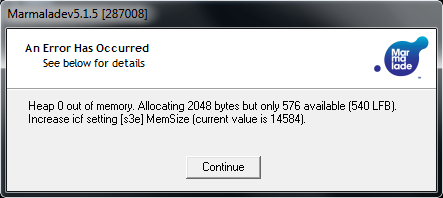
Marmalade out of memory exception dialog

Heap 0 out of memory. Allocating 2048 bytes but only 576 available (540 LFB).
Increase icf setting [s3e] MemSize (current value is 14584).

This error is basically the Marmalade system telling you that it wants to allocate 2048 bytes but doesn’t have enough memory to allocate it, in fact in this case we only have 567 bytes left.

To solve the problem you need to edit a file that Marmalade has generated for you and placed in your data folder called app.icf. This file is the main app configuration file and is where Marmalade stores certain runtime settings such as how much memory to allocate to your program or how big to make the data cache etc..

To change the amount of memory available to your app simply add the following section to this file:

[S3E]
MemSize=10485760

This value is the number of bytes to allocate to your app, in this case we have reserved 10MB. Note that without specifying your own MemSize you will have a default heap size of 3MB

If you are dealing with multiple heaps then you can set the the available memory per heap using:

MemSize1=your_size
MemSize2=your_size
MemSize3=your_size
and so on…..

Debug Memory

When running an x86 Debug build the Marmalade system will usually require additional memory to build resources and such. Marmalade provides an additional S3E app.icf option that allows you to specify memory size during debug builds.

[S3E]
MemSizeDebug=20485760

Data Cache Memory

The Marmalade SDK uses a data caching system to store certain data that it is going to use during rendering for example vertex streams and materials. Its not possible to allocate these kinds of data on the stack as they must persist until rendering has finished (when the app hits IwGxFlush()). If you are drawing a lot of stuff using a lot of different materials then there is a good chance that you are going to run of data cache and receive an error like that shown below:

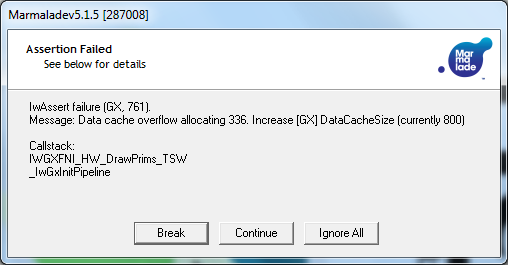
Marmalade Data Cache Overflow Error Dialog

IwAssert failure (GX, 761).
Message: Data cache overflow allocating 336. Increase [GX] DataCacheSize (currently 800)
Callstack:
IWGXFNI_HW_DrawPrims_TSW
_IwGxInitPipeline

To increase the amount of memory available to the data cache use the following app.icf setting (The default is 16384 bytes):

[GX]
DataCacheSize=80000


Vertex Cache Memory

When the Marmalade SDK transfoms your geometry it requires some work memory to place the transformed vertices prior to sending them to the GPU to be rendered. For example, if you are using IwGxFont to draw fonts then the vertices that make up the polygons of your glyphs will be transformed by the system into this vertex cache then rendered. You can change the amount of memory available for vertex transform using the following app.icf setting:

[GX]
VertCacheSize=8000

Keep an eye out for more bite sized tutorials coming very soon!