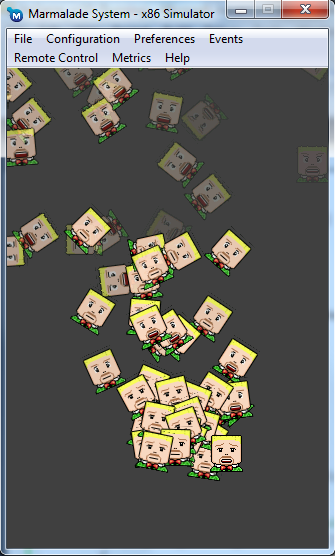
Yes, you read that right, we are pretty excited to announce that our Marmalade powered Samsung Bada app Funky Cam 3D FREE has just hit the No. 1 top spot on Samsung Apps. You can a grab a copy of our No. 1 Christmas hit at Funky Cam 3D on the Samsung App Store
Funky Cam 3D is also available on the following platforms:
If you are interested to know how many downloads that equates to per day then the value is 3000-4000 downloads per day. Just goes to show the marketing power of Samsung’s Bada platform.
Its taken a few weeks and loads of chasing people up and tests but we finally got our unified ad engine integrated into IwGame. And to celebrate that event we are releasing the code as open source. You can download the latest version of IwGame Engine from here
Here are the latest changes to IwGame:
Bug fix – Headers are now applied to CIwGameHttp GET requests
Added CIwGameHttpManager::DetermineUserAgent() to build a browser compatible user-agent
Added CIwGameHttpManager::DetermineIPAddress() to determine the users IP address. Please change PING_DOMAIN to your own domain!
Added CIwGameAd – Main ad request class which requests and retrievs ads from a variety of ad providers (Inner-active and Adfonic are supported at the moment)
Added CIwGameAdView – Requests ads at set intervals and displays them using animations, can cache ads
Added CIwGameAdsViewAnimator, a basic example animator that can be used to animate ads in a CIwGameAdsView
As well as the ad request and ad view classes you will notice a few other neat additions that may prove useful such as DetermineIPAddress() and DetermineUserAgent(). DetermineUserAgent returns the IP of the device that your app is running on whilst builds a browser compatible user-agent string for all supported Marmalade platforms. Yes, I know the user-agent is fudged bit it seems to work well and its a lot more compatible with other web API’s than the default s3e user-agent header.
We decided to separate the ad request class CIwGameAds from the actual ad renderer CIwGameAdsView to enable developers to simply use one without the other, so if you just want the ability to put in an ad request feel free to just roll with CIwGameAds. if on the other hand you want the complete package that requests ads at a regular interval, displays them and handles clicks then go with CIwGameAdsView.
We have provided an example with the test bed this update that shows you how to initialise, update and shut down ads (see main.cpp). Lets take a quick look at the code that has been added:
Application ID
All ad networks need some way to identify you and your app as the originator of the ad and click requests, without them you wouldn’t get paid, so ensure that you sign up with any ad network that you are planning on usng and get your Application ID. Each ad p[rovider may call the application ID something different, such as site ID or vendor ID etc.. No matter what they call it, we call it the Application ID and it must be supplied to IW_GAME_ADS_VIEW->Init(Application_ID_String);. Note that the current example will show House Ads from inner-active even with no Application ID (this is just to show you it working).
Note that you can change your Application ID in-between requests as well as which provider you are using, this is a good way to ensure that you get a close to a 100% fill rate maximising your revenue; if one ad provider does not return an ad then request one from the next ad provider. We will add support to automate this at a later date.
Then we added an initialisation function to initialise the ads system:
void AdTest_Init()
{
int width = IwGxGetScreenWidth();
int height = IwGxGetScreenHeight();
// Create ad view
CIwGameAdsView::Create();
// Initialise with Application ID (you get this from your ad provider)
IW_GAME_ADS_VIEW->Init("");
// Set ad provider
IW_GAME_ADS_VIEW->setAdProvider(CIwGameAds::InnerActive);
// Set ad request interval in seconds
IW_GAME_ADS_VIEW->setNewAdInterval(30);
// Force a request for an initial ad
IW_GAME_ADS_VIEW->RequestNewAd(CIwGameAds::InnerActive);
// Set total number of ads visible in the ads view
IW_GAME_ADS_VIEW->setNumAdsVisible(1);
// Tell animators to loop
IW_GAME_ADS_VIEW->setLooped(true);
// Create and attach an animator that fades the ad in over 1 second, pauses for 7 seconds and then fades the ad back outCIwGameAdsViewAnimator* anim = new CIwGameAdsViewAnimator();
anim->Init();
anim->setAdViewDataIndex(0);
anim->setCanvasSize(width, height);
anim->setInAnim(CIwGameAdsViewAnimator::AnimFadeIn, 1000);
anim->setOutAnim(CIwGameAdsViewAnimator::AnimFadeOut, 1000);
anim->setStayDuration(7000);
IW_GAME_ADS_VIEW->addAnimator(0, anim);// Create and attach an animator that sweeps the ad in from the right the over 1,2 seconds, pauses for 7 seconds and then sweeps back outanim = new CIwGameAdsViewAnimator();
anim->Init();
anim->setAdViewDataIndex(0);
anim->setCanvasSize(width, height);
anim->setRestingPosition(0, -height / 8);
anim->setInAnim(CIwGameAdsViewAnimator::AnimRightSweepIn, 1200);
anim->setOutAnim(CIwGameAdsViewAnimator::AnimRightSweepOut, 1200);
anim->setStayDuration(7000);
IW_GAME_ADS_VIEW->addAnimator(0, anim);// Create and attach an animator that scales the ad in over 1.5 seconds, pauses for 7 seconds and then scales back outanim = new CIwGameAdsViewAnimator();
anim->Init();
anim->setAdViewDataIndex(0);
anim->setCanvasSize(width, height);
anim->setInAnim(CIwGameAdsViewAnimator::AnimScaleIn, 1500);
anim->setOutAnim(CIwGameAdsViewAnimator::AnimScaleOut, 1500);
anim->setStayDuration(7000);
IW_GAME_ADS_VIEW->addAnimator(0, anim);// Create and attach an animator that rotates the ad in over 1 second, pauses for 7 seconds and then rotates back outanim = new CIwGameAdsViewAnimator();
anim->Init();
anim->setAdViewDataIndex(0);
anim->setCanvasSize(width, height);
anim->setInAnim(CIwGameAdsViewAnimator::AnimSpinIn, 1000);
anim->setOutAnim(CIwGameAdsViewAnimator::AnimSpinOut, 1000);
anim->setStayDuration(7000);
IW_GAME_ADS_VIEW->addAnimator(0, anim);
}
Don’t be alarmed and think OMG this is much harder than using AdMobs or iAds, most of this code is simply for setting up animations. In fact, yuo can just strip out the animation code (marked in orange) and remove it, the adw ill simply sit in the middle of the screen quite motionless.
Now lets take a look at how we update the ad system:
void AdTest_Update()
{
	// Update the ads view
	IW_GAME_ADS_VIEW->Update(GAME->getCurrentScene(), 1.0f);
	// Draw the ads view
	IW_GAME_ADS_VIEW->Draw(GAME->getCurrentScene());
}
Nice and super simple. if you are wondering, the underlying rendering is taken care of by Iw2D.
All nice and easy stuff. Now you can run ads across all Marmalade SDK platforms, depending on the Ad Providers support for those platforms. Thus far we have tested on iOS, Android, Blackberry Playbook and Bada and ads are delivered and clicks registered.
Hiding and Showing Ads
If you are using CIwGameAdsView to display ads then you can call IW_GAME_ADS_VIEW->setVisible(ad_visibility) to change ad visibility. Note that, if you make the ads view invisible then it will stop requesting and updating ads.
Displaying Multiple Ads
CIwGameAdsView currently supports display of multiple cached ads simultaneously. To enable this feature simply call IW_GAME_ADS_VIEW->setNumAdsVisible(ad_count); This will tell ads view to draw the last ad_count ads that have not expired. You will need to set the screen positions, scales, rotations etc for each separate ad unit by calling setPosition(), setScale(), setAngle() etc methods of CIwGameAdsView. The first parameter is the index of the ad slot you want to change. You cam do this manually or attach animators.
Which Ad Providers Are Supported?
We’ve spent most of the last few weeks trying to integrate with ad providers network API’s, which is made more difficult than it should be because some providers are a bit lax and even unhelpful when it comes to providing integration support, some have been pretty good though, especially Inner-Active, they are very on-the-ball.
We went ahead and left all of the code in there for all providers that we have attempted to integrate this far in case any of you want to pick up on where we left off.
The current list of providers we have attempted integration with includes:
Inner-Active – Works incredibly well across all platforms
AdFonic – Works, now has full support for carrier and WiFi
MobFox – Ads wont deliver over WiFi or carrier, trying to fix
InMobi – Ads wont deliver over WiFi or carrier, trying to fix
Madvertise – Registering impressions but never returns any ads
Mojiva – Awaiting app approval before we can test, so potentially works
We plan to ad support for most of the other major Ad players, once we find details of the REST based API’s
What Information Do I Need to Supply?
You should provide at least the following minimum information to the CIwGameAds class before requesting ads:
Application ID
If you want more targeted ads then you can also supply other information such as:
Users Age
Users Gender
Users Location
Application Category
Users Mobile Number
Keywords associated with the user
Note that not all ad providers will use all of the above.
This tutorial is part of the Marmalade SDK tutorials collection. To see the tutorials index click here
Its been a while since I posted any new Marmalade SDK tutorials because I have been so incredibly busy, I’ve also been focusing a lot of time lately on the soon to be released IwGameAds update to the IwGame engine (should be up on the blog today). Well, I’m now project free, nothing to work on for clients at the moment, so I have free time to blog.
Ok, lets move into the subject of the blog, debugging, deploying and app store store submissions for iOS devices (iPhone, iPod and iPad). I felt an urgent need to cover this subject as I have noticed many problems popping up on the Marmalade forums relating to iOS provisioning and app store submissions, so my insane desire to help out has got me caught up in an afternoons work of creating this useful guide.
iOS Development on Marmalade Introduction
The great thing about developing iOS apps with Marmalade is that by following a few simple rules your aop will run on any supported device as long as it runs on the Marmalade SDK x86 / Arm simulators. If you have come from a Cocoa / Objective-C background there are a few things to note when devloping with Marmalade SDK:
C/C++ is the primary language for development
You don’t have access to interface builder, instead Marmalade provides UI and font builder applications for creating complex user interfaces and fonts
Development can be done on both PC or Mac.
You can add code that has been developed using the iOS SDK / Objective-C via Marmalades extensions developer kit (EDK), but this code will not be cross platform compatible, so will only work for iOS deployments
Marmalade now supports native UI via IwNUI allowing you to create UI layouts that use native IOS controls (currently supported on iOS, Android, other platforms will fall back on Marmalade’s generic UI API IwUI)
For the duration of this article we are going to use a fictional app called “iScream Candy” that we are going to fictionally provision, develop and distribute.
iOS Provisioning Introduction
Well, I don’t accuse Apples account set up and provisioning process to be impossible but is has had me in tears before, fortunately in this article I am going to hopefully save many of you a bucket load of tears by providing a nice list of steps showing how to sort all this our quickly and quite painlessly,
What is provisioning and why is it needed by the way? In general terms. provisioning is the process of enabling development for a developer, allowing them to build and deploy apps to Apples devices and limiting access to those apps. This is needed to a) prevent software piracy and b) keeps control of who can develop apps on Apple devices.
The first thing you are going to need is an Apple Developer account. Go to http://developer.apple.com and create one.
Once you have your developer account, you need to click on “iOS Dev Center” to gain access to iOS developer resources. You will be asked to log in again. once logged in you will be presented with the iOS Dev Centre front page, you should note the “iOS Developer Program” menu down the right hand side of the screen
Here you will see 4 options, but we are only really interested in the first one for now “iOS Provisioning Portal”, click on it to go the provisioning portal.
Now take a look down the left hand side of the screen, you will see quite a few options. These options allow us to generate developer and distribution certificates, add devices that are allowed to run our apps, create app ID’s and provisioning profiles.
iOS Development Certificates
In order to develop and distribute products on the iOS platform Apple needs to know that our app is made by us and that our apps code is reliable and if something should go wrong Apple know where to go knocking. Security certificates allow developers to sign applications using their identity showing that they are “trusted” and not some malicious software developer that’s creating apps to destroy iOS devices or steal users personal details.
There are two kinds of certificates that you are going to need:
Development certificate – You need this to deploy your app to iPhone. iPad and iPod
Distribution certificate – You need this to deploy your app ro the Apple app store
Creating an iOS Development Certificate
In order to deploy our cool iOS apps to our iPhone, iPod or iPad we need to create a development certificate. This process starts with the Marmalade SDK. Here are the complete instructions:
1. Run the Marmalade iPhone Sign Request tool, this will launch Marmalades signing request tool which will create a developer key and a signing request for you
2. Click “Browse” and select a folder where you want Marmalade to save the signing request
3. Select “developer_identity.key” from the Key File drop down
4. Now enter your developer company name into the “Common Name” box
5. Enter the email address that you have assigned to your Apple developer account into the Email Address box
6. Finally hit the “Run” button
The tool will now generate a file called signing_request.csr in the folder that you selected in step 2. It will also generate a developer_identity.key key file in the \Marmalade\5.x\s3e\deploy\plugins\iphone\certificates folder (make a backup of this file)
Now over to the Apple side of things:
7. Go to the “iOS provisioning portal”
8. Click on the “Certificates” menu
9. Click on the “Development” tab
10. Click on the “Request Certificate” button
11. You will see a button at the bottom of the screen called “Choose File”. Click that button and select the signingrequest.csr file that you exported from Marmalades signing request tool
12. Click the “Submit” button. The certificate will be marked as “issued”. Click on the “Development” tab again to refresh the page (sometimes you need to refresh few times), this will add a button called “Download” to the right of the screen
13. Click on the “Download” button, this will download a file called “ios_development.cer”, save this file
14. Make a backup of this file and also copy and rename the file as \Marmalade\6.x\s3e\deploy\plugins\iphone\certificates\developer_identity.cer
15. Marmalade will now use the developer_identity.key and developer_identity.cer to sign your apps for deployment during development
Creating and Provisioning an iOS Application for Development
You probably already have test app or even a full app that you are waiting to test out on an iOS device, but before you do, there are a couple of changes you need to make.
The first thing you will need is an Application ID (App ID) which uniquely identified your app to the world. To create one we need to head back over to Apples iOS provisioning portal and carry out the following steps:
16. Click App ID’s option on the menu
17. Click “New App ID” button
18. Enter “iSCream Candy” as the app description
19. Enter “com.yourcompanyname.iscreamcandy” as the Bundle Identifier
20. Click the “Submit” button which takes you back to the App ID’s list
In order to deploy to an actual device we need to add our Apple device to the provisioning portal like this:
21. Click on the “Devices” menu
22. Click the “Add Devices” button
23. Enter a name for your device (anything you like)
24. Enter your devices Device ID. To get your devices ID carry out the following steps:
a. Plugin your device into the USB
b. Run the iPhone Configuration Utility
c. Select your devices in the left hand menu
d. In the summary tab you will see an “Identity” field, the long hexadecimal string is your Device ID
e. Keep the configuration tool open because you will need this in a moment to install your provisioning profile to the device
25. Click the “Submit” button
You will also need a developer provisioning profile, so head back to Apples provisioning portal and carry out the following steps:
26. Click on the “Provisioning” menu
27. Click “Development” tab
28. Click “New Profile” button
29. Enter “iscream_candy” as the Profile Name
30. Tick the box next to your certificate name to associate the certificate with this profile
31. Select “iScream Candy” as the App ID
32. Tick the checkbox next to your iOS device that is in the list of devices
33. Click “Submit” button
34. Click on the “Development” tab to refresh the screen
35. Click the “Download” button at the side of the “iscream_candy” profile name and save the file (will be called “iscream_candy.mobileprovision”)
36. Drag the provisioning profile file “iscream_candy.mobileprovision” onto the iPhone Configuration Utility
37. Select your iOS device in the left hand menu in the the oPhone Configuration Utility
38. Select the “Provisioning Profiles” tab
39. Locate “iscream_candy” and click the “Install” button that is shown next to it
Now we go back to the Marmalade side of things. We need to let the Marmalade deployment tool know a few things about your app before we deploy:
40. Open up your projects MKB file
41. Add a section like this:
This deployment section will allow us to auto fill in the information that we provided when we use Marmalades deployment tool to deploy our app to our iOS device.
We are now ready to build and deploy our app to the iPhone, iPad, and iPod.
Building and Deploying our App to an iOS Device
Ok, now we have provisioning for development and we have a deployment section added to our MKB project file, lets get our app installed to the device for testing.
42. In Visual Studio / XCode change the build type to GCC (ARM) Release and hit go, the project will now build. Once built, Visual Studio will launch the Marmalade Deployment Tool.
43. Select “ARM GCC Release” as the Build Type then click the Next button
44. Select “iPhone” as the deployment configuration then click the Next button
45. Select “iOS” as the platform to deploy to then click the Next button
46. Click the “Deploy All” button
47. When the deployment tool is finished it will create two files in our iPhone release deployments folder (the deployments folder is located in our build folder build_iscreamcandy_vc10\deployments\iPhone\iphone\release
Its worth noting here that you should check the deployment log to ensure that all went well, to do this click the “Log” button
48. Drag the iscream_candy.ipa file from that folder onto iTunes
49. in iTunes select your phone on in the menu on the left of the screen
50. Click on the apps tab and tick the checkbox next to our iScream Candy app then click on the Sync button to install the app
All being well the app should now appear on the iOS device.
Word of caution, delete your existing app from the iOS device before redeploying. Unless you change the version number of your app in the MKB file, iTunes will not install the same version number of an app if it already exists on the device.
Creating an iOS Distribution Certificate
So now you have a finished product and you want to submit it to the Apple app store for approval. The first thing you are going to need is a distribution certificate
In order to deploy our cool iOS apps to the app store we need to create a distribution certificate. This process starts with the Marmalade SDK, here are the complete instructions:
51.. Run the Marmalade iPhone Sign Request tool, this will launch Marmalades signing request tool
52. Click “Browse” and select a folder where you want Marmalade to save the distribution signing request
53. Change the name to “distro_signing_request.csr”
54. Select “distribution_identity.key” from the Key File drop down
55. Now enter your developer company name into the “Common Name” box
56. Enter the email address that you have assigned to your Apple developer account into the Email Address box
57. Finally hit the “Run” button
The tool will now generate a file called distro_signing_request.csr in the folder that you selected in step 2. It will also generate a distribution_identity.key key file in the \Marmalade\5.x\s3e\deploy\plugins\iphone\certificates folder (make a backup of this file)
Now over to the Apple side of things:
58. Go to the “iOS provisioning portal”
59. Click on the “Certificates” menu
60. Click on the “Distribution” tab
61. Click on the “Request Certificate” button
62. You will see a button at the bottom of the screen called “Choose File”. Click that button and select the distro_signingrequest.csr file that you exported from Marmalades signing request tool
63. Click the “Submit” button. The certificate will be marked as “issued”. Click on the “Distribution” tab again to refresh the page (sometimes you need to refresh few times), this will add a button called “Download” to the right of the screen
64. Click on the “Download” button, this will download a file called “ios_distribution.cer”
65. Make a backup of this file and also copy the file as \Marmalade\6.x\s3e\deploy\plugins\iphone\certificates\distribution_identity.cer
66. Marmalade will now use the distribution_identity.key and distribution_identity.cer to sign your apps for distribution to the app store
Creating and Provisioning an iOS Application for Distribution
We need a fair few bits and bobs in order to create an app that is ready for distribution to customers that are foaming at the mouth ready to spend their hard earned dollars on your new masterpiece (I wish lol). The first thing we need is a distribution provisioning profile that we can include with the app during submission, here’s how to generate it:
67. Click on the “Provisioning” menu in the iOS Provisioning Portal
68. Click “Distribution” tab
69. Click “New Profile” button
70. Ensure that “App Store” is selected
71. Enter “distro_iscream_candy” as the Profile Name
72. Select “iScream Candy” as the App ID
73. Ensure that the “Distribution Certificate” says “Company Name (expiring on {Some date in the future})”
74. Click “Submit” button
75. Click on the “Distribution” tab to refresh the screen
76. Click the “Download” button at the side of the “distro_iscream_candy” profile name and save the file
77. Copy the saved distro_iscream_candy.mobileprovision file to the Data folder in your build
Now over to the Marmalade side
78. Open up your projects MKB file
79. Update your deployments section to look something like this
You will notice a few other extra pieces of information have appeared in the MKB file. As we are getting ready to distribute our app we also need to provide icons and splash screens. If you app is a unified iOS app (compatible with iPhone and iPad) then you need to supply splash screens and icons for both platforms.
Getting ready for iOS App Store Submission
Before we can submit our super cool but hastily named game to Apple for approval we need to create app icons, splash screens, screen shots and text / keywords etc..
80. The iOS expects the following sized icons (see above MKB deployment section to see how to include them)
iphone-icon – Standard iPhone icon (57 x 57 pixels)
iphone-icon-ipad – Standard iPad icon (72 x 72 pixels)
iphone-icon-high-res – iPhone with retina display (114 x 114 pixels)
81. In addition, you need to supply 3 different splash screens that need to have specific names:
Default~iphone.png – Standard iPhone splash screen (320 x 480 or 480 x 320)
Default~ipad.png – Standard iPad splash screen (768 x 1024 or 1024 x 768)
Default@2x~iphone.png – iPhone with retina display (640 x 960 or 960 x 640)
To ensure that these files get included in your build you need to add them to the assets section of your MKB file like this:
82. You also need the following additional graphical items:
* 512 x 512 iTunes Artwork Icon – This is a hi-resolution version of your app icon
* At least 3 iPhone screen shots (320 x 480 or 480 x 320)
* At least 3 iPad screen shots (768 x 1024 or 1024 x 320)
iOS App Store Submission
We are finally there, woohoo, I’m so glad because my fingers are starting to break!
83. To submit an app to Apple you need to log into iTunes Connect (menu option beneath Provisioning Portal) on the iOS dev web site
84. Click on “Manage Your Applications”
85. Click on the “Add New App” button to create a new application
86. Enter “iScream Candy” as the App Name
87. Enter SKU number (put anything you like or that’s relevant to how you track apps)
88. Select “com.companyname.iscreamcandy” as the Bundle ID
89. Click the “Continue“ button
90. Select availability date to some point in the future (choose 2-3 weeks from now, you can change this when the app is passed)
91. Select price tier (to find out what the tiers mean in dollars click the “View Pricing Matrix” link)
92. Click the “Continue“ button
93. Fill in the app information, add app icon and screen shots etc..
94. Click the “Save” button
95. Click on the View Details for your app
97. Click on the “Ready to Upload Binary” button at the top right of the screen
98. Select “No” when asked about export compliance (unless you are using encryption) then click the “Save” button
The next screen will tell you how to download and install XCode so you can gain access to Application Loader (a small app that lets you send you binary to apply for certification)
99. Click “Continue”
100. Locate and run “Application Loader” on the Mac (Minimum version Mac OS X 10.5).This should be located in /Developer/Applications/Utilities/Application Loader.app. if not then you will need to download and install either the latest version of XCode or iOS SDK 3.2
101. Click “Next” on the application loader welcome screen
102. Log in with your iTunes Connect log in details
103. When asked to “Choose Application” select the iScream Candy application from the drop down list and click “Next”
104. Check that the application metadata information is correct then click “Choose” to browse and select your applications binary zip file
105. Click the “Send” button to send the application binary to Apple
106. Once the application has finished uploading you will see a thank you screen, click the “Done” button to close it. If the application was not signed properly you will be notified here
Enabling Push notifications
For some odd reason Apple knocks all our apps back that are not push enabled (even though we do not use it), here’s the additional steps you will need to carry out to enable it.
107. Click “Configure” link next to the app ID for iScream Candy
108. Tick the “Enable for Apple Push Notification service” check box
109. At the side of the “Production Push SSL Certificate” click the “Configure” button
110. A window will pop up, click the “Continue” button
111. Click the “Choose File” button and select the signing_request_dtstro.csr file from earlier
112. Click the “Generate” button
113. Click “Continue” button then the “Done” button
And that’s it, you’re app is now in Apple heaven. It usually takes between 7 and 21 days to get approval, less if it is an update.
A few Additional Notes
I asked you to back up your certificates as you generate them earlier because when you install a new version of the Marmalade SDK you may lose them as you uninstall the previous version of the SDK. If you back them up you can simply copy them back into the \Marmalade\5.x\s3e\deploy\plugins\iphone\certificates folder
Provisioning profiles expire so you need to renew them now and again. Your IOS device will usually remind you when you need to renew a provisioning profile.
Well that’s its for this article. With any luck I have saved some of you much pain and suffering and hopefully a few buckets of tears
Recently we looked at ways of monetising apps and games by charging nothing for them. Yes, I know it sounds ridiculous doesn’t it. Well, its not quite as ridiculous as it sounds. Its possible to make money from apps and games by either a) giving the game away for free and inserting ads in there (usually called ad-ware) and b) again, giving the game away for free but selling optional extras within the game (usually called freemium).
We recently implemented a platform agnostic API that uses the Marmalade SDK and Inner-actives M2M protocol to serve ads to all Marmalade SDK compatible phones and tablets. Currently supported platforms include iPhone, iPad, Android, Samsung Bada, Blackberry Playbook, Symbian, Windows Mobile, WebOS, PC and Mac.
The great thing about our ads is that they are different. Our ads don’t just sit at the top of the screen crying like babies for attention, instead they leap out at the user with animations and transitions, hypnotising the user into clicking on them. We like to see the process as bringing gaming to ads and not bringing ads to gaming.
We are opening up our API very soon for all Marmalade SDK developers. The ad engine will also become part of the IwGame engine with additional support for MobClix, AdWhirl and InMobi. Depending up on the API’s success we may also create bespoke versions for the iOS and Android SDK’s for those die hard developers that won’t convert to the Marmalade SDK. We will put a proper blog together when the time comes.
Our animating ads work very well and our click rate (CTR) is proof that the pudding is cooked well. Here are a few figures:
Android – 3.23%
iPhone – 7.34%
iPad – 3.54%
Samsung Bada – 5%
Our average CTR with static AdMob ads is 1.76%
Ok, now onto the real subject, we have released Funky Cam 3D across iPhone, iPad, Android and Samsung Bada (Bada 2.0 coming soon).
Funky Cam 3D FREE can be downloaded from the following stores:
Well, I’m very pleased to announce that the eagerly awaited version 5.2 update to the Marmalade SDK is finally here. Some great new features have made it into the build including:
Native UI (IwNUI)
Native UI is a cross-platform UI framework that utilizes native controls. This allows developers to create user interfaces with native look and feel using a simple cross platform framework. Currently Marmalade supports Native UI on iOS and Android platforms, with IwUI used as a backend for all other platforms.
What does this mean for us cross platform phone and tablet developers? I can tell you, it means a great deal. This single addition to the SDK makes Marmalade a very viable application development platform for regular app style projects using the phones / tablets own native UI look and feel.
Bada 2 support
Support for Samsung’s bada platform is extended with this release; Marmalade can now target bada 2.0 devices.
We get a new platform, woohoo, the is the main reason why I love Marmalade so much!
iOS 5 EDK Support
iOS support has been extended to support building extensions with iOS 5.0 SDK. Extensions can now include features from iOS 5.0.
So we get access to new iOS 5.0 features via the EDK, which is great. iOS 5.0 has over 200 new features, such as the new notifications centre, iMessage, Reminders and iCloud,
Xcode Plugin Upgraded to Support Version 4.2
The Mac OS X SDK now supports Xcode 4.2 and the compiler and editor changes that were introduced with the iOS 5.0 SDK. Support for Xcode 3.x has been officially dropped. Please upgrade to the latest version. If required, Xcode 4 can be installed in parallel to any existing 3.x installation by specifying a different install location and using the xcode-select command line tool.
iOS Remote/Push Notification Support
Added full support for remote/push notifications in s3eIOSNotifications, including support for embedding provisioning profiles in development builds.
EDK Support on OS X
Extensions are now supported for Mac OS X deployments.
WebView Enhancements
s3eWebView now supports transparency and local file access.
Also included are many bug fixes and other minor enhancements and changes, too numerous to mention in fact. The full list is available in the re,lease notes on Marmalade’s web site
This tutorial is part of the Marmalade SDK tutorials collection. To see the tutorials index click here
In our previous tutorial we tidied up the IwGame engine and properly separated our engine calls away from our game code. We ended up with a nice system that allows us to begin building a game. This week we are going on a slight diversion because I have recently been working on sending and retrieving data from the web. I think that its important for any game engine to be able to pull in data from outside itself as it allows us to create games that are easily upgradable without having to put a new version of the game through the app store approval process. Its also cool to be able to send data to the web as it allows us to do cool stuff such as communicating with web services, accessing functionality that could add a lot of value to our games or apps. If you just want the code to this tutorial then you can download it from here.
I am actually going to do a couple of tutorials today that cover this subject, the first is covering the basics of interfacing with Marmalade’s IwHttp module that allows us to send GET and POST requests to a web server.
Oh, the reason for this diversion is because over the last few days I have been working to produce a cross platform ad API that allows Marmalade SDK developers to use Inner-active’s ads on any platform by writing a system that interfaces with Inner-active’s ad server and pulling back text and image based ads. Thus far I have the system returning and displaying ads. I just need to write the display system into its own view control and get the click system working. once that’s finished, it will become part of the IwGame game engine. I will blog about that when its finished. If you are interested in beta testing it then please get in touch.
IwHttp – Marmalade’s API for Performing HTTP Requests
IwHttp is the base module used by the Marmalade SDK that allows you to send and receive data from a web server over http and https. IwHttp allows you to perform both GET and POST operations. We have gone one step further however and simplified and extended its usefulness creating a new class called CIwGameHttpManager. If you would like to see how to use the IwHttp class in the manager then take a look at IwGameHttp.cpp and iwGameHttp.h.
CIwGameHttpManager – A Queued Http Request Manager
CIwGameHttpManager is a singleton class that allows you to throw GET and POST requests to it. The manager will queue the requests and them one by one until no requests are left in the queue. Note that the next request is only sent after the first returns. I’m not going to go into the internals of CIwGameHttpManager because the it and its associated classes constitute a lot of code. I will however explain how to use them.
Firstly you need to instantiate and initialise the CIwGameHttpManager singleton using:
// Initialise the http manager
CIwGameHttpManager::Create();
IW_GAME_HTTP_MANAGER->Init();
And before you exit your game / app clean-up the manager using:
// Clean up http manager
IW_GAME_HTTP_MANAGER->Release();
CIwGameHttpManager::Destroy();
In your main loop, you will also need to call the manager update so that it can do its stuff using:
To make a GET request we need to create a persistent instance of CIwGameHttpRequest and set it up, like this:
CIwGameHttpRequest* Request = new CIwGameHttpRequest();
Request->setGET();
Request->setURI(“http://www.battleballz.com/default.aspx”);
Request->setContentAvailableCallback(&DataRetrievedCallback, (void*)this);
IW_GAME_HTTP_MANAGER->AddRequest(Request);
Note that we have set a callback function that will be called when our data is available to use. Here is an example callback:
int32 DataRetrievedCallback(void* caller, void* data)
{
CIwGameHttpRequest* request = (CIwGameHttpRequest*)caller;
if (request->getProcessed()) // Check to see if our request was processed by the http manager
{
// To get to our data we call request->getContent();// To get to our data length we call request->getContentLength();
IW_GAME_HTTP_MANAGER->RemoveRequest(request); // Remove request from http manager queue
}
return 0;
}
As you can see its ultra simple to retrieve data from the web.
Making a POST Request – Sending Data to a Server
To make a POST request we need to create a persistent instance of CIwGameHttpRequest and set it up, like this:
CIwGameHttpRequest* Request = new CIwGameHttpRequest();;
Request->setPOST();
Request->setURI(“http://test.battleballz.com/Test.asmx ”);
Request->setContentAvailableCallback(&DataRetrievedCallback, (void*)this);
Note that up to this point the setup is very similar except we specify setPOST() instead of setGET().
However we want to send some data to the server we have to, so we have to put it somewhere, this is done using the posts body llke this:
In the above example the body string holds an XML based SOAP request that we are sending to my test ASP.NET web service. In this case when the server gets this SOAP request it will call a method called HelloWorld which returns some data to us.
Note that when we send data to a web server we need to send some details about that data such as its type and length. In the above example we accomplish this by adding headers to our POST request.
When the POST has been made the web server will return a response which can be picked up in our callback function.
Ok, that all looks quite straight forward, but we can make things much simpler if we just want to download files from our web server, in steps the IwGameFile class
CIwGameFile – File Class That Handles Loading of Local and External files
Yes, we decided to put together a quick file class that handles loading of files from local storage and from an external web server. All you have to do is pass the URL and an optional callback (my kindness knows no bounds!)
Again, I don’t want to go into the intricate details about the implementation, instead I am opting for the telling you how to use it approach. IwGame is starting to become a small beast and I would rather spend the time improving it.
CIwGameFile is a basic general purpose file system class that allows you to open, create, read and write files. In addition it allows you to open a file located somewhere on the web using the http protocol.
Heres an example on how to open a local file, read some data and close the file:
CIwGameFile* file = new CIwGameFile();
file->Open("monkey_magic.txt”);
file->Read(my_buffer, 1024);
file->Close();
And here’s an example showing how to open a read the same file located on the web:
Note that the above method blocks the main loop and does essentially stops all processing of the game until the file is returned. I would instead recommend using a none blocking method like this:
CIwGameFile* file = new CIwGameFile();
file->Open("http://www.battleballz.com/monkey_magic.txt”);
file->setFileAvailableCallback(FileLoadedCallback);
IwGameFile still requires a few upgrades to complete its functionality. Here are a few planned updates:
None blocking local file I/O
Timeout check needs adding to blocking http downloads
Add methods for reading / writing common types
Other additions to IwGame
You will notice that a few other bits and bobs have appeared in the game engine that i have not mentioned thus far. These include:
IwGameString – This is a basic string class that supports string builder type string building to cut down on memory allocations as well as stream type searching and some other utility stuff
IwGameImage – This class has been upgraded to support JPEG as well as creation of images from memory based files. Will cover this in more detail in my next blog
This tutorial is part of the Marmalade SDK tutorials collection. To see the tutorials index click here
In our previous tutorial we created created an actor, scene and camera system to automate the handling of game objects for us as well as allow us to create different types of actors derived from a common actor base. This week we are going to take the previous IwGame code base and turn it into a proper game engine. If you just want the code to this tutorial then download it from here.
Cleaning up the Mess
If you take a look at last weeks Main.cpp, you may agree that it just looks static, messy and not very readable. This week we are going to clean up our act and turn IwGame into a real usable game engine. Lets take a quick look at our new Main.cpp to see how much tidying up has been done:
int main()
{
    // Init Game
    Game::Create();
    GAME->Init();

    // Main Game Loop
    while (!s3eDeviceCheckQuitRequest())
    {
        // Update the game
        if (!GAME->Update())
            break;

        // Check for back button quit
        if (IW_GAME_INPUT->isKeyDown(s3eKeyAbsBSK))
            return false;

        // Draw the scene
        GAME->Draw();
    }

    GAME->Release();
    Game::Destroy();

    return 0;
}
Wow, ok, where’s everything gone? our game has been whittled down to initialisation, update, draw and clean-up. Well not quite, the code has gone somewhere, some of it has been integrated into the IwGame engine whilst the game specific code has been moved into a proper game class. Remember last week, we created scenes to manage actors? Well this week we have created a CIwGame class to manage scenes.
IwGame Class for Managing our Game
if you check out the engine code you will notice some new files:
IwGame.cpp
IwGame.h
IwGameImage.cpp
IwGameImage.h
Lets take a quick look at the CIwGame class:
class CIwGame
{
public:
    // Public access for scene iteration
    typedef CIwList::iterator    _Iterator;
    _Iterator                    begin() { return Scenes.begin(); }
    _Iterator                    end()   { return Scenes.end(); }

protected:
    //// Properties
    CIwGameScene*           CurrentScene;        // Scene that has current input focus
    CIwGameScene*           NextScene;           // Scene that we wish to switch focus to
    CIwList<CIwGameScene*>  Scenes;              // A collection of game scenes

public:
    void                    addScene(CIwGameScene *scene);
    void                    removeScene(CIwGameScene* scene);
    void                    removeScene(unsigned int name_hash);
    CIwGameScene*           findScene(unsigned int name_hash);
    CIwGameScene*           findScene(const char* name);
    CIwGameScene*           getScene(int index);
    void                    clearScenes();
    void                    changeScene(CIwGameScene *new_scene);
    bool                    changeScene(unsigned int name_hash);
    //// Properties end

protected:
    uint64                  LastFrameTime;        // The time at which the last frame ended

public:
    virtual void            Init();
    virtual void            Release();
    virtual bool            Update();
    virtual void            Draw();
    virtual void            Save() {}
    virtual void            Load() {}

private:
public:
    void                    SetBackgroundColour(uint8 r, uint8 g, uint8 b, uint8 a);
};
As you can see its basically a class that allows us to add / remove and change scenes. It also provides initialisation, release, update, drawing and save / load functionality.
These methods represent the most basic functionality that I believe any game would need. If you take a look at IwGame.cpp you will notice that there is quite a lot of code in there. Lets take a quick look at what CIwGame::Init() does:
CIwGame’s Init() method carries out some basic Marmalade SDK and game specific initialisation:
void IwGame::Init()
{
    CurrentScene = NULL;
    NextScene = NULL;

    // Initialise Marmalade SDK graphics system and Iw2D module
    IwGxInit();
    Iw2DInit();

    // Initialise the input system
    CIwGameInput::Create();
    IW_GAME_INPUT->Init();

    // Init IwSound
    IwSoundInit();

    // Initialise Marmalade SDK resource manager
    IwResManagerInit();

#ifdef IW_BUILD_RESOURCES
    // Tell resource system how to convert WAV files
    IwGetResManager()->AddHandler(new CIwResHandlerWAV);
#endif

    // Set default background colour
    SetBackgroundColour(0, 0, 0, 0);

    // Get initial time stamp
    LastFrameTime = s3eTimerGetMs();
}
You will notice that much of this code was present in our previous tutorials Main.cpp initialisation code. We have moved it into our CIwGame base so that we have some basic initialisation code that allows us to get our games up and running quickly.
Similarly our CIwGame::Release() method:
void IwGame::Release()
{
    // Clean up scenes
    for (_Iterator it = Scenes.begin(); it != Scenes.end(); ++it)
        delete *it;
    Scenes.clear();

    // Shut down the input system
    IW_GAME_INPUT->Release();
    CIwGameInput::Destroy();

    // Shut down the resource manager
    IwResManagerTerminate();

    // Shutdown IwSound
    IwSoundTerminate();

    // Shut down Marmalade graphics system and the Iw2D module
    Iw2DTerminate();
    IwGxTerminate();
}
The only thing new here is the recursive release of all of the attached scenes
The last method I am going to look at is our CIwGame::Update() method
bool IwGame::Update()
{
// Calculate how long the last game frame took (capped at 60 and 10 fps) - We use this to scale all of our transient variables that rely// upon time so that everything movess at the same rate regardless of our devices frame rate
float dt = (float)(s3eTimerGetMs() - LastFrameTime) / 16.67f;
if (dt < 1.0) dt = 1.0f; if (dt > 6.0f) dt = 6.0f;
LastFrameTime = s3eTimerGetMs();
// Clear the screen
IwGxClear(IW_GX_COLOUR_BUFFER_F | IW_GX_DEPTH_BUFFER_F);
// Update pointer system
IW_GAME_INPUT->Update();
// Update Iw Sound Manager
IwGetSoundManager()->Update();
// Check for scene change
if (NextScene != CurrentScene)
{
// Notify scenes that there is a change of circumstances
if (CurrentScene != NextScene)
{
if (CurrentScene != NULL)
{
CurrentScene->NotifyLostFocus(NextScene);
if (CurrentScene->getAllowSuspend())
CurrentScene->NotifySuspending(NextScene);
}
if (NextScene != NULL)
{
NextScene->NotifyGainedFocus(CurrentScene);
if (NextScene->getAllowSuspend())
NextScene->NotifyResuming(CurrentScene);
}
CurrentScene = NextScene;
}
}
// Update all scenes that are not suspended
for (_Iterator it = Scenes.begin(); it != Scenes.end(); ++it)
{
if (CurrentScene == *it)
{
(*it)->Update(dt);
}
else
{
if (!(*it)->getAllowSuspend())
{
(*it)->Update(dt);
}
}
}
return true;
}
Update() basically does most of what we were doing in our previous tutorials main loop, except that we use the concept of a “current scene”. Because scenes can potentially be overlaid over one another and we do not want to always be processing all scenes within our game, we use the concept of a current scene which has the focus of the player.
Now that we have the ability to change scenes, we ideally need a mechanism for notifying the other scenes that they have been switched to or switched away from, allowing our scenes to carry out processing specific to handle such events.
Another important addition to our game update loop is the measurement of time. At the start of Update() we calculate how much time has passed since Update() was last called. We can use this value to scale all of our transient variables (animations, movement etc..) within our game to ensure that they move in a consistent manner regardless of variations in frame rate. The variable dt holds our scaling factor, which is how much we need scale our transient variables by to ensure that they remain in step with our frame rate. If we did not handle time within our game then animations and movement / spinning etc.. would slow down when our games frame rate drops and increase when our frame rate increases.
Building Our Own Game Class
The idea of the CIwGame class is to provide the most basic functionality required to initialise, clean-up and update / draw our game. In order to create a real game we should derive our own class from CIwGame and add our own game specific code, not forgetting to call the CIwGame base methods so we do not miss out on our already implemented functionality.
In this case we create a class called Game.cpp which is a singleton class that derives from CIwGame and implements Init(), Release(), Update() and Draw() methods. if you take a quick look at Game.cpp you will notice that the game specific code from our old Main.cpp has been moved here.
We also go a step further and remove our dependency on storing references to scenes, images and animations etc, instead opting for finding them within their respective managers as and when needed. For example:
In Game::Update() we have:
CIwGameScene* scene = findScene("GameScene");
if (scene != NULL)
{
    // Get tapped position in our virtual screen space
    CIwFVec2 pos = scene->ScreenToVirtual(IW_GAME_INPUT->getTouch(0)->x, IW_GAME_INPUT->getTouch(0)->y);
    // Find our sprite atlas
    CIwGameImage* image = scene->getImageManager()->findImage("sprites");
    // Find our manic face animation frames
    CIwGameAnimImageFrame* anim = scene->getAnimFrameManager()->getImageFrames(0);

    // Create 10 player actors
    for (int t = 0; t < 10; t++)
    {
        ActorPlayer::Create(pos.x, pos.y, scene, image, anim);
    }
}
Notice how we now search for our game scene, instead of accessing it via the local game_scene variable. We also do the same with image and anim.
This brings me to another new addition to the CIwGame engine.
CIwGameImage and CIwGameImageManager – Managing Images
After I had finished factoring out most of the code from Main.cpp I was left with what to do about the sprite atlas images that my game is going to use. I didn’t really want to be storing pointers to images all over the place that may or may not still exist, this can lead to some nasty and hard to find bugs. instead I opted to create a class that will manage all of the images that my scene allocates. This way we have them all in one central location and the manager can manage their lifetimes for us.
In addition, I thought that I would extend the CIw2DImage class a little by wrapping it up inside the CIwGameImage class, allowing us to add other cool functionality such as on-demand load and eventually streaming from an external web server (future blog will cover this).
So you will find that all instances of CIw2DImage throughout the engine have been replaced with the more manageable CIwGameImage class.
.
An important thing to note about CIwGameImage based images is that they rely on a CIwResGroup resource group, this is to allow them to be loaded on-demand.
To create and add an image to the game engine its a simple case of:
This creates our image based on its resource name and group and adds it to our scenes image manager. Note that the underlying CIw2DImage is not yet created. This gets created when you first call CIwGameImage::getImage2D() (on-demand). You can however force the loading / creation of the underlying CIw2DImage by passing true to addImage():
game_scene->getImageManager()->addImage(“sprites”, Level1Group, true); or by calling the Load() method on the CIwGameImage.
Well that brings us to the end of this tutorial, I’m very rushed this week so I will probably not get the time to create additional tutorials until next week. I did want to create an actual game this week using the engine, but I thought that with the engine tidy up is probably best to do that next week so readers don’t get lost. I may be able to fit a short blog update in early next week covering the wrapping up of Marmalades sample audio engine into IwGame.
If you want the source code that accompanies this tutorial then you can download it from here.
This tutorial is part of the Marmalade SDK tutorials collection. To see the tutorials index click here
In our previous tutorial we created an extensible animation system that allowed us to create discrete frame based image animation as well as other types of animations. This week we will continue on our quest to create an easy to use, extensible cross platform 2D game engine. In order to do this effectively we need to get organised and organised we will be. If you just want the code to this tutorial then download it from here.
Ok, so how do we organise things in a 2D engine? What sort of things do we want our 2D engine to do? Here’s a brief list:
We want sprites and animations obviously, these we already covered in previous tutorials
We want sprite creation / handling to be automated so that we do not have to worry about creating, updating and destroying sprites
We want to define specific types of game objects (players, bombs, aliens, pickups etc..) modelled on a single game object type
We want scenes that contain our game objects, managing their life times and updates
We want cameras that we can move around in our scene to view different parts of the scene.
We want our game objects to recognise when they collide with each other and react to each other
To manage all of the above we are going to create a Camera, Actor, Scene (CAS) system.
Cameras, Actors and Scenes
The camera, actor and scene system (CAS) constitutes the logical implementation of our game engine. The scene represents our finite gaming world, whilst actors represent our individual game objects that live within our gaming world. The scene manages all of our actors for us, taking care of updating them and deleting them when they are no longer needed. The camera represents a view into the gaming world that can be moved around, rotated and scaled to view different parts of the world.
CIwGameActor – Our game objects are really just actors on a stage
Ok, we will begin by taking a look at the CIwGameActor class:
class CIwGameActor
{
protected:
    // Properties
    CIwGameScene*       Scene;                   // Scene that actor lives in
    bool                Used;                    // Used is used when actors pooled to reduce memory fragmentation
    bool                Managed;                 // Marks this actor as being managed by another object so we do not delete it
    unsigned int        NameHash;                // Name of Actor (stored as an hash for speed)
    int                 Type;                    // Type of Actor (use to distinguish beteeen different actor types)
    CIwFVec2            OriginalPosition;        // Original position of actor in the scene (when actor was first spawned)
    CIwFVec2            Position;                // Current position of actor in the scene
    CIwFVec2            Velocity;                // Current velocity of actor
    CIwFVec2            VelocityDamping;         // Dampens the velocity
    float               OriginalAngle;           // Original angle in scene (when first spawned)
    float               Angle;                   // Orientation in scene (degrees)
    float               AngularVelocity;         // Angular velocity
    float               AngularVelocityDamping;  // Angular velocity damping
    float               Scale;                   // Scale
    CIwColour           Colour;                  // Colour
    bool                IsActive;                // Active state of actor
    bool                IsVisible;               // Visible state of actor
    bool                IsCollidable;            // Collidable state of actor
    CIwGameSprite*      Visual;                  // Visual element that represents the actor
    CIwGameAnimManager* VisualAnimManager;       // Visuals animation manager, used to control the actors visual componen animations
    int                 CollisionSize;           // Size of collision area
    CIwRect             CollisionRect;           // Spherical collision size
    float               PreviousAngle;           // Previous updates angle
    CIwFVec2            PreviousPosition;        // Previous updates position
public:
    void                setUsed(bool in_use)                     { Used = in_use; }
    bool                isUsed() const                           { return Used; }
    void                setManaged(bool managed)                 { Managed = managed; }
    bool                isManaged() const                        { return Managed; }
    void                setScene(CIwGameScene* scene)            { Scene = scene; }
    CIwGameScene*       getScene()                               { return Scene; }
    void                setName(const char* name)                { NameHash = IwHashString(name); }
    unsigned int        getNameHash()                            { return NameHash; }
    void                setType(int type)                        { Type = type; }
    int                 getType() const                          { return Type; }
    void                setOriginalPosition(float x, float y)    { OriginalPosition.x = x; OriginalPosition.y = y; }
    CIwFVec2            getOriginalPosition()                    { return OriginalPosition; }
    void                setPosition(float x, float y)            { Position.x = x; Position.y = y; }
    CIwFVec2            getPosition()                            { return Position; }
    void                setOriginalAngle(float angle)            { OriginalAngle = angle; }
    float               getOriginalAngle()                       { return OriginalAngle; }
    void                setAngle(float angle)                    { Angle = angle; }
    float               getAngle()                               { return Angle; }
    void                setVelocity(float x, float y)            { Velocity.x = x;  Velocity.y = y; }
    CIwFVec2            getVelocity()                            { return Velocity; }
    void                setVelocityDamping(float x, float y)     { VelocityDamping.x = x;  VelocityDamping.y = y; }
    void                setAngularVelocity(float velocity)       { AngularVelocity = velocity; }
    float               getAngularVelocity() const               { return AngularVelocity; }
    void                setAngularVelocityDamping(float damping) { AngularVelocityDamping = damping; }
    void                setScale(float scale)                    { Scale = scale; }
    float               getScale() const                         { return Scale; }
    void                setColour(CIwColour& colour)             { Colour = colour; }
    CIwColour           getColour() const                        { return Colour; }
    void                setActive(bool active)                   { IsActive = active; }
    bool                isActive() const                         { return IsActive; }
    void                setVisible(bool visible)                 { IsVisible = visible; }
    bool                isVisible() const                        { return IsVisible; }
    void                setCollidable(bool collidable)           { IsCollidable = collidable; }
    bool                isCollidable() const                     { return IsCollidable; }
    void                getVisual(CIwGameSprite* visual)         { Visual = visual; }
    CIwGameSprite*      getVisual()                              { return Visual; }
    void                setVisualAnimManager(CIwGameAnimManager* anim_manager) { VisualAnimManager = anim_manager; }
    CIwGameAnimManager* getVisualAnimManager()                   { return VisualAnimManager; }
    void                setCollisionRect(CIwRect& rect);
    CIwRect             getCollisionRect() const                 { return CollisionRect; }
    int                 getCollisionSize() const                 { return CollisionSize; }
    void                setPreviousPosition(float x, float y)    { PreviousPosition.x = x; PreviousPosition.y = y; }
    CIwFVec2            getPreviousPosition() const              { return PreviousPosition; }
    void                setPreviousAngle(float angle)            { PreviousAngle = angle; }
    float               getPreviousAngle() const                 { return PreviousAngle; }
    // Properties end

    CIwGameActor() : Used(false), Managed(false), Scene(NULL)    { Reset();  }
    virtual            ~CIwGameActor();

    // Reset the actor (used by memory pooling systems to save actor re-allocation, usually called after re-allocation to reset the object to a default state)
    virtual void    Reset();

    // Update the actor (called by the scene every frame)
    virtual bool    Update(float dt);

    // Update the visual that represents this actor on screen
    virtual bool    UpdateVisual();

    // Actors are responsible for carrying out there own collision checks. Called after all actor updates to check and resolve any collisions
    virtual void    ResolveCollisions() = 0;

    // NotifyCollision is called by another actor when it collides with this actor
    virtual void    NotifyCollision(CIwGameActor* other) = 0;

    // Call to see if this actor was tapped by the user
    virtual bool    CheckIfTapped();

    // Checks to see if another actor is colliding with this actor
    bool            CheckCollision(CIwGameActor* other);
};
Hmm, I agree, its a bit on the BIG side, but if you look carefully our CIwGameActor class provides a lot of functionality built in, which in the long run will save us lots of coding time. Again, you never create a direct instance of this class as it is abstract, you dervice your own different actor types from CIwGameActor.
We handle a lot of functionality with this base class including:
Position, orientation, scale, angular velocity, velocity damping and angular velocity damping – Physical attributes of our actor
Visibility state, active state, collide-able state – Used to hide, disable and mark as collide-able objects
Object type identifier, object name (used to search for specific types of objects or named objects). These are very useful as they allow you to create actors and forget about them, no need to store a pointer to them to reference them later, you simply ask the scene to find the object by name or type to access it again.
Visual, colour and animation manager – We will use these variables to give our object a visual representation in our world
Collision size and collision rectangle are used for collision detection
Note that eventually we will be replacing the physical components in this class with the Box2D physics engine.
I would like to point out a few important methods in this class:
Update() – When you implement your own actor types you override this method to provide the implementation of your game object specific behaviour. For example, if you create a player actor then you may check and move the player, maybe fire of different animations / sound effects. The default implementation of Update() will update the basic physics for the actor, any attached playing animations as well as add the actor to the collision check list if it is collision enabled. You should call CIwGameActor::Update() in your own Update() implementation, if you want to keep this functionality.
UpdateVisual() – You do not generally need to override and provide your own implementation of this method as this method will automatically update the actors associated visual for you.
ResolveCollisions() – When the scene has finished calling all of its actor updates it will then call ResolveCollisions() on each of the actors. You provide the implementation of this method to check for collisions with other actors. We implement collision checking this way as it allows us to optimise which collision checks to make. For example, lets say we are creating the old game Asteroids. The scene consists of 10 asteroids, 10 bullets and our ship. Our ship actor only needs to check for collisions with the asteroids and not the bullets or the ship.
NotifyCollision() – When an actor collides with another actor we need some mechanism for letting the other actor know that we have collided with them. When an actor collides with this actor it will call its NotifyCollision() method to let it know, this gives the actor a chance to respond to the collision event
CheckIfTapped() – Whilst this method is not currently implemented it will eventually allow us to check and see if the actor was tapped by the user. This is good for allowing the user to interact with our actors
CheckCollision() – Helper method for checking if two actors bounding circles overlap
One important note about Actors is there coordinate system. As far as our scene is concerned, the worlds centre is the the middle of the scene (0, 0), which corresponds to the centre of the screen for a scene that has not been moved.
CIwGameActorImage – An image based actor helper class
I suspect that many of you will want to simply get up and running quickly with your game and not have to worry about deriving your own actor class. With that in mind I created an image based actor that allows you to quickly set up a basic image based actor, complete with a sprite atlas, a base animation and a size. Lets take a quick look at the code in that class as I thin it will prove helpful when it comes to you designing your own actors:
bool CIwGameActorImage::Init(CIwGameScene* scene, CIw2DImage* image, CIwGameAnimImage* anim, int width, int height)
{
    // Reset the actor
    CIwGameActor::Reset();

    // Set the scene
    Scene = scene;

    // Create sprite
    if (image != NULL)
    {
        CIwGameBitmapSprite* sprite = new CIwGameBitmapSprite();
        if (sprite == NULL)
            return false;

        // Set sprite image
        sprite->setImage(image);
        sprite->setDestSize(width, height);

        // Set sprite as visual
        Visual = sprite;

        // Add sprite to the sprite manager so it can be managed and drawn
        Scene->getSpriteManager()->addSprite(sprite);
    }

    // Create an animation manager and add the animation to it
    if (anim != NULL)
    {
        VisualAnimManager = new CIwGameAnimManager();
        VisualAnimManager->setUpdateAll(false);
        if (VisualAnimManager == NULL)
            return false;
        VisualAnimManager->addAnimation(anim);

        // Set the first animation in the animation manager as the current animation
        VisualAnimManager->setCurrentAnimation(0);
    }

    return true;
}
Our Init() method is pretty simple, it resets the actors internal data to default, creates a bitmapped sprite visual from the image and actor size then creates an animation manager and adds our default animation to it.
bool CIwGameActorImage::UpdateVisual()
{
    if (CIwGameActor::UpdateVisual())
    {
        // Update the sprite
        if (VisualAnimManager != NULL)
        {
            // Get the animations current image frame data and copy it to the bitmapped sprite
            CIwGameAnimImage* anim = (CIwGameAnimImage*)VisualAnimManager->getAnimation(0);
            if (Visual != NULL)
                ((CIwGameBitmapSprite*)Visual)->setSrcRect(anim->getCurrentFrameData());
        }

        return true;
    }

    return false;
}
Our UpdateVisual() method simply moves the image animation frame data to our sprite to update its image.
Unfortunately you will still need to derive your own actor from CIwGameActorImage() in order to create an actor object
CIwGameScene – A place for actors to play
The scene is the place where we put actors. When you add an actor to a scene the scene will take care of calling game logic update and visual update methods and building a list of potential colliding actors, as well as cleaning up the actors when the game is finished.
The scene also takes care of updating the camera and fitting our game across different sized screens with different aspect ratios. Look as the scene as the driving force that manages much of our game processes for us, so we can get on with coding up cool actors and other game logic.Lets take a quick look at the CIwGameScene class:
class CIwGameScene
{
public:
    // Public access to actor iteration
    typedef CIwList::iterator _Iterator;
    _Iterator                begin() { return Actors.begin(); }
    _Iterator                end() { return Actors.end(); }

    // Properties
protected:
    CIwGameSpriteManager*    SpriteManager;        // Manages sprites for the whole scene
    CIwGameAnimFrameManager* AnimFrameManager;     // Manages the allocation and clean up of animation frames
    unsigned int             NameHash;             // Hashed name of this scene
    CIwVec2                  ScreenSize;           // Native screen size
    CIwVec2                  VirtualSize;          // The virtual size is not the actual size of the scene. but a static pretend size that we can use to render to without having to cater for different sized displays
    CIwMat2D                 VirtualTransform;     // Virtual transform is used to scale, translate and rotate scene to fit different display sizes and orientations
    CIwMat2D                 Transform;            // Scene transform
    CIwList                  Actors;               // Collection of scene actors
    CIwRect                  Extents;              // Extents of scenes world
    CIwGameCamera*           Camera;               // Current camera
    CIwGameActor**           Collidables;          // List of collidable objects built this frame
    int                      MaxCollidables;       // Maximum allowed collidables
    int                      NextFreeCollidable;   // Points to next free slot in sollidables list pool
public:
    CIwGameSpriteManager*    getSpriteManager()                       { return SpriteManager; }        // Manages sprites for the whole scene
    CIwGameAnimFrameManager* getAnimFrameManager()                    { return AnimFrameManager; }     // Manages the creation and clean up of animation frames
    void                     setName(const char* name)                { NameHash = IwHashString(name); }
    unsigned int             getNameHash()                            { return NameHash; }
    CIwVec2                  getScreenSize() const                    { return ScreenSize; }
    CIwVec2                  getVirtualSize() const                   { return VirtualSize; }
    void                     setVirtualTransform(int required_width, int required_height, float angle, bool fix_aspect = false, bool lock_width = false);
    CIwMat2D&                getVirtualTransform()                    { return VirtualTransform; }
    CIwMat2D&                getTransform()                           { return Transform; }
    void                     addActor(CIwGameActor *actor);
    void                     removeActor(CIwGameActor* actor);
    void                     removeActor(unsigned int name_hash);
    CIwGameActor*            findActor(unsigned int name_hash);
    CIwGameActor*            findActor(int type);
    void                     clearActors();
    void                     setExtents(int x, int y, int w, int h)   { Extents.x = x; Extents.y = y; Extents.w = w; Extents.h = h; }
    CIwRect                  getExtents() const                       { return Extents; }
    void                     setCamera(CIwGameCamera* camera)         { Camera = camera; }
    CIwGameCamera*           getCamera()                              { return Camera; }
    bool                     addCollideable(CIwGameActor* actor);
    CIwGameActor**           getCollidables()                         { return Collidables; }
    int                      getTotalCollidables() const              { return NextFreeCollidable; }
    // Properties end
private:
public:
    CIwGameScene() : Collidables(NULL), SpriteManager(NULL), AnimFrameManager(NULL), NextFreeCollidable(0), Camera(NULL), MaxCollidables(0) {}
    virtual ~CIwGameScene();

    // After creating the scene, call Init() to initialise it, passing the maximum number of actors that you expect can collide
    virtual int        Init(int max_collidables = 128);

    // Update() will update the scene and all of its contained actors
    virtual void       Update(float dt);

    // Draw() will draw all of the scenes actors
    virtual void       Draw();

    // Event handlers
};
Yep, I know, its another biggy, but again it supports lots of cool functionality such as:
Handles all of our actors
Handles our camera
Fits our game to any sized screen / any aspect ratio using a virtual size display
Tracks potential colliders
Manages sprites and animation frames
You will be happy to know that you do not need to derive you own scene from CIwGameScene() and you will generally instantiate and work with a version of this class directly. Our scene class does not however need a little setting up initially. Heres asome basic code on how to set up a scene:
I think at this point I need to explain something about the virtual screen system that I use to ease the pain of cross platform development
Using a Virtual Screen Size to Target Any Sized Screen
There are quite a few different solutions knocking around that solve the problem of targeting our game at a variety of different screen resolutions, including:
Scale to fit – This is a very simple scaling of the scene to match the display resolution. This is quick and simple but your game can appear stretched or squashed on displays that have a different aspect ratio to your game aspect ratio
Bordered – Another simple system that displays your game at its native resolution but with a border around it to fill the space that your game doesn’t cover. I don’t like this method as you are giving up too much screen real-estate
Unlimited screen size – This method is quite complex and involves rendering enough stuff on screen at a 1:1 pixel resolution to cover the entire screen. This disadvantage (and advantage, depends how much time you have on your hands) of using this method is that you would need to display a much larger area of the gaming world on a higher resolution display than on a lower resolution display.
Virtual screen – This method uses a pretend screen size that best fits many resolutions (800 x 512 / 512 x 800 is a good choice). Your game renders everything as though it is rendering to the virtual size and not the actual phones / tablets native screen size. You later scale and translate the virtual canvas to fit onto the native phones screen resolution.
We could use any of these methods in our game, but I am going to use a virtual canvas because it is the most convenient. Our CIwGameScene class has a method called setVirtualTransform() which will set this up for us, so that all of our actors will render to the virtual screen size. Heres how to use the method:
required_width, required_height – This is the width and height we would like to use for our virtual screen
fix_aspect – Tells the scene to fix the aspect ratio of the scene to match the native screen aspect ratio
lock_width – Tells the scene to fix eth aspect ratio based on the width of the display instead of the height
CIwGameCamera – Our View Into the Gaming World
Many games can get away with simply one visible screen of information (such as Asteroids, Space Invaders, Pac-man etc..), but other types of games such as platformers, sports games, strategy games etc.. require the ability to move around the gaming world in some fashion. This is usually accomplished by using a camera that can move our point of view within the world. CIwGameScene supports the attachment of a camera to allow us to move our view around a larger virtual world. Lets take a quick look at the CIwGameCamera class:
class CIwGameCamera
{
public:
// Properties
protected:
unsigned int NameHash; // Hashed name of this camera
CIwMat2D Transform; // The combined camera transform
CIwFVec2 Position; // Position of view within scene
float Scale; // Cameras scale
float Angle; // Cameras angle
bool TransformDirty; // Marks camera transform needs rebuilding
public:
void setName(const char* name) { NameHash = IwHashString(name); }
unsigned int getNameHash() { return NameHash; }
CIwMat2D& getTransform() { return Transform; }
void setPosition(float x, float y) { Position.x = x; Position.y = y; TransformDirty = true; }
CIwFVec2 getPosition() const { return Position; }
void setScale(float scale) { Scale = scale; TransformDirty = true; }
float getScale() const { return Scale; }
void setAngle(float angle) { Angle = angle; TransformDirty = true; }
float getAngle() const { return Angle; }
void forceTransformDirty() { TransformDirty = true; }
bool isTransformDirty() const { return TransformDirty; }
// Properties end
private:
public:
CIwGameCamera() : Position(0, 0), Scale(1.0f), Angle(0), TransformDirty(true) {}
virtual ~CIwGameCamera() {}
// Updates the camera
virtual void Update();
// Event handlers
};
Ah much better, nice and short. As you can see the camera class is quite simple, supporting position, rotation and scaling of the view. To use a camera we simply create one and attach it to the Scene, the scene will then follow the camera around. To see different areas of the game world we simply move the camera around and all of our actors will move along with it.
Cool, I’m now done with explaining the new classes. I’ve been battling with trying to keep this article short and to the point, but alas I don’t think its quite happening for me.
What’s changed in IwGame Code
Marmalade SDK - Actor, Scene Camera Example
I will be honest, A LOT has changed since the previous article and I will try my best to walk through most of it; this is the main problem with an engine that’s in-development.
Firstly I have had to make quite a few changes to our previous classes including:
CIwGameAnim – CIwGameAnimFrameManager now handles the life time of animation frames and not the separate animation classes themselves
CIwGameAnimFrameManager – Added the ability to retrieve allocated animation frames
CIwGameAnimManager – setCurrentAnimation() never actually set the current animation (oops, fixed)
CIwGameBitmapSprite – Source rectangle can now be set from a CIwGameAnimImageFrame (helper method just saves some typing)
CInput – This class has been renamed to CIwGameInput to fit in with the frameworks naming conventions. CIwGameInput is now a singleton and not declared as a global variable (I’m not generally a fan of global variables and prefer to use singletons for systems that there will only ever be one instance of). If you do not know what a singleton is then think of it as a global instance of a class.
Now onto the changes to Main.cpp. Note that I won’t be going into minor details such as “Oh I included these header files”.
We now accesss input using a singleton, here we have to create the IwGameInput singleton and then initialise it:
// Initialise the input system
CIwGameInput::Create();
IW_GAME_INPUT->Init();
Note that IW_GAME_INPUT is just a macro that calls CIwGameInput::getInstance() (I find it more readable to use the macro)
Next, we create and initialise a scene then create a camera and attach that to the scene
// Create a scene
CIwGameScene* game_scene = new CIwGameScene();
game_scene->Init();
game_scene->setVirtualTransform(VIRTUAL_SCREEN_WIDTH, VIRTUAL_SCREEN_HEIGHT, 0, true, false);
// Create a camera and attach it to the scene
CIwGameCamera* game_camera = new CIwGameCamera();
game_scene->setCamera(game_camera);
Next, we allocate a bunch of image animation frames for our manic face animation. Take note that we now allocate them through the game scenes animation manager. This ensures that the game scene later cleans them up for us.
// Allocate animation frames for our player
CIwGameAnimImageFrame* anim_frames = game_scene->getAnimFrameManager()->allocImageFrames(8, 36, 40, 0, 0, 512, 40, 512);
Within our main loop we check for the player tapping the screen and if they do we explode 10 sprites into the scene at the tapped position:
if (IW_GAME_INPUT->getTouchCount() > 0)
{
    if (!PrevTouched)
    {
        // Get tapped position in our virtual screen space
        CIwFVec2 pos = game_scene->ScreenToVirtual(IW_GAME_INPUT->getTouch(0)->x, IW_GAME_INPUT->getTouch(0)->y);

        // Create 10 player actors
        for (int t = 0; t < 10; t++)
        {
            // Create and set up our face animation
            CIwGameAnimImage* face_anim = new CIwGameAnimImage();
            face_anim->setFrameData(anim_frames, 8);
            face_anim->setLooped(-1);
            face_anim->setPlaybackSpeed(0.2f);
            face_anim->Start();

            // Create player actor
            ActorPlayer* player = new ActorPlayer();
            player->Init(game_scene, sprites_image, face_anim, 36, 40);
            player->setName("Player");
            player->setPosition(pos.x, pos.y);

            // Add player actor to the scene
            game_scene->addActor(player);
        }
    }
    PrevTouched = true;
}
else
    PrevTouched = false;
Note that because we are now dealing with a virtual screen resolution and not the actual native screen resolution, our tap coordinates need converting to virtual screen coordinates. We achieve that using the ScreenToVirtual() method of the CIwGameScene class.
Also note that we still have to create our face_anim animation, but this time we pass it to the ActorPlayer Init() method, so that the actor / scene can take of its management.
Next we update and draw the scene:
// Update the scene
game_scene->Update(1.0f);

// Draw the scene
game_scene->Draw();
Lastly we clean-up the camera, scene and input system:
// Safely clean up the camera
if (game_camera != NULL)
    delete game_camera;

// Safely cleanup game scene
if (game_scene != NULL)
    delete game_scene;

// Shut down the input system
IW_GAME_INPUT->Release();
CIwGameInput::Destroy();
ActorPlayer our First Derived Actor
ActorPlayer is our very first user defined CIwGameActor based actor and because we derived it from CIwGameActorImage (and in turn CIwGameActor) we get all of the useful functionality defined in those classes.
The only parts of our ActorPlayer that’s worth drawing out are the Init() and Update() methods:
Our Init() method calls the base CIwGameActorImage::Init() method to initialise the base CIwGameActorImage part of the actor. We then set up a fade timer and random velocities for position and spin.
bool ActorPlayer::Update(float dt)
{
    // If fade timer has timed out then delete this actor
    if (FadeTimer.HasTimedOut())
    {
        return false;    // Returning false tells the scene that we need to be removed from the scene
    }

    // Calculate our opacity from time left on fade timer
    int opacity = FadeTimer.GetTimeLeft() / 2;
    if (opacity > 255) opacity = 255;
    Colour.a = opacity;

    return CIwGameActorImage::Update(dt);
}
Our Update() method is called every game loop by the scene system, so keep in mind that this code will be called every single game frame. Firstly we check to see if the fade timer has timed out and if it has then we return false to the the scene system (this causes the actor to be removed from the scene / game) after the scene has finished updating all actors.
We then calculate the opacity of our actor from the time left on the fade timer which causes the actor to fade out of existence.
And that’s about it for this article, hope that most of your managed to stay awake, long drawn out technical stuff can send the best of us to sleep, especially if read on a few hours sleep, which is usually the case for us programmer types. The source code that accompanies this article can be downloaded from here
I’m quite happy with this blog as it marks the start of a real usable cross platform game engine that we can now build upon. In our next tutorial we are going to cover upgrading the engine to include some very basic collision detection and response whilst building a small game using the engine to show working collision. We will also cover handling frame rate variations and putting some audio in there. Hopefully I will get the time to do that this weekend.
That’s it for now and don’t forget HTML 5 is evil! (Just kidding, I got a book on it the other day and it looks quite good, think that I may use it to spruce up my blog)
Hello fellow Samsung Bada app developers! We know exactly what it’s like to drop a few products onto Samsung Apps store and see them teeter around 5-10 sales per day at $0.99.
You may be asking questions such as, how can I breath life into my app / game sales? How do I get my apps and games into Samsung’s top 10? How do I get enough exposure to make my app or game stand out amongst the mass of products already on the Samsung App Store?
The simple answer is to be generous and give it away for free! You may be thinking that I have lost my mind at this point, but I will show you why I haven’t.
Think of giving your app away for free as a temporary promotion tool. You set your app free until users have downloaded the magical number of downloads then you cancel your promotion and put your price back to its original price. This is a guaranteed way of boosting your apps sales and increasing visibility temporarily, shooting your app or game up in the charts.
We have done a fair bit of “price playing” since we launched our products on the Samsung Apps store and it appears that we need to give away around 4000-5000 copies to get into the top 10 over a period of two days. This free promotion will give us a sales boost for around 7-10 days, where we will be selling 5-10x as many products at $1.99.
When to make your product free on Samsung Apps? We saw our greatest downloads on a Monday (triple the number of downloads on any other day). Just be hopeful that products such as Angry Birds or Cut the Rope aren’t on promotion at the same time 🙂
The great thing about a free promotion is that the Samsung Bada press will usually pick up on it and advertise your product as going free on their web sites, which is added exposure.
We finally scrounged a little free time to update our company web site with some of our latest developments over at http://www.pocketeers.co.uk
Pocketgamer.biz featured some of my mental ramblings with regards to the Marmalade SDK over on their site today, so I’m pleased as punch.
I also found myself watching some of RIM’s Devcon 2011 (live web cast), which was very interesting. During the advert break I noticed an ad for the Blackberry Playbook showing a user playing a variety of games on it and low and behold our BattleBallz Chaos was on there! 🙂